Participant
March 15, 2017
Answered

Mouse wheel no longer controls font size, kerning, etc...

  • March 15, 2017
  • 3 replies
  • 3132 views

I used to be able to place the cursor in the font size box and scroll up and down to increase/decrease the font size. Similarly, for other numerical values I could use the mouse wheel to fine tune. This no longer works and don't know why. Any suggestions?

This topic has been closed for replies.
Correct answer Trevor.Dennis

Hi Dave

I'm sorry to ask an obvious question, but you do have the text selected?  I have just tried everything I could think of, and was unable to stop my mouse wheel controlling all the parameters you mention.  That included turning off GPU acceleration, which is needed for those right click and drag operations.  I also uncheck all the zoom options in Preferences > Tools (and restarted Photoshop) and the only thing that made a difference was Animated Zoom, which made mouse wheel adjustments a bit jerky.

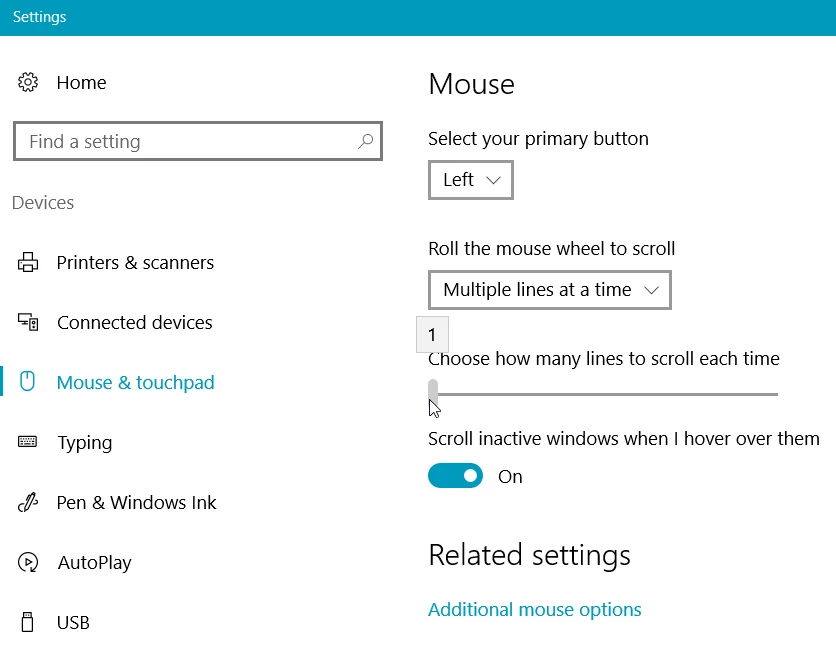
So I am stumped.  Could it be an operation issue? I wondered if you could set the lines scrolled to zero, but as you can see below, it would not go below 1.  If you work it out yourself, please come let us know what was happening.
3 replies

jwArtWorks
Known Participant
May 24, 2017

Okay, so I am confused as well.

I have used the scroll wheel to adjust the size of tools for years and now it no longer works. It does work in Lightroom, but not Photoshop. I have tried dozens of combinations of checkboxes in the Prefe>Tools panel all to no avail.

I am running CC 2017, up to date with the latest release.

Someone at Adobe should tell us if this is design, bug, or what and what we can do as this is a huge impediment to speedy editing.

Trevor.Dennis
Community Expert
Trevor.DennisCommunity ExpertCorrect answer
Community Expert
March 15, 2017

Hi Dave

I'm sorry to ask an obvious question, but you do have the text selected?  I have just tried everything I could think of, and was unable to stop my mouse wheel controlling all the parameters you mention.  That included turning off GPU acceleration, which is needed for those right click and drag operations.  I also uncheck all the zoom options in Preferences > Tools (and restarted Photoshop) and the only thing that made a difference was Animated Zoom, which made mouse wheel adjustments a bit jerky.

So I am stumped.  Could it be an operation issue? I wondered if you could set the lines scrolled to zero, but as you can see below, it would not go below 1.  If you work it out yourself, please come let us know what was happening.

Sahil.Chawla
Adobe Employee
Adobe Employee
March 15, 2017

Hi daveTwizzlebird,

Please try holding down Right click while scrolling to change the size and let us know if it works.

Regards,

Sahil

Participant
March 15, 2017

Hi, no sorry this doesn't appear to work

Sahil.Chawla
Adobe Employee
Adobe Employee
March 15, 2017

May I know which version of Photoshop are you using?