
Multi Images on 1 Page
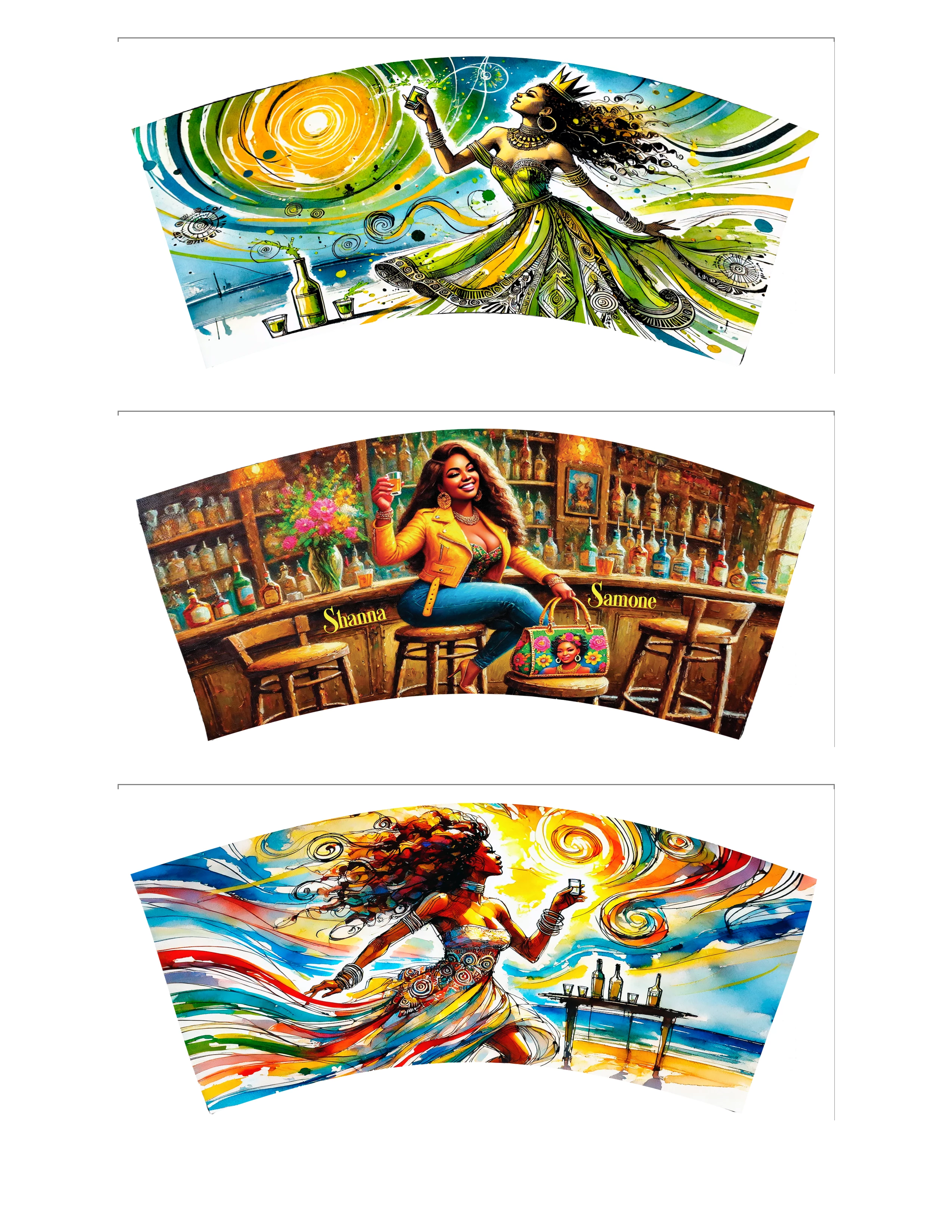
Subject: Photoshop Auto-Scaling Layers Issue When Placing Multiple Images
Hi Adobe Support,
I'm experiencing a recurring issue in Photoshop when trying to layout three identically-sized images (1920 x 900 px @ 300 DPI) onto an 8.5” x 11” canvas (2550 x 3300 px @ 300 DPI). All three images were flattened and verified to be the exact same size.
Problem: When I copy or drag the first image into the layout, it looks fine. But after adding the second and third images, the earlier ones visually shrink. For example:
Image 1 becomes smaller after Image 2 is added
Image 2 shrinks when Image 3 is added
Image 3 stays full-size
Even though Photoshop shows them as “100%” scale, each previous image appears to resize on its own when the next one is imported.
I’ve tried:
Flattening all images before importing
Matching DPI and pixel dimensions
Turning off smart objects
Drag-and-drop, copy-paste, and File > Place Embedded
Using a blank canvas with visual guides
Still, each earlier image resizes down the moment a new image is added.
This issue only happens when placing multiple images in sequence. When I import and print one image at a time, sizing stays perfect. But I need to fit 3 per page to avoid wasting sublimation paper.
What’s causing Photoshop to auto-scale previously placed layers?
Is there a setting or transform behavior I can disable?
Thanks so much for your help — I can provide screenshots or test files if needed.
Best,
Jackie
 AdChoices