Participant
January 28, 2020
Answered

Multicolored background

  • January 28, 2020
  • 3 replies
  • 1155 views

Hello everyone, first of all i'd would like to precise that i am just a beginner with photoshop. i have been trying to make such a background as in the following images without succeeding... so if anyone could explain me how to make them i would be very thankful 🙂



This topic has been closed for replies.
Correct answer Marja de Klerk

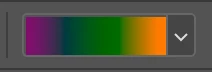
You can start with a multi colored sample gradient like this:

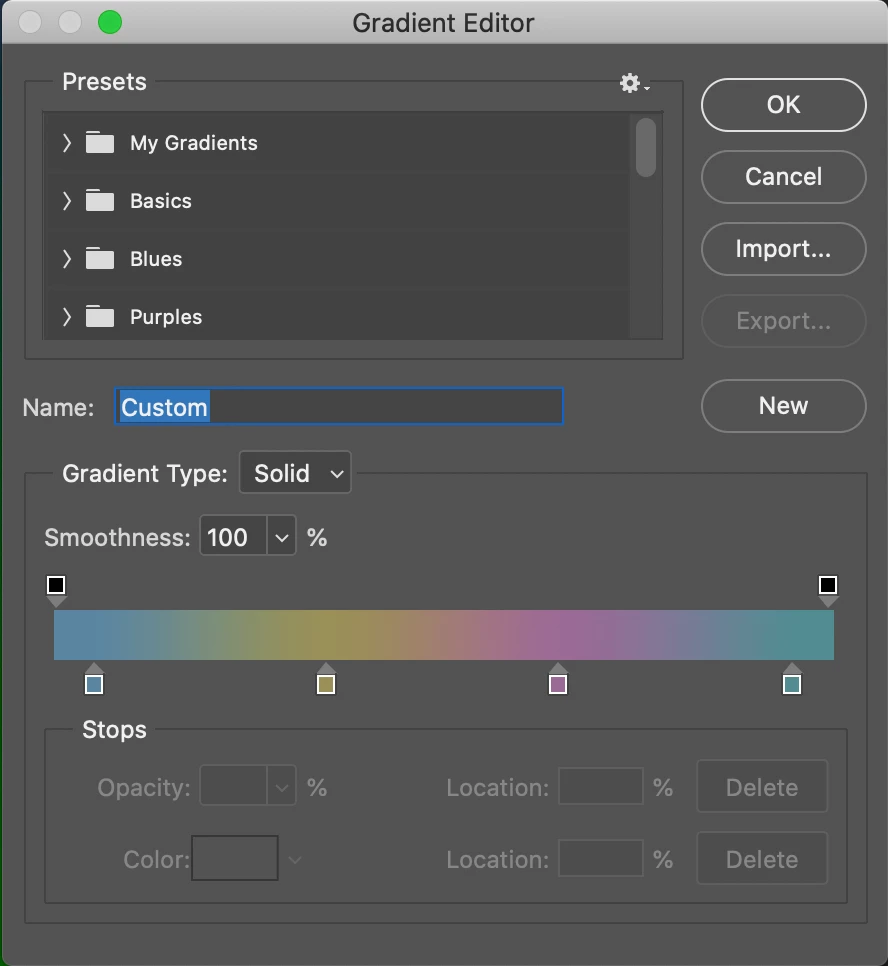
Then click on the colors of the gradient in the option bar, so you can work in the Gradient Editor. 

Click on a Color Stop and, with te color picker, pick up a color in your sample image (make sure you open this image in Photoshop). Do the same with the other Color Stops. You can make further adjustments by dragging the stops, adding new ones of removing them.

Click New to make a new Gradient Preset. Now you can use your Gradient.

Finally draw the circles on a new Layer and lower the opacity of this Layer.

3 replies

Marja de Klerk
Marja de KlerkCorrect answer
Inspiring
January 28, 2020

You can start with a multi colored sample gradient like this:

Then click on the colors of the gradient in the option bar, so you can work in the Gradient Editor. 

Click on a Color Stop and, with te color picker, pick up a color in your sample image (make sure you open this image in Photoshop). Do the same with the other Color Stops. You can make further adjustments by dragging the stops, adding new ones of removing them.

Click New to make a new Gradient Preset. Now you can use your Gradient.

Finally draw the circles on a new Layer and lower the opacity of this Layer.

Eden95Author
Participant
January 28, 2020

Thanks to your advices i've finally succeeded in that! Thank you very much ❤

Marja de Klerk
Inspiring
January 29, 2020

Glad I could help!

mglush
Community Expert
Community Expert
January 28, 2020

Hi!


Have you tried any of Kyle's Brushes--especially the watercolor ones? I think that along with using the gradient tool  that was already suggested, that augmenting them with the brushes will get you the effect that you want. 


Here is a link--take a look and see if adding one of these brushes will do the trick:

https://www.adobe.com/products/photoshop/brushes.html


Michelle

lambiloon
Community Expert
Community Expert
January 28, 2020

Hi please check following video hope it helps you...regards

https://youtu.be/t9KNYj7K2zs

Ali Sajjad / Graphic Design Trainer / Freelancer / Adobe Certified Professional
Eden95Author
Participant
January 28, 2020

Thanks for your answer, but before coming here i had already watched this video( and few others) and i followed the steps but unfortunately the result wasn't as good as the examples i posted... if anyone had a more detailed explanation i would appreciate it 🙂 and thank you again for your answer sir.