Participant
January 22, 2020
Answered

multiple Clipping path into Selections

  • January 22, 2020
  • 2 replies
  • 3100 views

Hi PS community,


I need your help. I am clipping out some beds for a presentation and while in most cases on path can be created (and afterwards selected) sometimes I am creating multiple path, for example to select a different area. It used to be that with the selection tool I could select all the closed multiple path adn make them into a selection just by pressing the select function in the path window (runningants apeared). Now this functuion is gone and I can not work out how to select multiple path at the same time. It always only selects one. If someone can help that would be awesome. It has to be done using this method, so any other suggestiuons like masking, ect are not an option (all the work is already done with the pen tool).

Anyone can help that would be awesome.

Thanks,

Markus


This topic has been closed for replies.
Correct answer Michael Bullo

Hi Michael,


here the link to the dropbox file. If you can tell me where I am going wrong, that would be super. I have no idea why it got changed from the previous version. I reset PS, still all the same.

Thanks again,

Markus


Test_CC_path.psd


Thanks for the file. It definitely helped. I think I may now understand your issue (hopefully 🙂 ).


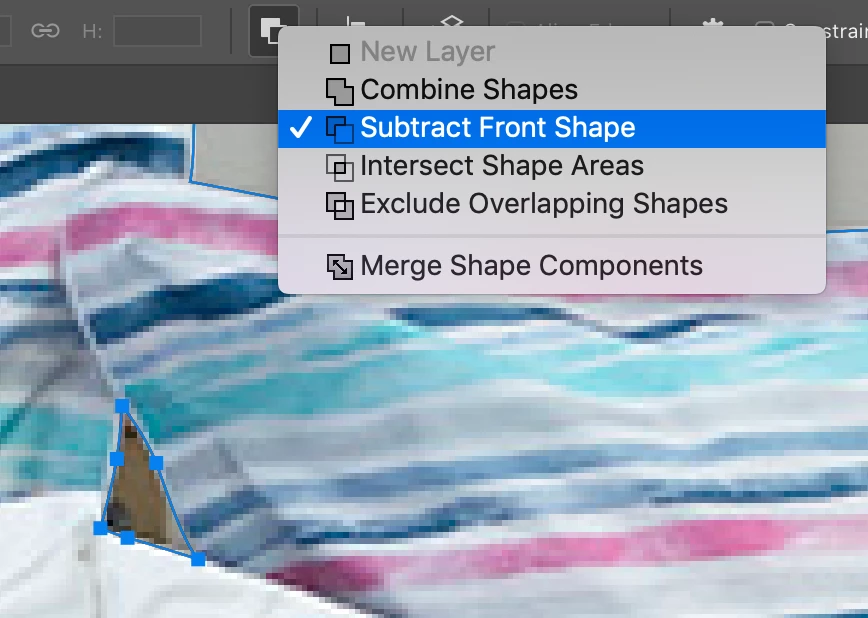
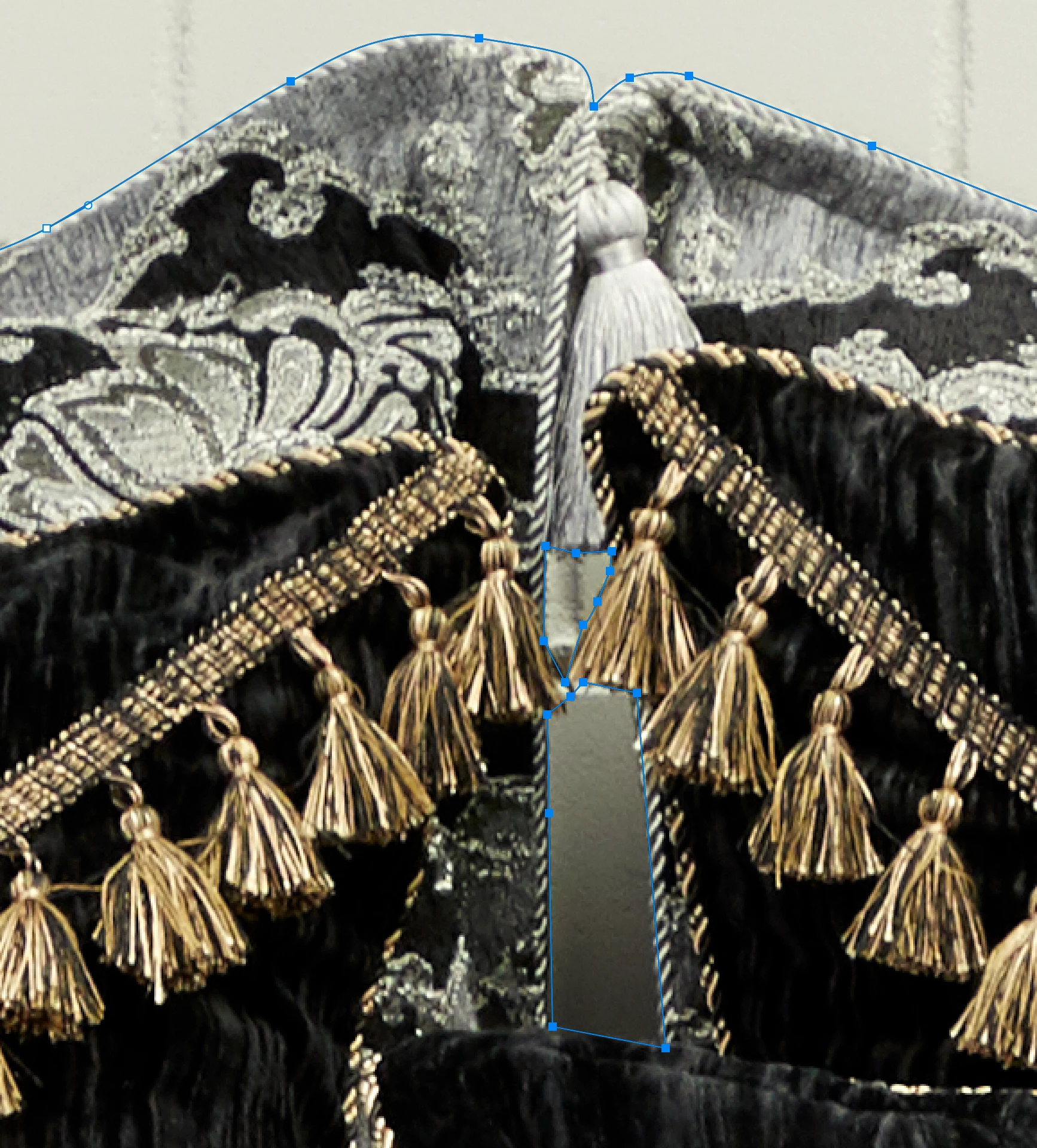
You need to tell Photoshop that your smaller paths are intended to remove, as opposed to add, to any potential selection. You can do this by selecting these smaller paths and setting them to "Subtract Front Shape" from the options bar at the top of Photoshop. Now when you make a selection you'll find that the area defined by the smaller path will not be included in the greater selection.


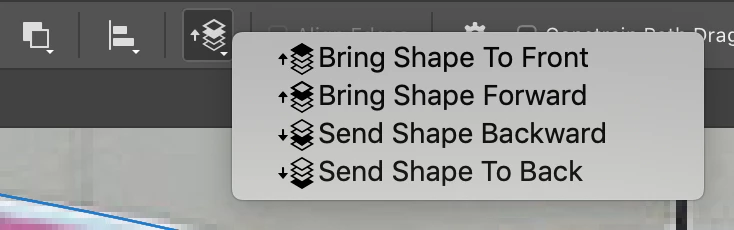
The arrangement of your paths becomes important at this point. If you are not getting the result you want select the relevant path and change the arrangement option


2 replies

Legend
January 23, 2020

These are not paths, but subpaths.

Just deselect them.

Haag5EAA
Participant
July 2, 2021

Very nice answer, thank you.

Michael Bullo
Community Expert
Community Expert
January 22, 2020

Hi Markus,


A couple of random points that may help…


Are you switching to the Path Selection Tool to select paths and not using the default Move Tool?


Within the Paths panel it's possible to select multiple paths. To select a continuous series of paths use the Shift key. To select a series of random paths use the Command/Control key. With one or multiple paths selected it's possible to turn that into a selection by using the Load path as a selection button at the bottom of the Paths panel.

Participant
January 22, 2020

Hi Michael,


thanks for your reply. It still does not work. I can not select 2 or 3 closed pen tool selections. It always selects on or the other. I tried what your suggested, but it still doesn't work for me. I use CC2019. Could you just try it yourself on the file attached and let me know where I am going wrong. I come from an older version to CC now and some thing seemed to have changed. Thanks for your help, the Path is in the file, with 3 seperate clipping path attached.

Participant
January 23, 2020

Are you making sure to hold down the Shift key when trying to select multiple paths?


I have downloaded and opened your file but it doesn't appear to include the paths you mentioned. If the Adobe forum is resizing your image it may also be stripping out paths.


Yes Michael, I do hold down the shift key. The multiple path are all saved as "Path 1", not seperate path for each selection. How can I make multiple selections out of 3 different colsed path, saved as "Path 1"?

Any other way I couild send you the file, as it had the path in originally,

Thanks,

Markus