Answered
My image is grayscale and my color channels are gone
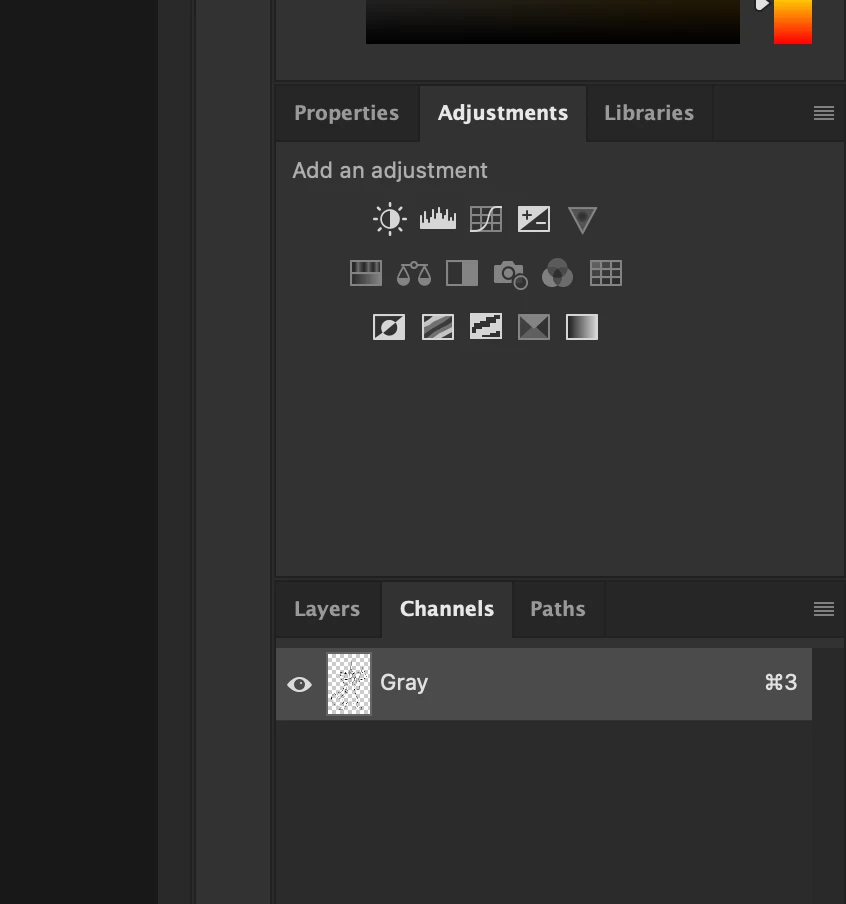 I don't know what happened, it just when grayscale and now I don't know how to fix it. Please use pictures, I'm a visual learner.

I don't know what happened, it just when grayscale and now I don't know how to fix it. Please use pictures, I'm a visual learner.
It looks like you have converted it to greyscale. If you have not closed and saved the document, use the History panel (Window - History) to step back. Or you could press Ctrl and Z repeatedly to do the same.
Unfortunately, if you have saved and closed then your colour version is gone. You could convert to RGB using Image - Image Mode but that will just give you a grey image in a colour mode. You would then need to add colours manually.
Dave
Already have an account? Login
Enter your E-mail address. We'll send you an e-mail with instructions to reset your password.
 AdChoices