

My issues with Layer Masks
Hi!
So I have noticed some things with layer masks that annoy me a little when I am working, and I feel like the issues may be a preference thing, but some may be coding within photoshop itself - I was wondering if other people had the same issues. So here they are:
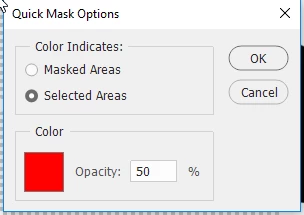
1 - If you are working with black on the layer mask (masking the layer out) if toggling the red layer mask viewer on/off using "\", it swaps to you automatically using white. If you are using white though and then toggle it on, it doesn't change. It is almost as if the default of the red layer mask view is to start with white, but that isn't what I always want - in fact it is something that I rarely want when using it.
2. - this is the one that annoys me the most when working.
Occasionally, if I am working on a layer mask and then make a mistake, I "ctrl+z" the mistake and the layer selection goes off from the mask onto the layer that I am trying to mask out - meaning that the next stroke with the brush is directly onto the layer with the image on it. So then I have to press "ctrl+z" again, click onto the layer mask and go again, although sometimes then, it will switch the colours I am using, so I will end up going the wrong way on the layer mask (getting rid of instead of adding back in)... So, yep, I try "ctrl+z" again and it goes back onto the layer itself - have to click back onto the layer and go at it again.
- it may sound a little bit petty but if I make a mistake and "ctrl+z" it, I just want to be able to work back into the image from where I was, instead of having to do a couple of clicks to get back into the position to try again.
If anyone has any help, please feel free to let me know!
Thanks,
Jonny
 AdChoices