
Participant
July 16, 2023
Question

Need Help Configuring My Dual Monitor for editing in Photoshop and/or Lightroom

  • July 16, 2023
  • 3 replies
  • 117 views

Hey there!
I am looking for help configuring my monitors for when I am editing in Photoshop and Lightroom.

PROBLEM: When I am editing a photo on my second monitor the photo looks to be more saturated and sharpened than when I edit the photo on my laptop. Almost like I added clarity, sharpening, and saturation to the photo. 

CONTEXT: 
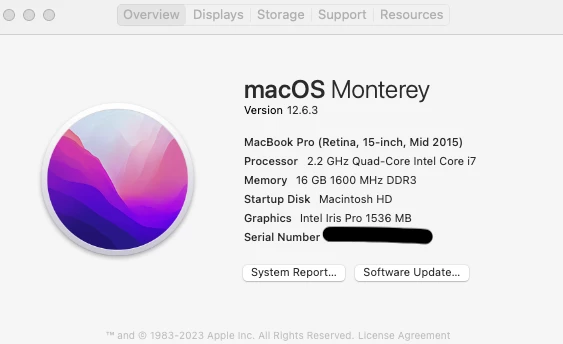
I currently have a MacBook Pro (Retina, 15-inch, Mid 2015) I attached a screenshot of my MacBook info. 
I currently have a Samsung Monitor as my 2nd display. (S27E390 Display -- 27in 1920x1080). 
Samsung Model: S27E390H, Type No: LS27E390. This is connected to my MacBook through an HDMI cable.

I would prefer to do the editing on the Samsung monitor because the screen is bigger, resulting in a less cramped Workspace. 

Are there any settings inside of Photoshop or Lightroom that I need to adjust to fix this, and if so what are those steps? If this is something that I would need to physically adjust on the monitor itself, can you provide some resources or advice/tips are what settings would be the best in this situation?

Thank you in advance to whoever can help me with this!!! 

This topic has been closed for replies.

3 replies

NB, colourmanagement
Community Expert
Community Expert
July 17, 2023

Yep @D Fosse is right, colour management can very probably fix this IF Photoshop and Lightroom are supplied with accurate characterisations (ICC profiles) of your two displays. That requires a calibration device and software to anlyse the displays and create the ICC profiles. 

more here


I hope this helps
neil barstow, colourmanagement net - adobe forum volunteer - co-author: 'getting colour right'
google me "neil barstow colourmanagement" for lots of free articles on colour management

D Fosse
Community Expert
Community Expert
July 16, 2023

You need to have both displays properly calibrated and profiled with a calibrator. Once you get the white points matched, they should display more or less identically. With some tweaking you can probably get them very close.


If one display is standard gamut and the other wide gamut, the latter will be able to reproduce more saturated colors. The general appearance will be the same, but the most saturated colors will be clipped on the standard gamut unit.

Participant
July 16, 2023

TO ADD MORE CONTEXT:

My current settings on the Samsung Monitor are:
Samsung Magic Bright - Custom
Brightness - 70
Contrast - 70
Sharpness - 50