
Participating Frequently
September 14, 2018
Answered

New and need help!

  • September 14, 2018
  • 3 replies
  • 491 views

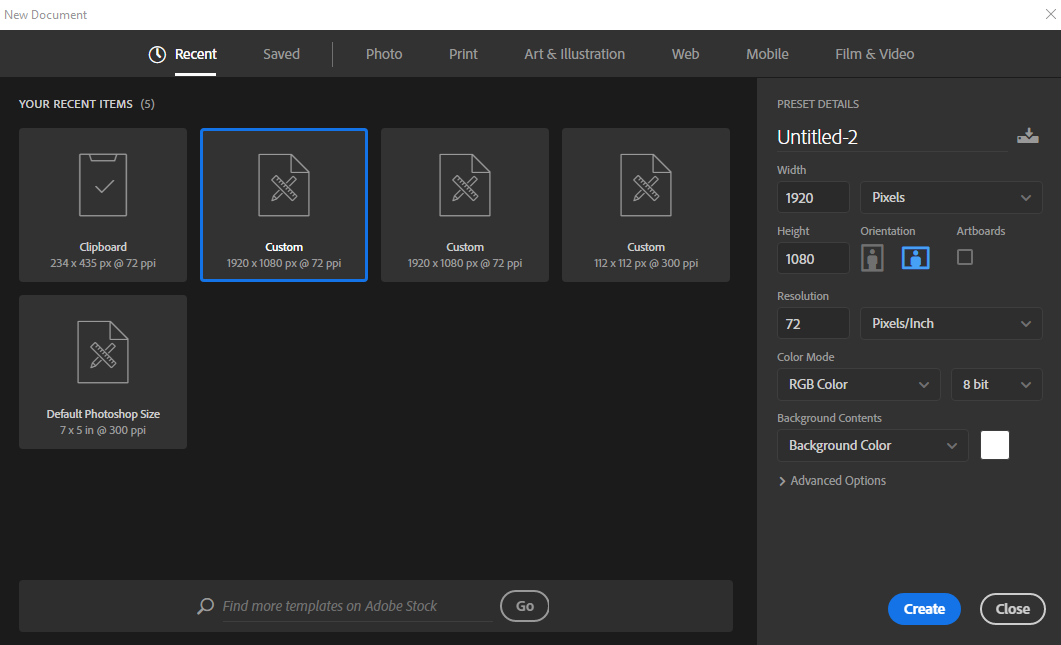
I have my canvas set as 1920/1080 72ppi. When I insert an image and I extend it past the canvas area I expect it to be cropped out as it has been in the past but for some reason it's making my resolution higher when I come to export it as a png. Yet it isn't included in the PNG. Please help!
    This topic has been closed for replies.
    Correct answer Nancy OShea

    This is how I'm starting. I don't think I ever had this problem before now all of a sudden it's prevalent in every project.


    1. Go to Edit > Preferences > General Tab.
    2. Check the box for Reset Preferences on Quit.  Hit OK.
    3. Close Photoshop.
    4. Restart Photoshop.

    3 replies

    JJMack
    Community Expert
    Community Expert
    September 14, 2018

    It sound like you using Past are pasting in a large high resolution image into a small image document. So the pasted imags is larger than your canvas.  You need to Scale the pasted layer to fit within your canvas.  You can do that using Free transform (Ctrl+T) or (CMD+T).  If you do scale the layer you should hold the shift key down to constrain the transform so the image will not distort.  Layer can be any size and any area outside you canvas area will be clipped to your canvas size.  

    If you use  menu File>Place>image file how, instead of Past(Ctrl+V) paste clipboard.   Photoshop will automatically scale smart object  that are larger than canvas size to fit within you canvas.  If you did not change your Preference to not scale placed images.  If the image has the same aspect ratio as your  canvas  the scaled to fit it will be a perfect fit.

    JJMack
    JumboAshAuthor
    Participating Frequently
    September 14, 2018

    Thanks for the help. I've tried and and just tried this to no avail. It is a small file (433kb) which I'm trying to place on the canvas. Whenever I try to move the image just off the canvas it then stretches the size of the resolution when coming to export.

    I apologise if my phrasing is wrong. I'm fairly new to the world of Photoshop and I'm excited to learn!

    JumboAshAuthor
    Participating Frequently
    September 14, 2018
    1. Go to Edit > Preferences > General Tab.
    2. Check the box for Reset Preferences on Quit.  Hit OK.
    3. Close Photoshop.
    4. Restart Photoshop.

    I reset preferences, restarted and and it's working! Thank you all so much for your help!

    Mike_Gondek10189183
    Community Expert
    Community Expert
    September 14, 2018

    Is the reset button available, click that.

    JumboAshAuthor
    Participating Frequently
    September 14, 2018

    I am doing exactly as you said and the preview is showing accurately

    JumboAshAuthor
    Participating Frequently
    September 14, 2018

    I can give you any more information you need. It really has me stumped.

    Mike_Gondek10189183
    Community Expert
    Community Expert
    September 14, 2018

    What dimensions are you getting on this export to png? Not sure if this is changing by a1 pixel, or the entire image or outside the canvas is being included or an additional  blank area in your png.

    Are you using file >> export  >>  export as  >> png in CC2018? Does the preview show accurately your result?

    Screenshots please (use this icon to post)