Inspiring
August 4, 2019
Answered

Newbie question: best way to fill in 45 degree angle that snaps to object?

  • August 4, 2019
  • 2 replies
  • 2153 views

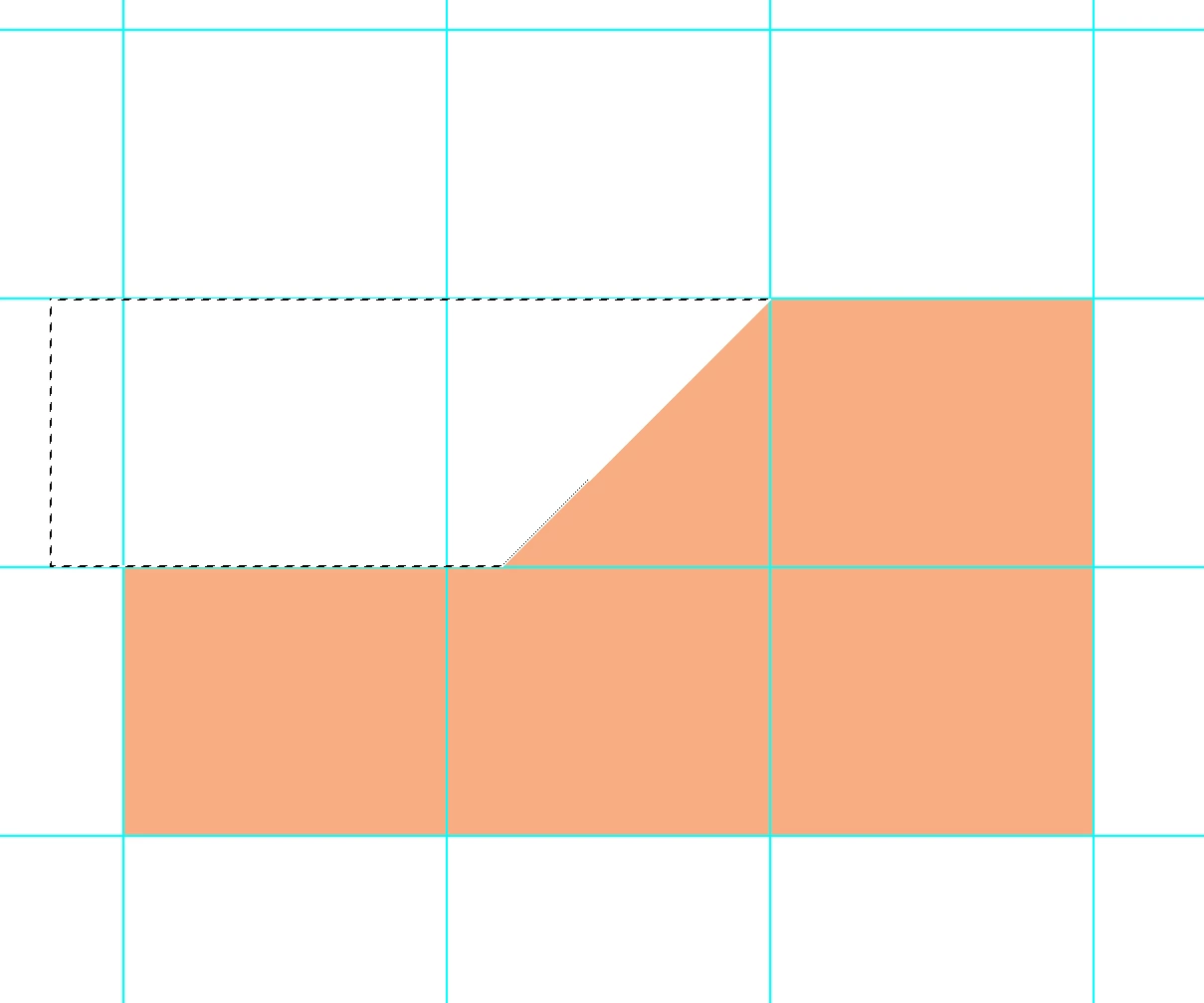
It's a totally newbie question-but I'm trying to figure out the best way to do this.  I have this:

and I want to do this:
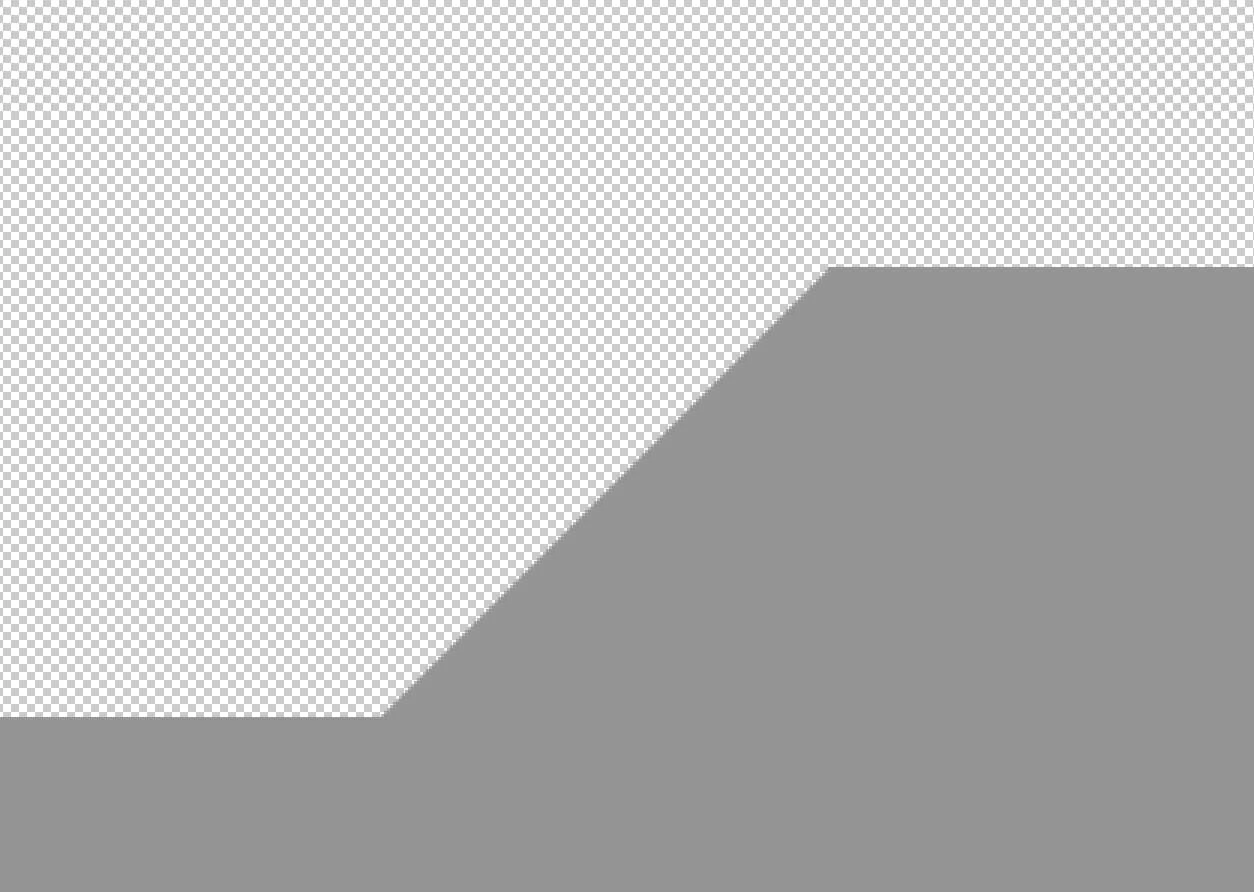
Currently the best way I found is to use a polygon lasso tool and hold down shift to get the first 45 degree angle and then fill with the paint bucket.  The problem is that the lasso doesn't snap right to the point, so if I want to do it right I need to zoom way in and manually select.  Is there a way to get it to snap to the point and still let me quickly do a 45 degree thing to fill?  How would you handle this?  Thank you!
This topic has been closed for replies.
Correct answer jane-e

mbirame  wrote

The problem is that the lasso doesn't snap right to the point, so if I want to do it right I need to zoom way in and manually select.  Is there a way to get it to snap to the point and still let me quickly do a 45 degree thing to fill?

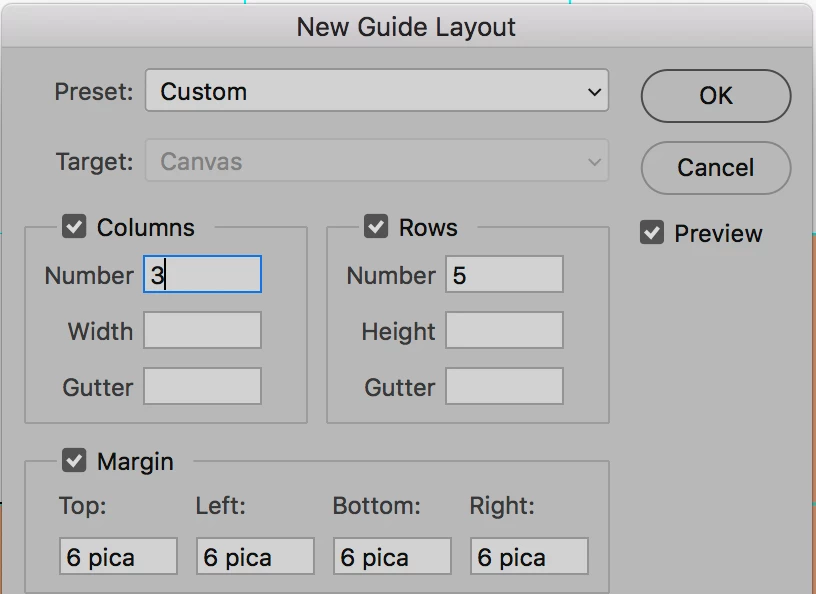
One thing to help with the snap is to drag out guides or use a guide layout. Or a grid. Or Illustrator (best).

What is your final purpose? That might change our answer.

~ Jane

2 replies

jane-e
Community Expert
jane-eCommunity ExpertCorrect answer
Community Expert
August 4, 2019

mbirame  wrote

The problem is that the lasso doesn't snap right to the point, so if I want to do it right I need to zoom way in and manually select.  Is there a way to get it to snap to the point and still let me quickly do a 45 degree thing to fill?

One thing to help with the snap is to drag out guides or use a guide layout. Or a grid. Or Illustrator (best).

What is your final purpose? That might change our answer.

~ Jane

mbirameAuthor
Inspiring
August 4, 2019

Honestly my final purpose here is to just play around and learn some of the tools that are in Photoshop that I don't know.  I'm just making characters and finding places as I go that are slow for me and trying to find out if there are more efficient ways....and this thread has been great for that already!  For example, I've used PS for years, and I have always just dragged out guides manually.  I had no idea there was a "guide layout" that I could use that would just create a grid like that!  That will save me a ton of time! 

jane-e
Community Expert
Community Expert
August 4, 2019

I'm glad you find that useful, mbirame​ — I use the New Guide Layout a lot in Photoshop, most likely because InDesign is my main application and I like structure.

One more thing to know: click the drop down for the Preset — you can use several that are built in and also save out your own preset for re-use.

Cheers,

Jane

c.pfaffenbichler
Community Expert
Community Expert
August 4, 2019

Did you create the shape as a Shape Layer (so with Paths)?

mbirameAuthor
Inspiring
August 4, 2019

I Created it with a rectangle tool and then rasterized the layer and used the rectangular marquee tool to take a chunk out.  I'm open to learning other ways.  My main goal here is to learn how to manipulate primitive shapes. 

c.pfaffenbichler
Community Expert
Community Expert
August 4, 2019

One should not rasterise a Shape Layers needlessly and cutting out a part of a shape is possible with Paths.