

Participating Frequently
August 30, 2018
Answered

No Pixels are selected [Was Photoshop CC]

  • August 30, 2018
  • 9 replies
  • 11332 views

When I use Free Transform (the lasso tool) I get a Warning: No Pixels are selected.

I can't find anywhere  to put the Pixels.

Please help me.

[Title edited by moderator.]

This topic has been closed for replies.
Correct answer Barb Binder

Hello Hans:

It looks like you are trying to replace the sky in your third screen shot with the sky from the image with the two women in hats?

You are almost there. From here (your fourth image):
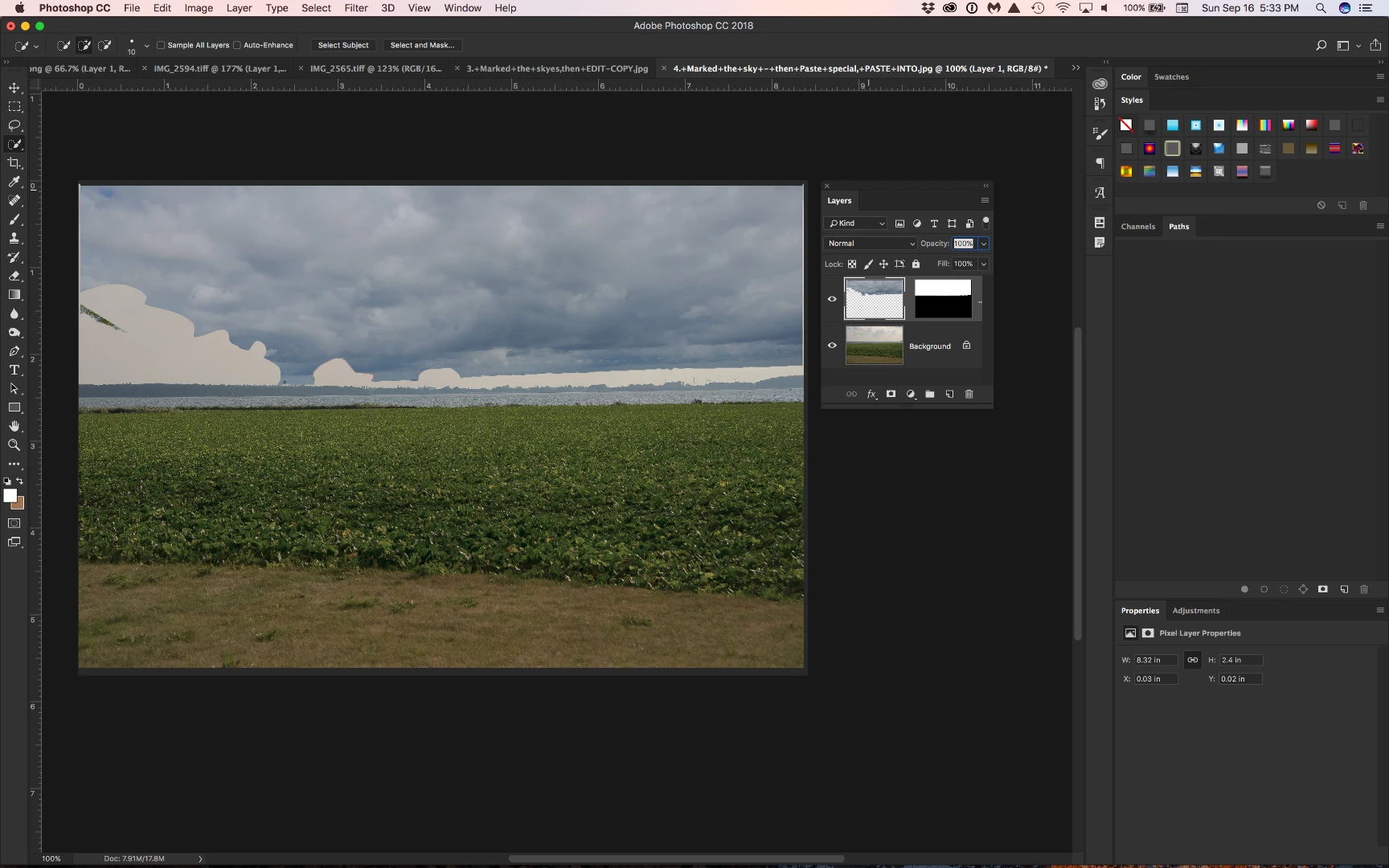
Choose Edit > Free Transform and resize the sky image to fill the area. Press Enter/Return when satisfied.
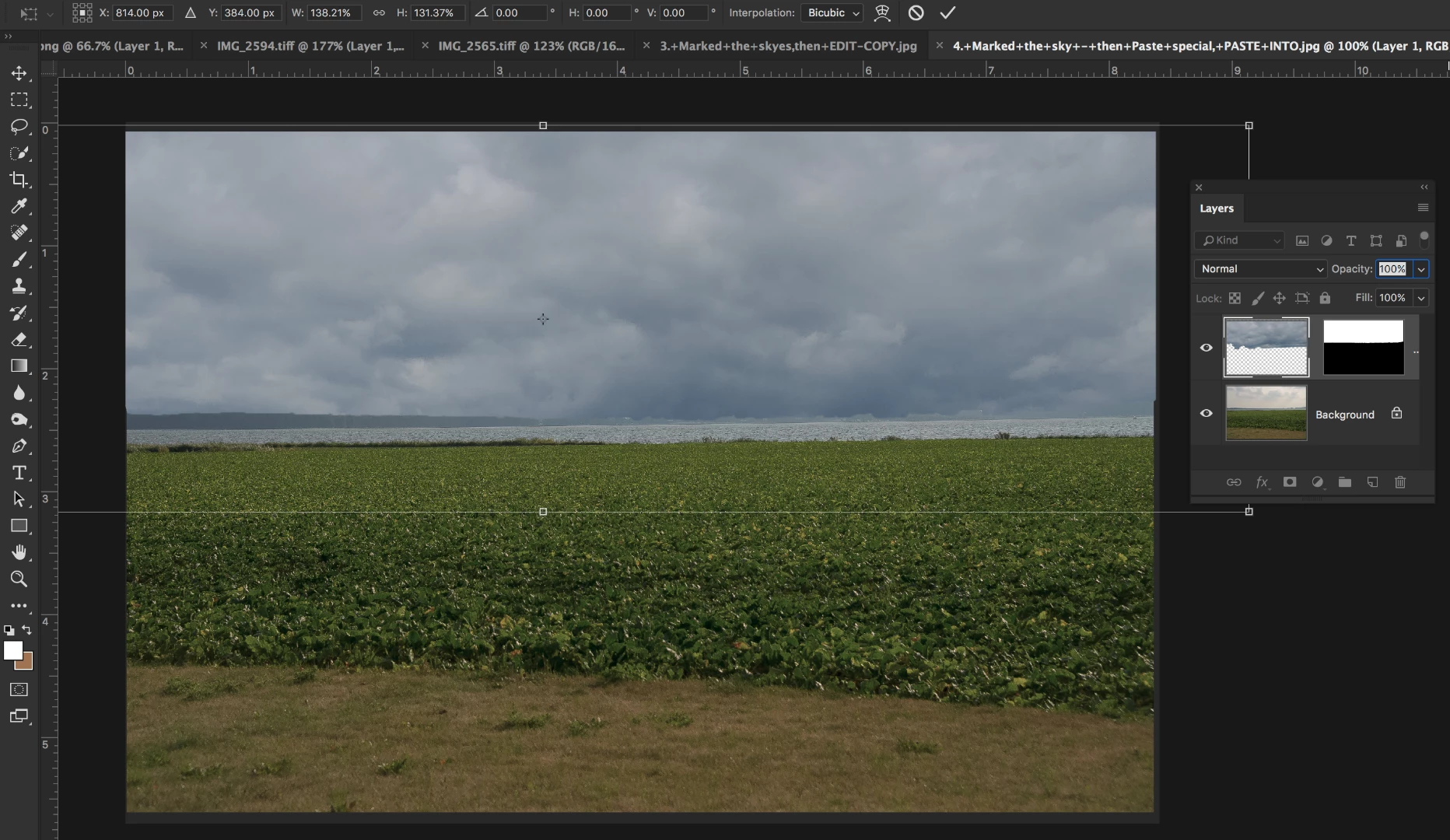
Alternatively, read up on Content Aware Fill to fill in the gaps from the trees and the women's hats.

~Barb

9 replies

Participating Frequently
September 17, 2018

Hi ~Barb.

Now it's working.

Thank you for a very good help.

/Hans

Participating Frequently
September 16, 2018

Hi BarbBinder.

Welcome back from your vacation, which I hope you have enjoye

I have sent 4 mails to you because I thought that only 1 attachment can be sent per. mail. But now you write that more attachments can be sent, so I try again.

1) When I saw the video that Adobe sent, I think Photoshop was the right place to renew a sky, see attached file 1.

2) I transferred two images from Lightroom to Photoshop, followed the recipe from ad1), but could not get the square as on attached file 2.

3) Marked the sky and COPYED the sky, see attached file 3.

4) Marked the sky and PAST SPECIAL - PAST INTO, see attached file 4.

5) Could not proceed: Warning: No pixels are selected, see attachment 5.

I hope you can help me.

1

2

3

4

5

Yours sincerely

Hans

Barb Binder
Community Expert
Barb BinderCommunity ExpertCorrect answer
Community Expert
September 16, 2018

Hello Hans:

It looks like you are trying to replace the sky in your third screen shot with the sky from the image with the two women in hats?

You are almost there. From here (your fourth image):

Choose Edit > Free Transform and resize the sky image to fill the area. Press Enter/Return when satisfied.

Alternatively, read up on Content Aware Fill to fill in the gaps from the trees and the women's hats.

~Barb

~Barb at Rocky Mountain Training
Participating Frequently
September 7, 2018

Dear Barb

I have sent 4 messages to you with a picture of each, showing exactly what I have done.

When I've sent 4 messages to you, it's because there can only be one image per. announcement.

I have not heard from you?

Barb Binder
Community Expert
Community Expert
September 16, 2018

Hi Hans:

I have not heard from you?

I have been on vacation.

When I've sent 4 messages to you, it's because there can only be one image per. announcement.

You can add as many images as you like to a single post.

I am still waiting for an answer to this question: "And would you mind posting the link to that tutorial so that I can see what he is teaching?" that I asked 2 weeks ago.

~Barb

~Barb at Rocky Mountain Training
Participating Frequently
September 1, 2018

To ~Barb (continue)

4. Then I switch to my second picture, HAN_0477.NEF, marked the skyes and choose EDIT/PASTE SPECIEL/PASTE INTO and made it smaller (CRLT/-). Warning: No pixels are selected.
Barb Binder
Community Expert
Community Expert
September 1, 2018

Hi Hans:

Your post begins with step 4. Did you post steps 1-3? If so, I don't see them. And would you mind posting the link to that tutorial so that I can see what he is teaching?

~Barb

~Barb at Rocky Mountain Training
Participating Frequently
August 31, 2018

Sorry - I'm so stupid ;-(

Now I think it is there...

~Hans

Barb Binder
Community Expert
Community Expert
August 31, 2018

Hi Hans:

No, you aren't! We all started at the beginning. I remember it well.

Ok, so I don't see an issue with the layers so let's review your workflow. What are you trying to do to the image? From your original question, I think you are you dragging with the Lasso tool, then choosing Edit > Free Transform and then you get the error message.

If not, please explain step-by-step what you are doing, and what you are trying to accomplish so that I can offer an alternative workflow, if necessary.

~Barb

~Barb at Rocky Mountain Training
Participating Frequently
August 31, 2018

- and I can't find the button on my laptop (not an apple) to make a screenshot...

~Hans

Participating Frequently
August 31, 2018

Hi Barb

Thank you. However, when I go back to the thread I do not have access to the toolbar you have with the botton you refer to?

- Hans

Barb Binder
Community Expert
Community Expert
August 31, 2018

Hi Hans:

When I choose Reply to your message in my browser, it appears at the top of the window where I can type.

~Barb

~Barb at Rocky Mountain Training
Barb Binder
Community Expert
Community Expert
August 30, 2018

Are there pixels on the active layer?

A screen shot that includes the open Layers panel and the error message so we can see exactly what is going on would be helpful.

~Barb

~Barb at Rocky Mountain Training
Participating Frequently
August 30, 2018

Dear -Barb.

Of course I have to send a screenshot with my question - sorry.

Here it is. I can still not find a place to put on pixels.

I found it smart to use Photoshop to place another sky in my pictures, but

I stopped at "No pixels selected"

Please tell me excatly mhåt to do, because I'm a novice to EDB.

Yours cencierly

Hans Boesen

Den tor. 30. aug. 2018 kl. 19.02 skrev BarbBinder <forums_noreply@adobe.com

>:

Adobe Community <https://forums.adobe.com/?et=watches.email.thread>

Photoshop CC

svar fra BarbBinder

<https://forums.adobe.com/people/BarbBinder?et=watches.email.thread> i

Photoshop - Se den fulde debat

<https://forums.adobe.com/message/10591316?et=watches.email.thread#10591316>

Barb Binder
Community Expert
Community Expert
August 30, 2018

Hi Hans:

I don't see your screen shot, and it won't appear if you add it to an email reply. Instead, please follow the link back to your forum thread and use this button to add it.

~Barb

~Barb at Rocky Mountain Training
Eugenio.NYC
Participating Frequently
August 30, 2018

Hi there

you have to check the Feather on the control top bar

Maybe your area is too small, try with a feather in Zero

Let me know if that works

E

Eugenio.NYC
Participating Frequently
August 30, 2018

Do you have this?

If that is the case, Barb has the correct answer

Best

E