Answered
Object Finder checkbox missing
- April 26, 2025
- 3 replies
- 580 views

It looks like it is not missing, and no troubleshooting is needed.
As shown in the demo below, apparently they decided to save some space on the options bar and so at some point they moved the Object Finder check box to the More Options menu, under the gear icon.
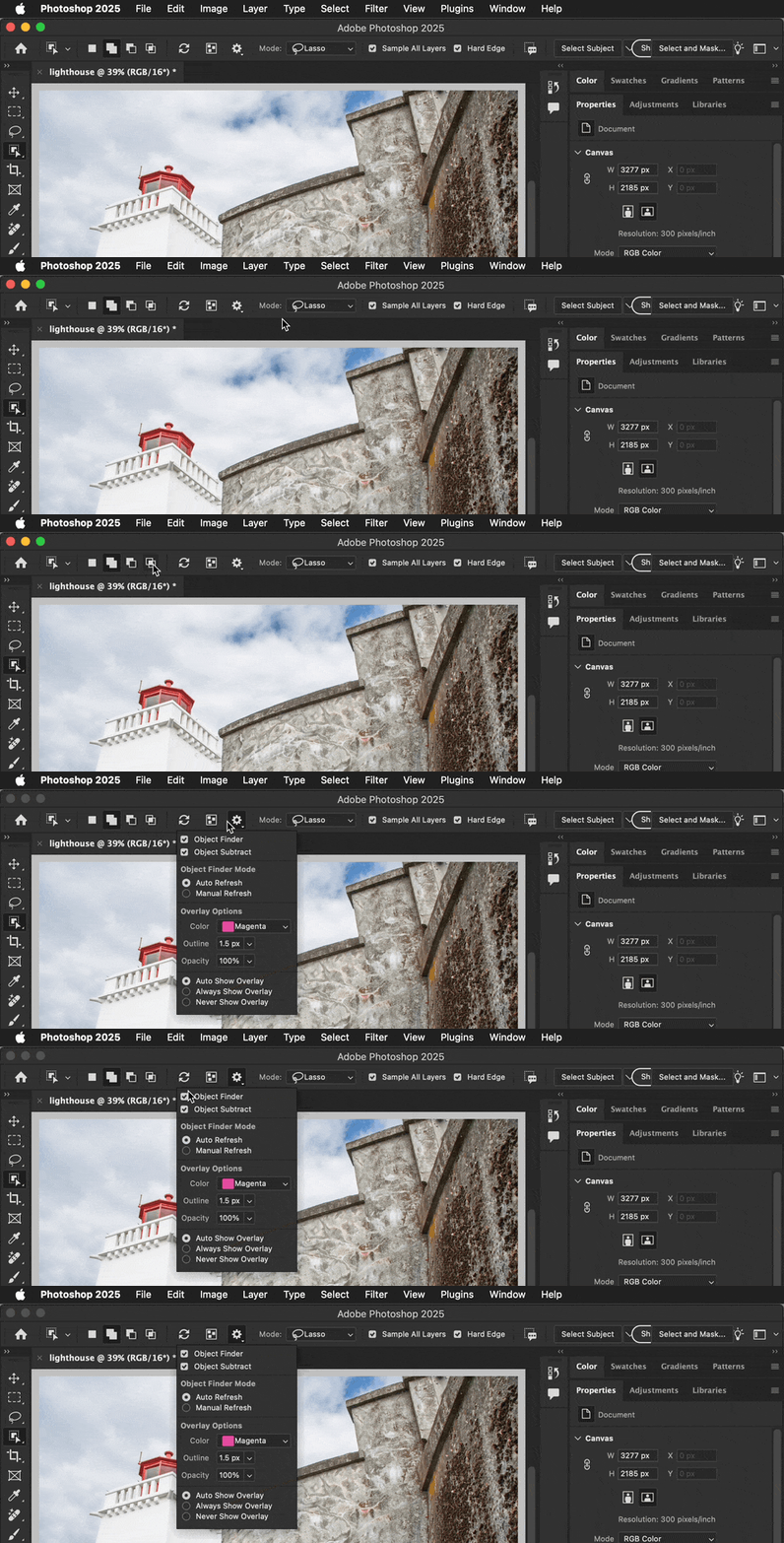
Older instructions or videos that haven’t been updated might still show the Object Finder in its original place. The demo above was recorded in Photoshop 26.4.0.
I don’t work for Adobe, but this is my guess as to what might have happened: When Object Finder was first added, they might have been unsure how much Object Finder would slow down the Object Selection tool. (The Object Selection needs more computing power when it’s actively trying to identify objects on hover.) It might have become apparent that Object Finder was efficient enough to not be much of a problem on most computers, and that might have led them to leave Object Finder enabled by default and move its enable/disable option off the options bar to save space on smaller screens.
So, Object Finder is now on by default, which means if you want to use it, you don’t have to look for the check box because it’s already on anyway. But if you think Object Finder slows down your computer too much or you just find it too distracting, you can go into that gear menu and the Object Finder check box to turn it off is still there.
Already have an account? Login
Enter your E-mail address. We'll send you an e-mail with instructions to reset your password.
 AdChoices