Known Participant
April 26, 2025
Answered

Object Finder checkbox missing

  • April 26, 2025
  • 3 replies
  • 581 views

In the new Photoshop update when I click on the Object Selection tool there is no Object Finder checkbox showing up in the Options Bars. I have reset the toolbar and still no Object Finder. All it shows right now is Select People with no other option. 

Correct answer Conrad_C

It looks like it is not missing, and no troubleshooting is needed.


As shown in the demo below, apparently they decided to save some space on the options bar and so at some point they moved the Object Finder check box to the More Options menu, under the gear icon.
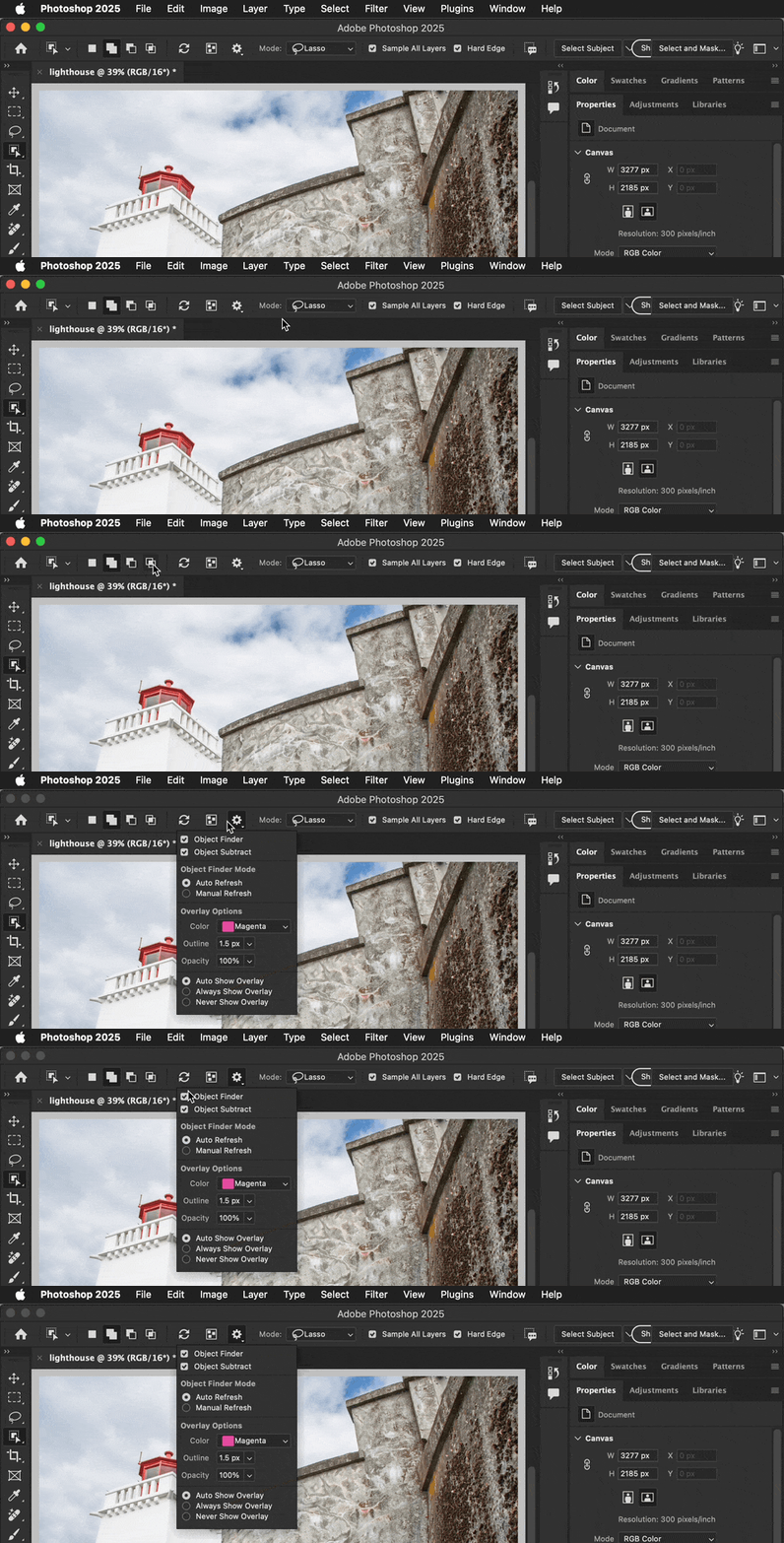


Older instructions or videos that haven’t been updated might still show the Object Finder in its original place. The demo above was recorded in Photoshop 26.4.0.


I don’t work for Adobe, but this is my guess as to what might have happened: When Object Finder was first added, they might have been unsure how much Object Finder would slow down the Object Selection tool. (The Object Selection needs more computing power when it’s actively trying to identify objects on hover.) It might have become apparent that Object Finder was efficient enough to not be much of a problem on most computers, and that might have led them to leave Object Finder enabled by default and move its enable/disable option off the options bar to save space on smaller screens.


So, Object Finder is now on by default, which means if you want to use it, you don’t have to look for the check box because it’s already on anyway. But if you think Object Finder slows down your computer too much or you just find it too distracting, you can go into that gear menu and the Object Finder check box to turn it off is still there.

3 replies

Conrad_C
Community Expert
Conrad_CCommunity ExpertCorrect answer
Community Expert
July 23, 2025

It looks like it is not missing, and no troubleshooting is needed.


As shown in the demo below, apparently they decided to save some space on the options bar and so at some point they moved the Object Finder check box to the More Options menu, under the gear icon.


Older instructions or videos that haven’t been updated might still show the Object Finder in its original place. The demo above was recorded in Photoshop 26.4.0.


I don’t work for Adobe, but this is my guess as to what might have happened: When Object Finder was first added, they might have been unsure how much Object Finder would slow down the Object Selection tool. (The Object Selection needs more computing power when it’s actively trying to identify objects on hover.) It might have become apparent that Object Finder was efficient enough to not be much of a problem on most computers, and that might have led them to leave Object Finder enabled by default and move its enable/disable option off the options bar to save space on smaller screens.


So, Object Finder is now on by default, which means if you want to use it, you don’t have to look for the check box because it’s already on anyway. But if you think Object Finder slows down your computer too much or you just find it too distracting, you can go into that gear menu and the Object Finder check box to turn it off is still there.

Participant
July 22, 2025

hello Woody, I have same problem. I cant find that check box on my mac on latest PS version. So i cant switch of mouseover over all objects (what i dont want). Please, did you find some solution? Advice in comments didnt help me


WoodyTwoAuthor
Known Participant
April 26, 2025

Wrong attachment. Here is the right one.

Sameer K
Community Manager
Community Manager
May 13, 2025

Hey, @WoodyTwo. Welcome to the Photoshop Community. If you're still facing this issue, I'll help you figure this out. 

Before anything else, please update Photoshop to the latest version available via the Creative Cloud desktop app. 


You can press and hold the Shift key when you launch Photoshop to skip loading plugins and extensions, and you can check if that helps. 

If that does not help, go to the location of the preference folder below and rename it to backup.

  • Windows 10/11: Users/[user name]/AppData/Roaming/Adobe/Adobe Photoshop [version]/Adobe Photoshop [version] Settings
  • You can press Press the Windows key > Enter 'Run' > Enter %APPDATA%\Adobe
  • Rename the Adobe Photoshop folder by adding a .old at the end. (Adobe Photoshop 2025 > Rename > Adobe Photoshop 2025. old), You can restore these preferences later if needed.(https://adobe.ly/4860qM9)
  • Restart the computer.

These changes will give a fresh start to Photoshop as a fresh install. Let me know how it goes.

Thanks!

Sameer K

(Type '@' and type my name to mention me when you reply)
