
Legend
June 22, 2023
Question

OPT + SHIFT Resize proportionately from centre

  • June 22, 2023
  • 31 replies
  • 3124 views

Hi There, Can Photoshop please use the OPT + SHIFT shortcuts properly?


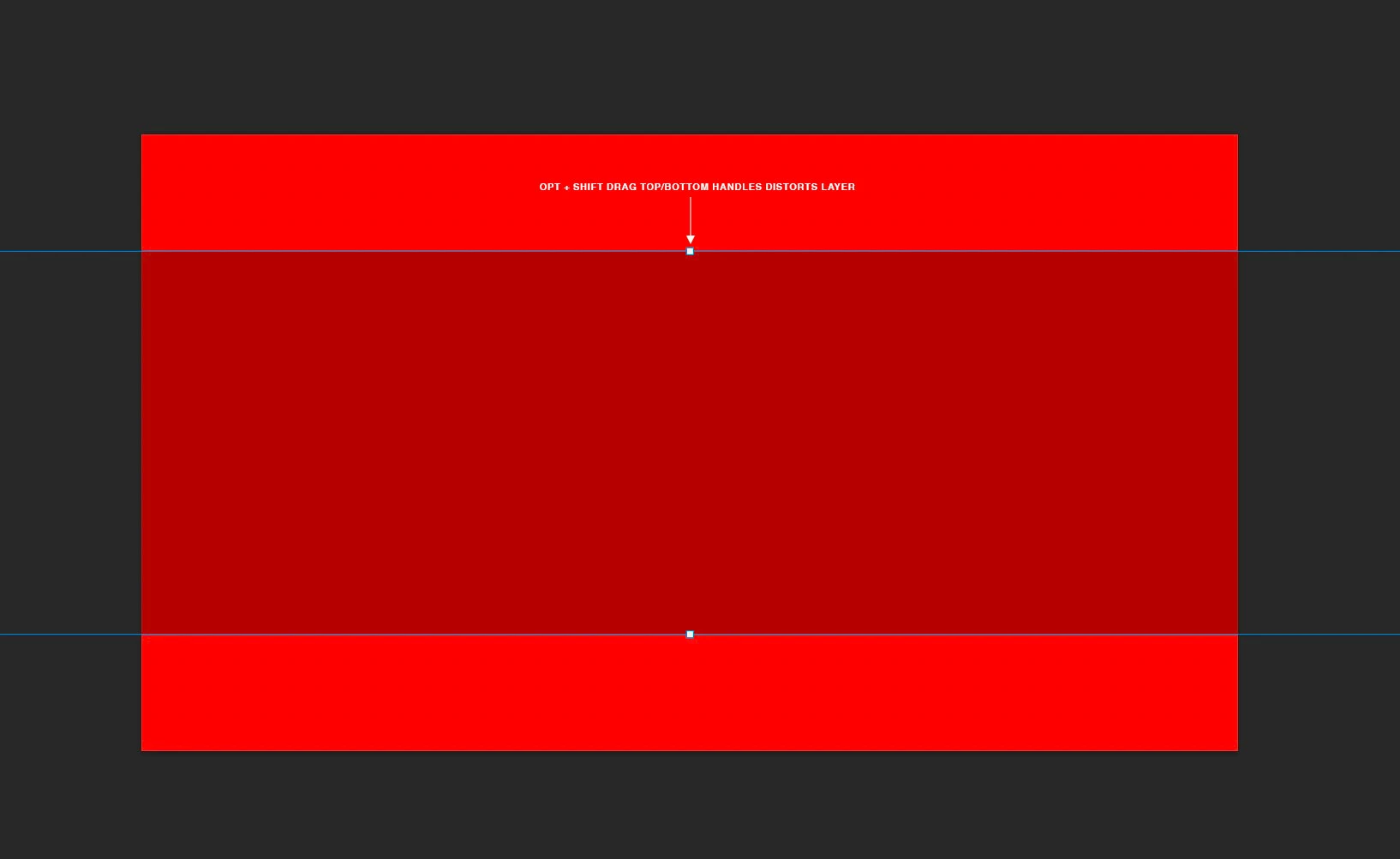
e.g. Consider the attached image where the top layer is off the artboard. Currently, resizing in Photoshop is a multi-step process: scrolling, zooming, resizing yada yada.


But if OPT + SHIFT worked the way it does in InDesign, Illustrator, AE and other apps, we could resize the layer from the top/bottom handles. Currently, grabbing top/bottom/side handles (not corners) distorts the image even when shift is held which is a daily frustration sorry. And yes, it's been like this for years!


Sure, you guys probably impliment requests based on upvotes etc but please, would it be possible to just fix well-established, foundational interactions like this? We use them all day, every day, in every app and when one app doesn't play ball, it creates constant friction. It doesn't have to be this way - right?


Cheers, Ben
 

31 replies

Kevin Stohlmeyer
Community Expert
Community Expert
June 26, 2023

I beleive it could be a bug. I can run it up the flagpole internally and see what I get back. Glad it works for you if you turn off the feature but it shouldn't conflict with using Shift as it does.

csscmsAuthor
Legend
June 25, 2023

@Kevin Stohlmeyer, So is this confirmed as a bug or does it work for you?

csscmsAuthor
Legend
June 23, 2023

@Kevin Stohlmeyer, resetting preferences makes this work as shown in your video but as soon as I turn-on 'Use Legacy Free Transform' it stops working.


To test, I also restored my previous preferences but then turned-off Use Legacy Free Transform, and it works so this seems like a bug with legacy transform - right?


When turning-on legacy transform, does the resizing from the top handle still work on your Mac?

Kevin Stohlmeyer
Community Expert
Community Expert
June 23, 2023

@jane-e it works either way - not sure where you see that using Opt+Shift does not work using Cmd+T transform but I have the same behavior which is the expected behavior for PS using either show transform controls or using Cmd+T transform.

See this video. I'm using Cmd+T to transform.

https://www.dropbox.com/scl/fi/humm1liq18jsb6l14mq58/Screen-Recording-2023-06-23-at-11.22.40-AM.mov?dl=0&rlkey=gotgc2tziisn1dxa1ngygeip6


@csscms Ben - have you tried doing a preference reset?

jane-e
Community Expert
Community Expert
June 23, 2023


@csscms 


Hi Ben


If you are still trying to use side handles — with or without Shift — with Cmd+T, you will not be able to. Use corner handles when you use Cmd+T. I thought you agreed to that before? 🙂


Jane


csscmsAuthor
Legend
June 23, 2023

@Kevin Stohlmeyer , Unless you can spot something basic that I'm missing, I'll try booting into safe mode and creating another user account to see if there's something conflicting - unless you guys have specific suggestions? Cheers, Ben

csscmsAuthor
Legend
June 23, 2023

Thanks @Kevin Stohlmeyer , comments below.


"If you grab a handle (either using Cmd+T to transform or using the Show Transform controls) does it scale proportionately without holding shift or not?"


Corner handles yes, non-corner handles no.


"This is ON - which allows you to not use shift. If you use shift with this ON, it scales disproportionately."


Mine is off but it makes no difference because when on, holding OPT + SHIFT disables the button. See new screen recording link below. As far as I can tell, holding OPT + SHIFT and dragging non-corner handles never scales layers proportionately. Or am I missing something basic here?


Screen recoding: https://www.dropbox.com/s/iw4nhmhsrhjn6k3/psd-opt-shift-resize-not-working-toggle-on.mp4?dl=0

Kevin Stohlmeyer
Community Expert
Community Expert
June 23, 2023

Hi @csscms thanks for the screen shot, when you go to transform or use "show transform tools" the behaviors are the same it doesnt matter which one you use. So let's level set with your situation. There is a lot of back and forth and I agree its getting confusing.


It appears option is working for you for transforming from center based on your video, so lets focus on the issue of shift.


If you grab a handle (either using Cmd+T to transform or using the Show Transform controls) does it scale proportionately without holding shift or not? If it does scale proportionately without shift check your chain link between W&H.

This is where a change has been made in recent PS that can cause confusion. The link no longer shows a chain or a broken chain - its either off or highlighted (darker) which is very similar.

This is ON - which allows you to not use shift. If you use shift with this ON, it scales disproportionately.


This is OFF - which should give you proportionate control using shift.


Keep in mind this simple button overrides the General Preference so if its ON it bypasses your choice of using Legacy Transform.

Let me know what you find and if everything is set (preference is checked, link is OFF) and it's still not working, we can move on to troubleshooting from there.

jane-e
Community Expert
Community Expert
June 23, 2023


I apologize for the confusion, @csscms .


...nor does 'Show transform controls'.

Just incase I'm misunderstanding you, I'm selecting the layer, hitting CMD + T, then holding OPT + Shift and dragging the top handle which in ID, Ai (and in PS in Ken's video), resizes the object proportionately from the centre. But it doesn't for me.


I do not use "Show Transform Controls" because I think they are annoying, but some people like them. They are used instead of Cmd+T, not in addition to. It appeared to me that Kevin has turned them on and was using them, so I tested and could resize proportionally from any handle without shift. For now, turn them off and stick to what you have been doing with Cmd+T. 


  • Cmd+T > enable toggle to constrain >
    resize from corner handle (not side) > add Shift to distort > add Option to resize from center > accept transformation

  • Cmd+T > disable toggle constrain toggle >
    resize from corner handle (not side) > add Shift to constrain > add Option to resize from center > accept transformation


Again: Kevin was using Show Transformation Controls. You were not. They behave differently and you don't want to combine them. Stick with Cmd+T for now. Let's get the method working that you've been using for years first. 

https://photoshoptrainingchannel.com/tips/show-transform-controls/


Jane


csscmsAuthor
Legend
June 23, 2023

Thanks @Kevin Stohlmeyer , here you go...