Known Participant
September 10, 2023
Answered

Organizing content all around the canvas in photoshop

  • September 10, 2023
  • 3 replies
  • 990 views

Hi!


I hope this is the right place to post this topic! I did not see a general photoshop community.


Back in the days I could pull in content and place images all around the photoshop canvas while working in the "main" area. I am new to this version of photoshop and it seems I cannot put content on the sides of the canvas anymore. I have attached a video example.  Also, if I want to pull in multiple images on the canvas and cropped each image to different sizes, how can I do that from one canvas?


Yash
This topic has been closed for replies.
Correct answer Trevor.Dennis

I don't remember Photoshop ever working that way other than with Artboards. Was it possible you were using templates back then in which the full document canvas extended beyond an inner window? The bottom line is that if it ever worked — and I honestly don't think that it did — it does not work now.


Can you make use of Artboards to acieve your desired workflow?

\

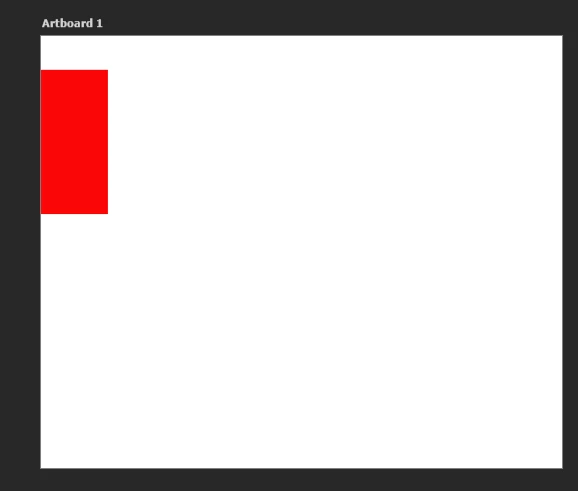
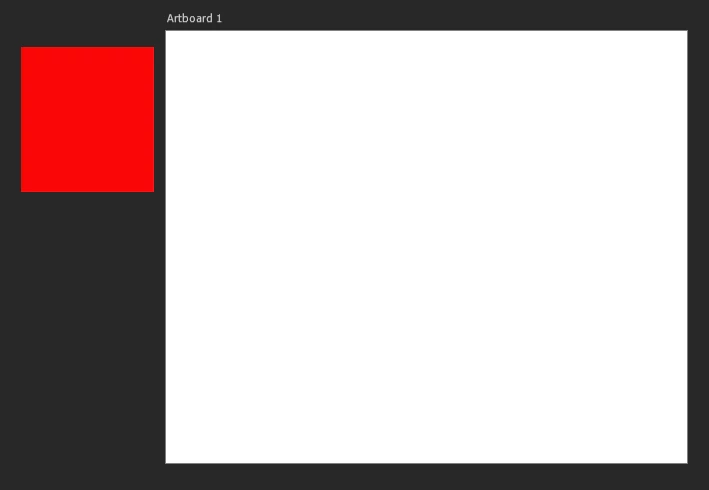
I never use them myself, so I have just discovered that you can only see the entire object when it is completely outside the Artboard.  Otherwise it is chopped off, (but still available)

One thing you can do with a normal document window is to select the layer of an offscreen object, and hold down the Ctrl (Cmd) key to show the object with Smart Guide.  I was not able to grab a screen shot of this because of conflicting shortcuts.

3 replies

Trevor.Dennis
Community Expert
Trevor.DennisCommunity ExpertCorrect answer
Community Expert
September 12, 2023

I don't remember Photoshop ever working that way other than with Artboards. Was it possible you were using templates back then in which the full document canvas extended beyond an inner window? The bottom line is that if it ever worked — and I honestly don't think that it did — it does not work now.


Can you make use of Artboards to acieve your desired workflow?

\

I never use them myself, so I have just discovered that you can only see the entire object when it is completely outside the Artboard.  Otherwise it is chopped off, (but still available)

One thing you can do with a normal document window is to select the layer of an offscreen object, and hold down the Ctrl (Cmd) key to show the object with Smart Guide.  I was not able to grab a screen shot of this because of conflicting shortcuts.

Known Participant
September 12, 2023

Thanks I appreciate the time you took to show me a solution!  I appreciate your help!

Yash

jane-e
Community Expert
Community Expert
September 12, 2023

Great workaround, @Trevor.Dennis !


@Yash Ivory 

If you are going to use artboards, you might want to read this help page to learn more about them. An artboard is a special type of layer in a Photoshop document. They reside in the same canvas, and what was said about the canvas earlier still applies.

https://helpx.adobe.com/photoshop/using/artboards.html

jane-e
Community Expert
Community Expert
September 10, 2023
quote

if I want to pull in multiple images on the canvas and cropped each image to different sizes, how can I do that from one canvas?

By @Yash Ivory


Yes, this is the right place for Photoshop questions. Adobe's use of "ecosystem" means that Photoshop for iPad is here, and other versions may possibly be here when they are no longer in beta.


In Photoshop, you can pull things off the Canvas in current versions. One reason might be the you are going to do an animation and you want the object to travel left to right across the screen, for instance. But you have never been able to see objects that are off the canvas. As CP said, both Illustrator and InDesign have pasteboards outside of the Page (InDesign) or Artboard (Illustrator).


Side note: In the really old versions, you could not retrieve content that was dragged partially off the canvas. Photoshop chopped it off after closing and it was gone forever.


Cropping is for the entire document. If you want to effectively "crop" a layer, make a selection first, then click the Mask button at the bottom of the Layers panel to hide the unwanted content non-destructively.

https://helpx.adobe.com/photoshop/using/masking-layers.html


Jane


Known Participant
September 11, 2023

Hi Jane,


Thank you so much for responding!  Did you see the video In included? I simply want to move the image off to the side and off the white part of the canvas. Everytime I try to do it the image  goes behind the grey part is disappears.  How can I organize assets off to the side without them disappearing?

jane-e
Community Expert
Community Expert
September 12, 2023
quote

"How can I organize assets off to the side without them disappearing?"

By @Yash Ivory


"But you have never been able to see objects that are off the canvas.

By @jane-e


You can't and never have. You are thinking of some other application.


Jane

Trevor.Dennis
Community Expert
Community Expert
September 10, 2023

Are you thinking of Artboards?


c.pfaffenbichler
Community Expert
Community Expert
September 10, 2023

… or Frames? 


Quite frankly it sounds a bit like @Yash Ivory is referring to features in Indesign or Illustrator. 

Known Participant
September 11, 2023

Hi!  No this feature use to be is PS over 10 years ago because it was the only programed I used back then.


  Did you see the video In included? I simply want to move the image off to the side and off the white part of the canvas. Every time I try to do it the image  goes behind the grey part is disappears.  How can I organize assets off to the side without them disappearing?