
Participant
May 23, 2016
Answered

P: How to fix Photoshop Scratch Disks Full Error?

  • May 23, 2016
  • 49 replies
  • 597929 views

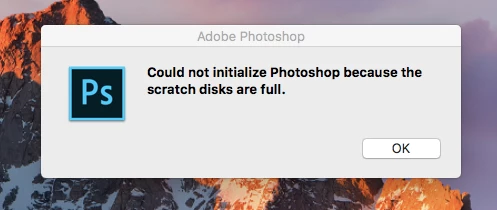
I am running Photoshop CC on my MacBook Air with macOS Sierra. Every time I attempt to open Photoshop through any means, the following message appears: "Could not initialize Photoshop because the scratch disks are full", and Photoshop does not open. I tried clearing space from my Mac in general including several GB worth of apps and removing several cache files, but nothing seems to work. I also tried holding down the command and option keys to reveal the Scratch Disk Preferences, and it lets me select the Startup and MacIntosh HD. Again, nothing worked. Anyone know how to fix this message, and/or clear scratch disk space?
 

{Moderator note: Edited the thread title PS-65057}

Correct answer Mohit Goyal

Hi all,


We're sorry for the scratch disk issue. Take a look at the following troubleshooting article which can help you to resolve the "Scratch disk is full" error: Troubleshoot scratch disk full errors in Photoshop


Please have a look and let us know if that helps.


Thanks,

Mohit

49 replies

Participating Frequently
September 20, 2019

Hello, I am currently using photoshop on windows 10. I have a few A3 documents open with multiple layers and when I try to save them as a psd file or a pdf or a jpeg it says 'scratch disks are full'. I reeeaaally can't afford to lose this work. I have read that to delete temp files from the disk photoshop can't be open with files on it, so it wont let me do that either 😞 

Anyone know how I can clear scratch disk space without losing my work please?


Mollie

Legend
September 20, 2019

Either save to a different hard drive or delete other files from your internal drive or both. If you only have one drive and its full, you REALLY need to get at least one additional drive or you will have system problems on top of losing data in photoshop.

Participating Frequently
September 20, 2019
thanks for replying, when i try to save to my hard drive it comes up with a similar scratch disk full message. ill post a screenshot
Participant
August 3, 2019

I've always wondered why PS won't let you use an external drive as a scratch disk, and I read somewhere on the PS forum it's because external drives are, of course, unplug-able, which would make a mess if PS was reading or writing to it. Correct ?

I have an unused 500G SSD that I use for different things, fast access slush storage, fast large file transfers between work and home computers, etc. I connect it to my computers with an Apricorn Easy Gig IV cable device that they provide with their disk cloning kit. Anyway, when I recently used it to transfer some large files, I noticed that Photoshop saw it as a BUILT IN DRIVE rather than an external drive and ALLOWED ME TO USE THE SSD as a scratch disk ! I partitioned the drive, and PS sees the different partitions. I have one for the scratch disk, one for file transfers, and one for Windows ReadyBoost. BTW I run Windows 10 on a late 2017 iMac 27. This device and the SSD work in both the USB3 and the Thunderbolt (with an adapter)

I suppose the cable device has a chip built into it that makes the operating system see it as an internal drive. It works well and I've has no problems with it. Just wanted to ask if anyone saw a problem with my accidental solution and make sure I wasn't gonna "break" anything. 

Thanks for your input.

Akash Sharma
Legend
August 5, 2019

Hi Dbphoto,

Photoshop uses this space to store portions of your documents and their history panel states that don’t fit in the RAM memory. Scratch files go into invisible OS-specified folders, except for non-boot volumes on Windows, at the root directory of the drive. When a non-boot drive is used as a scratch disk, the temporary files are placed in the drive’s root directory.

Please take a look art this article Set up scratch disks in Photoshop  and let us know if that helps

Thanks,

Akash

Participant
July 21, 2022

The problem I have with permanently running as administrator is that photoshop no longer opens files from explorer, or other adobe programmes. For example, if I'm in illustrator and select "edit original", it will go to photoshop but it won't open the file. If I'm in explorer and double like a png to open, it will go to photoshop or load it (if the application isn't open), but it won't open the file. I have to open files separately from the photoshop file menu. As you can imagine, this is major workflow issue.

If I open photoshop normally (not in administrator mode), everything works fine but my will not display as a scratch disk option.

So it seems like I'm screwed either way. I haven't found a resolution to this. 

Antenym
Participant
May 27, 2019

I found a fix for a scratch disk issue that would almost make my D: and E: drives full, (scratch disk locations)*

What happened was I tried to make a new document in 1000x1000. Once I did that, my two D: and E: drives went from 300 GB and 200 GB space free, to 6 GB free on both. The issue was that I used "inches", and not "pixels" when creating the document. I didn't find a fix for this until 8 hours, so anyone else with that issue can relax with 500 GB of temp files overloading their drives .

Participant
May 3, 2020

this is what I was looking for, thanks man! made the same mistake lol


Participant
May 25, 2019

I have put my hard drive in and changed the disk drive to that. But does that mean that I can’t use photoshop without my hard drive  plugged in ??

Legend
May 25, 2019

Not if your internal drive is too full to work.

fourharmony
Participating Frequently
December 31, 2018

Hi, thanks in advance for reading my post. So I recently decided to get a 126GB external hard drive because I wanted Adobe Photoshop and my Internal hard drive currently only hass like 6GB worth of free storage (I know that's pitiful). I'm going to get an SD card eventually, but right now this is what I'm working with. The only problem is my external hard drive is not showing up in my Scratch Disk, all I see is my internal hard drive with 6GB.I can't really do anything with 6GB because as I'm sure you all know, photoshop likes room to spread it's wings. I'm slowly starting to lose my mind and I really would appreciate some help, I'm unfortunately not very tech savvy. I'm using a PC, I HP Stream laptop 14 to be exact. And I just have a SanDisk drive, nothing fancy. Again, thanks so much.

gener7
Community Expert
Community Expert
December 31, 2018

While this is Mac centric, the idea is the same. Be sure the external drive is formatted as NTFS and and checked on in Preferences > Scratch disks.

Cannot change my scratch disk to external HD - Photoshop CC 2015.5

fourharmony
Participating Frequently
December 31, 2018

My external hard drive is formatted as NTFS, and there is nothing to check in my scratch disks because they don't even show up. The only thing I see in scratch disk is my internal C: drive.

Participant
October 10, 2018

I've been getting the error that the scratch disks are full. My PC has two internal hard drives and one of them is fairly small. I'm interested in using the D drive, which is where I basically have all my software installed, etc. The first time I used photoshop, both the disks showed up and I was able to choose my D drive. I haven't formatted or anything since then. The D drive is working fine.

Then, I got the error again and now the D drive isn't showing up at all after loading photoshop.

That said, it still shows up when I open the scratch disk selection on the loading screen using Ctrl+Alt

And it is (and has been) the chosen scratch disk (as you can see, even when going to the preferences in PS, the C drive isn't ticked). The D drive has 283 GB of empty space so it should be more than enough. Both disks are formatted to NTFS (seems I read somewhere PS doesn't like NTFS but wouldn't that not show me either disk?)

Any help would be appreciated.

Sahil.Chawla
Adobe Employee
Adobe Employee
October 10, 2018

Hi Valentinevar,

Sorry to hear about the scratch disk not showing the other drive, could you please let us know the exact version of Photoshop & operating system you're working on?

Also, could you try the steps mentioned here and let us know if it helps? Second internal hard drive not visible as scratch disk option. Photoshop CC, OS X

Regards,
Sahil

Participant
October 10, 2018

here's the system stats that pulls from PS

Adobe Photoshop Version: 19.1.6 20180808.r.398 2018/08/08: 1185588  x64

Operating System: Windows 10 64-bit

Version: 10 or greater 10.0.17134.1

Running the program as administrator makes both the disks show up. I followed the steps on that thread you linked but I'm not sure anything changed because if I don't run the program as administrator the disk still doesn't show up. What would I do if I continue to get the scratch disk are full error at this point? because it only makes me think that Disk D has been the selected disk this whole time and I've still been getting the error.

yvettef93596456
Participant
September 10, 2018

How do you change scratch disks? I only get 2 choices None or Hard drive on 2nd, 3rd and 4th. First option is Startup or Hard drive

gener7
Community Expert
Community Expert
September 10, 2018

First you must have a second internal or external drive attached and it must be formatted for the system it is on.

HFS+ for Mac, and NTFS if it is Windows. Photoshop will not list it otherwise even if it shows up on the Desktop.

There is a drop-down menu for each drive in the dialog. Click on it to see if your disk is listed and select it. Click OK to confirm.

Participant
September 24, 2019
If we do have an internal drive, how do we format it for NTFS. I only have the option to format it to c:/
Participant
June 27, 2018

Photoshop keeps giving me the message "scratch disk full". The program will open, but it doesn't allow me to make any edits. I have searched and searched all over the web for a solution. I searched for temporary files to delete them, but I couldn't find any on my computer. I purged 'all'. I have about 90 gb of free space on my computer, but in the past I had about 20 gb of free space and photoshop still worked so I don't think that is the problem. I only have one scratch disk location so I can't just change scratch disks.

Does anyone have any advice? Am I just totally missing something?

Thanks!

June 27, 2018

Hi

What operating system and Photoshop versions do you have, is it just one document that's causing the issue or all documents

Have you try resetting Photoshop preferences

To restore preferences quickly using a keyboard shortcut: Press and hold Alt+Control+Shift (Windows) or Option+Command+Shift (Mac OS) as you start Photoshop. You are prompted to delete the current settings. The new preferences files are created the next time you start Photoshop

Also take a look here

How to Fix Photoshop Scratch Disk Full Errors

If all that fails try using the Adobe cleaner tool

Use the Creative Cloud Cleaner Tool to solve installation problems

Participant
June 27, 2018

This helped, thank you!

Participant
April 8, 2018

I've found several discussions on this but most have been for mac instead of windows and most are unanswered. I have a 128GB surface pro 3 with a 128GB micro SD card. Recently, I've been getting the pop-up that says my scratch disk is full, so I need to set up another one. However, my SD card isn't showing up as an option to use. Is there any possible way that I format my SD card to where I can use it as a scratch disk? Or is there anything I can do in photoshop to pick up the SD card?

gener7
Community Expert
Community Expert
April 9, 2018

It has to be formatted to the OS  HFS+ for Mac/NTFS for Windows. However I'm not sure Photoshop can "see" an SD card slot, so try a SD to USB adapter if Photoshop doesn't list it in your scratch options.

Participant
April 7, 2018

I just had the same problem and found this on the Adobe photoshop support website (Optimize performance Photoshop CC):

Note:

If Photoshop cannot launch because the scratch disk is full, hold down the Cmd + Opt keys (Mac) or Ctrl + Alt keys (Windows) on launch to set a new scratch disk.

I was able to reset the scratch disk and so far Photoshop is launching fine. Hope this helps someone!

Participant
June 1, 2018

But Photoshop won't open with 8GB of free space? So I can't change it.

June 1, 2018

Hi

Try holding down Ctrl+ALT for Windows/ Option+Command key for Mac OS and keep them held down and start Photoshop, you should see this


Learn more about setting up Scratch Disks.