Participant
February 1, 2017
Answered

Paint Bucket Tool Fills Everything Instead of Particular Area - How to Solve?

  • February 1, 2017
  • 3 replies
  • 20012 views

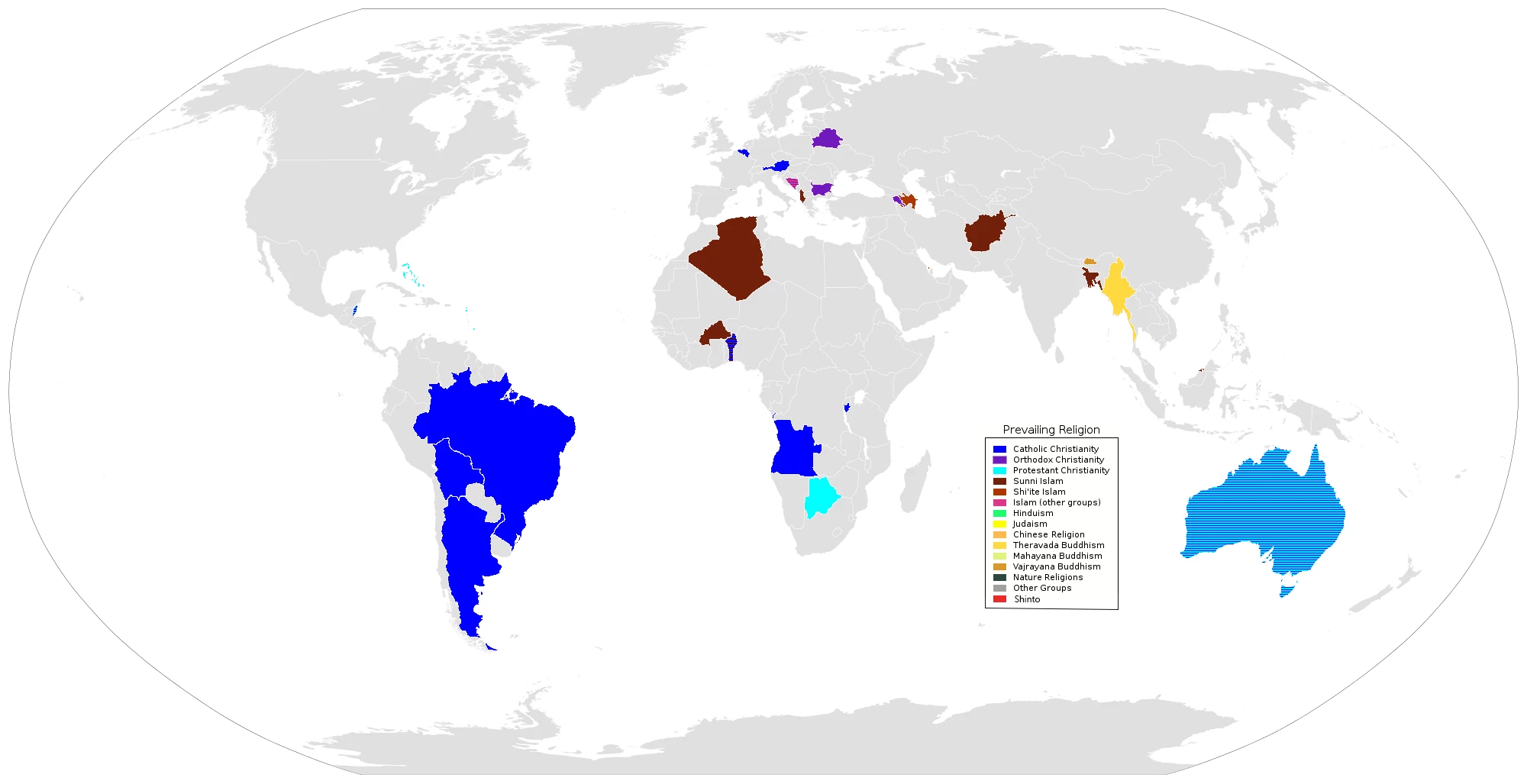
I just had the newest version of Photoshop CC, and I wanted to continue the work I did on an .svg picture that was saved as a .png file from a previous recent version of Photoshop. The file is a world map, and I filled in some countries already. I personally like to fill in countries on world maps in my spare time according to a certain theme. However when I tried to fill in a country with a color using paint bucket, instead of just filling in that particular country, it fills the entire map - except the countries that I've already filled in, strangely.

I thought it might have been an issue of it being a .png file, so I tried the paint bucket tool to a fresh .svg file. The paint bucket still fills up the entire map rather than just one country. What's going on? How can I fix this? This didn't happen in the older version of Photoshop that I had.

Here are the files if any of you wanted to test it:
    This topic has been closed for replies.
    Correct answer davescm

    Hi

    Try adjusting the tolerance - decrease it if it is going over the borders as you describe. Increase it if it is leaving a gap round the edge. I found setting it to 5 worked well on your map.

    Dave

    3 replies

    Participant
    October 25, 2021

    I also just encountered this problem. If the issue continiues, you may have accidentally pressed q and entered quick mask mode. Press q again and that might work!

    Participant
    August 9, 2018

    I wanted to add another setting to check. If it is not your tolerance and there are no gaps in your boundaries, be sure to check the box for "Contiguous"   My paint bucket was coloring everything in the same range tolerance all over my image; touching or not.

    Participant
    June 18, 2022

    Thank you. That resolved my problem.

    davescm
    Community Expert
    davescmCommunity ExpertCorrect answer
    Community Expert
    February 1, 2017

    Hi

    Try adjusting the tolerance - decrease it if it is going over the borders as you describe. Increase it if it is leaving a gap round the edge. I found setting it to 5 worked well on your map.

    Dave

    Participant
    October 7, 2024

    hello, i have same problem but in Illustrator 2024, do you know how to fix it ;((