
Participant
December 18, 2018
Question

Pasting screen capture is too large

  • December 18, 2018
  • 7 replies
  • 4102 views

I've always used PhotoShop to quickly determine measurements of rendered HTML elements.  However, on this computer, when I paste the screen capture of the browser into PhotoShop, it alters the size.  I have a Dell XPS 15 9560 with a screen resolution of 3840 x 2160.

Chrome inspecting the facebook logo element:
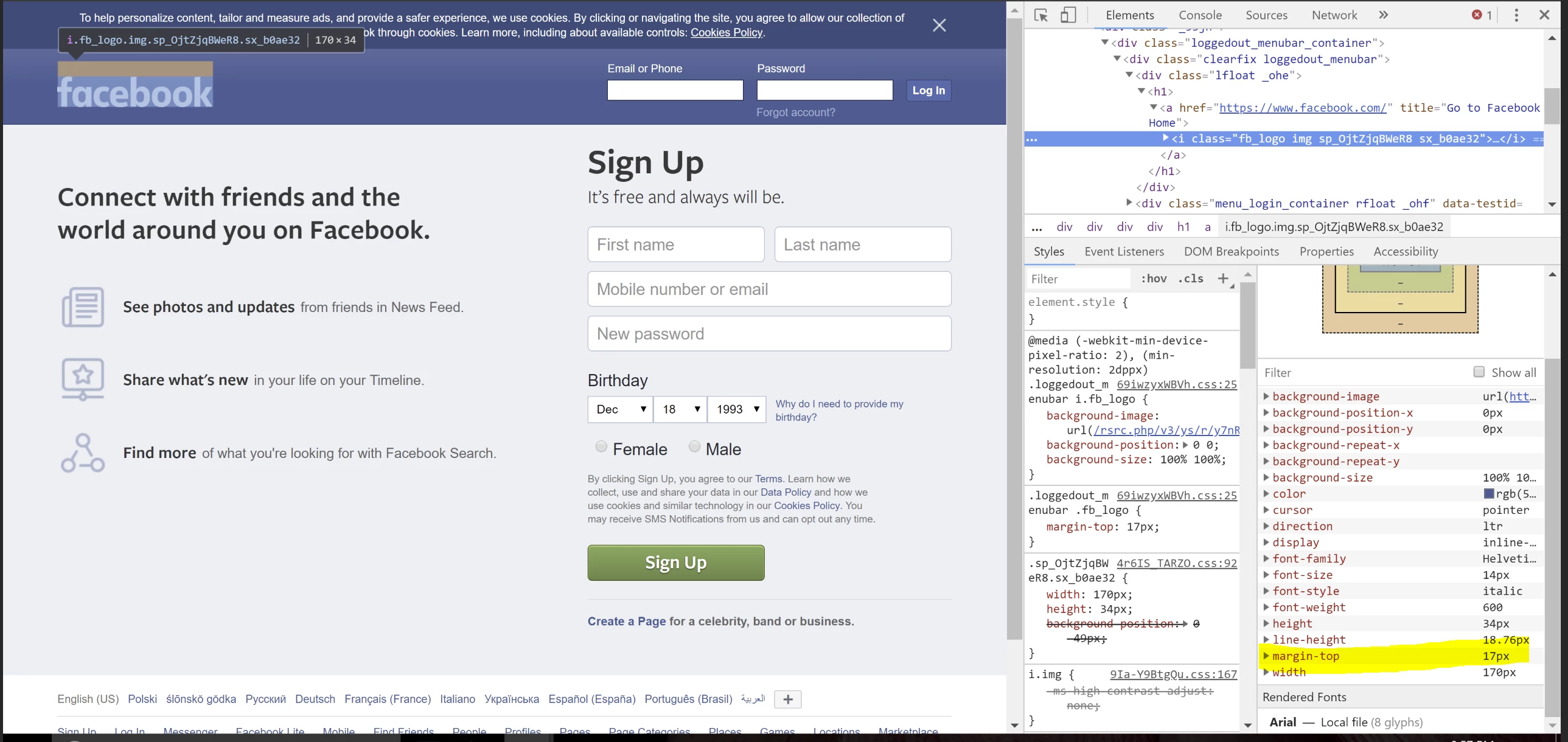
As you can see the actual pixels for the top margin is 17px.

But, when I print screen and paste it into PhotoShop, and select the highlighted margin, it sees it as 40 pixels.
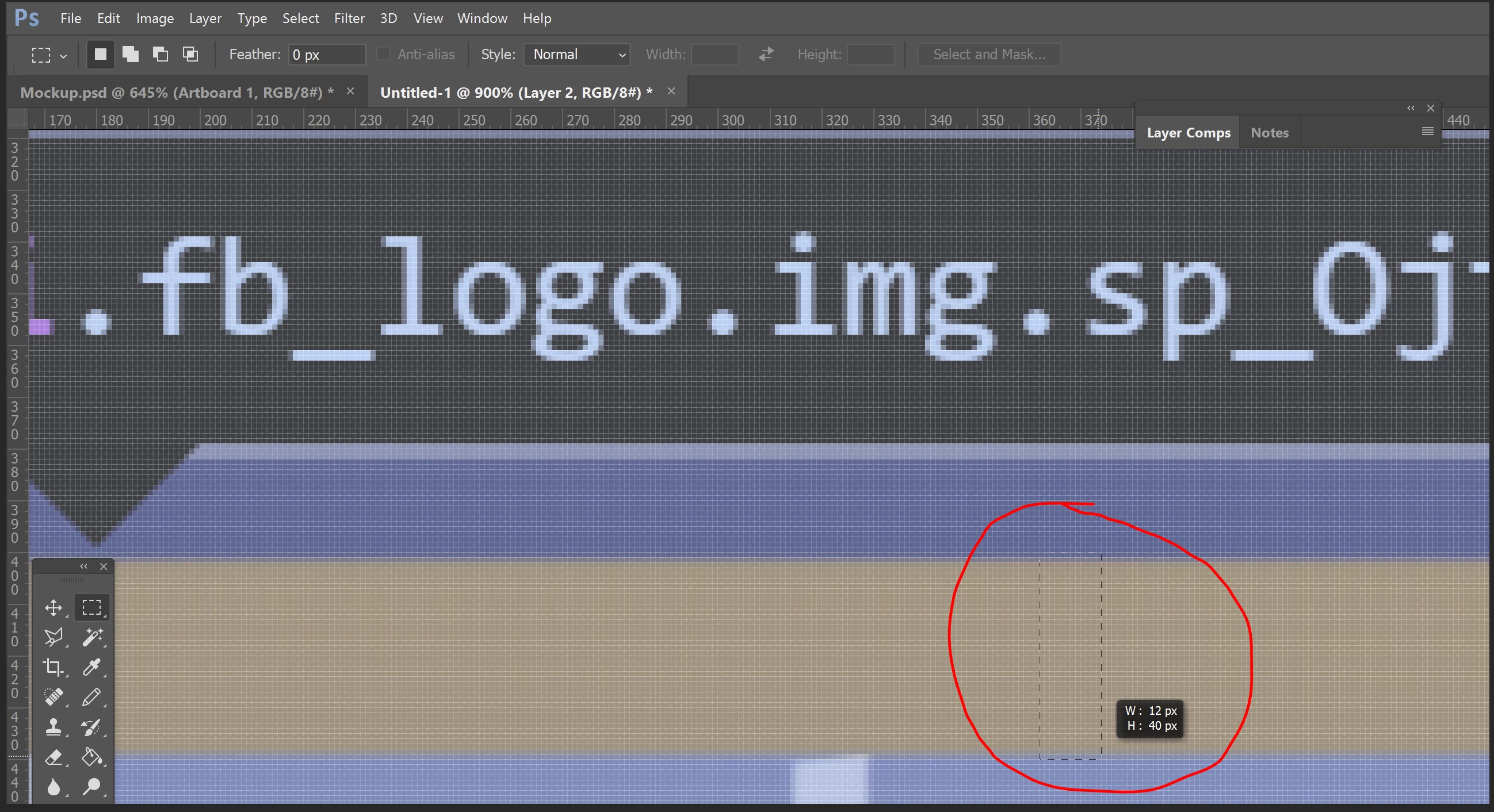
Any help would be greatly appreciated.

This topic has been closed for replies.

7 replies

Participating Frequently
May 6, 2019

This seems to be an Adobe-problem.

- It is not - as Microsoft claims to me in Pasted screenshot is scaled up - Microsoft Community​ - caused by browser scaling up a screenshot. Adobe-products also scale up pictures captured with Microsoft Snipping Tool.

- But when I copy or screenshoot and past into Microsoft Paint, there is no scaling.

- I recorded a simple scale down to 50% in an action and added a shortcut.

- I find differences in font-sizes in browsers and Adobe-products like Illustrator on a 4K-screen to be more unpredictable and frustrating. Anybody have any hints?

Einar

JJMack
Community Expert
Community Expert
May 6, 2019

In screen captures there are no text layers not text font sizes you have a captured image it like using a camera if you have a 4k Display is like having a camera the with a 8MP sensor.  If you have a 1K 1920x1080 it like have a 2MP sensor.  One has 4 times as many pixels the the other.  Web site can scale any size image. There is no problem. You gave different size displays that display different amount of pixels and with different pixels sizes the one size thy are manufactured with

JJMack
Participant
December 19, 2018

Sorry, I didn't realize downsampling was the same as resizing.  I, of course, know how to resize an image; but, that doesn't help me.  I want to be able to simply Print Screen and paste into PS so I can start inspecting dimensions. It needs to be pasted in the right size because otherwise hard edges are lost.  I can't just resize, as that loses sharpness even further.

Chrome with 400% zoom (to demonstrate that the edges are not fuzzy at any zoom level):

Pasted screen capture (from100% zoom in Chrome) into PS:

As you can see, the edges are already losing definition.

And, here it is at 50% in PS:

Furthermore, 50% is not the correct resizing value for me.   (I can find the innerHTML height, but that doesn't account for the browser toolbars, windows taskbar, etc.)  I guess I would need to figure that out through trial-and-error.

This process used to take about 5 seconds to "Print Screen" > Open PS > Paste > start selecting areas to determine exact rendered padding, margins, and dimensions.  It was an extremely quick and useful utility that I used 20+ times a day, but I'm afraid it simply won't work on my new(ish) laptop.

JJMack
Community Expert
Community Expert
December 19, 2018

You can resize it to what ever size you need you should constrained the image width and height to its current aspect ratio.  Keep the Width and height linked.  You can try different interpolation methods to see which work best for the image's content.   Viesw at 100% zoom so you are looking at the actual image not a scalled version.

JJMack
Participant
December 19, 2018

I appreciate the effort, JJMack, but as mentioned, I already know how to resize an image and constrain the aspect ratio.  The 100% zoom was only to demonstrate that there is no fuzzy border between the selected and unselected area of the rendered HTML viewed in Chrome.  As noted above, the screenshots I posted after the 400% zoom in Chrome, were of 100% zoom level screen captures pasted into PS, which blurs the edges, thus rendering it unusable for my purposes.  Unfortunately, I'm beginning to think there is no solution to this issue.

Daniel_s_Design
Known Participant
December 19, 2018

Downsample(lower your image size) your image

PS > image > image size...(ALT + CTRL  + I )
LINK THE (WIDTH & HEIGHT) > CHANGE THE VALUES TO (PERCENT)  i.e (W : 50 Percent & H : 50 Percent)
check : resample > automatic

The image size will convert to half of it's actual size

Daniel

Participant
December 19, 2018

I actually understand the reason for my issue and that PhotoShop is actually doing what it's supposed to do, but I want to know how I can resolve the issue so that I can use PS in the way I used to.  I.e., How can I interpolate my screen capture down, as JJMack suggested?

D Fosse
Community Expert
Community Expert
December 19, 2018

All major web browsers today are programmed to scale up to 200% when a 4K display is detected by the system.

Photoshop is representing the screenshot correctly such as it is.

JJMack
Community Expert
Community Expert
December 19, 2018

If you do a full screen capture using a 4K display a 4K display displays 3840x2160 pixels.  That size image would be larger than a typical  Web Site HTML page size. You would need to interpolate  your screen captured  down in size to fit in a normal HTML page

JJMack
gener7
Community Expert
Community Expert
December 18, 2018

I don't know what the stock screen capture is running into, but would you consider trying a good free third party utillity?

I'd recommend Greenshot.

http://getgreenshot.org/