
Inspiring
June 6, 2017
Answered

Paths always inverted wrong way

  • June 6, 2017
  • 6 replies
  • 59637 views

Scenerio: I use the pen tool to create a simple path. In the paths palette is shows up as a work path. I select the work path, then at the bottom of the path palette click on the "Load path as a selection" - and the selection is made on the image area. When I fill or paint, it floods the area OUTSIDE my path, to the edges of the image. To work INSIDE the path, I must inverse the selection, every time, over and over, all day long.  It did not used to be that way.

Does anyone know how to make the active area INSIDE the path, like it was a version or two ago ?

Many gracias.

Craig
    Correct answer davescm

    Hi Craig

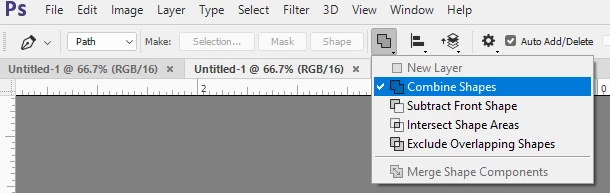
    Look at the setting of the pen tool when you create the path - specifically this setting - it sounds like you have it set to subtract.

    Dave

    6 replies

    New Participant
    December 13, 2022

    Thank you so much Dave! You're an angel in disguise.


    New Participant
    February 20, 2023

    Hi Dave,

    I have the same problem as the original question from CmCDowell. I tried redrawing the (very simple) shape I need with the pen tool set to combine but I just keep getting the following message (see screen grab attached) when I try to invert the path. I want to be able to paint inside the shape. Any help very gratefully received 🙂 Thanks so much... Vicky

    New Participant
    November 12, 2020

    Hey, I have a similar problem which has occurred a few times now. There seems to be different seetings for some shapes within the same path. On the small preview box some are coloured in white and behave accordingly, however some are not filled and get ignored, and if I extract them from this path, start a new path and paste them in, they behave inverted.


    At this point is it possible to change the settings of these shapes or do I have to delete them and start from scratch (which I have done in the past and has been extremely time consuming). Attached are screens shots of the problem before and after trying to mask the path.

    New Participant
    June 6, 2022

    Late but in case anyone else finds themselves here - if you use the direct or pen selection tool (default shortcut is A key) to select different shapes in the path you can in fact switch each from combine to subtract shapes or vice versa and creating a selection from them should work as expected depending on the mood.

    New Participant
    May 24, 2020

    not working for me

    jane-e
    Adobe Expert
    November 9, 2020

    Hi @melhabashy 


    "Not working for me" is vague. Please clarify what is happening and post screen shots of:

    • the options bar for the Pen tool
    • the Layers panel
    • the Paths panel

    ~ Jane

    New Participant
    May 29, 2018

    Thank you , you are great....

    davescm
    davescmCorrect answer
    Adobe Expert
    June 6, 2017

    Hi Craig

    Look at the setting of the pen tool when you create the path - specifically this setting - it sounds like you have it set to subtract.

    Dave

    New Participant
    August 2, 2020

    OMG - I have been sitting here for hours trying to work out why my selection (path made using the Pen Tool) was selecting the outside border of the photo instead of the contents inside the Path.

    You have just saved me many more hours - thank you so so much!!!


    November 9, 2020

    Thanx man. You're breathtaking!

    Inspiring
    June 6, 2017

    Sounds glitchy...you may have inadvertently changed a setting. Try quitting and reset your Photoshop Preference File:

    To restore preferences quickly using a keyboard shortcut: Press and hold (hold down until you get a dialog box prompt) Alt+Control+Shift (Windows) or Option+Command+Shift (Mac OS) as you startPhotoshop. You are prompted to delete the current settings. The new preferences files are created the next time you start Photoshop.