Inspiring
September 2, 2017
Answered

Paths for Masking

  • September 2, 2017
  • 4 replies
  • 875 views

I'm a Photoshop newbie and am trying to eliminate the background from an image.  Because of lack of contrast between the subject and background, I'm using the Pen tool to create closed paths that will define my mask.  I created one path, then edited it and drew another closed figure.  I then made a mask using the path, but I need to invert the selection.  If I hit Control I, however, all that happens is the the image in one of the two closed paths changes.  What am I doing wrong?
    This topic has been closed for replies.
    Correct answer michelew83603738

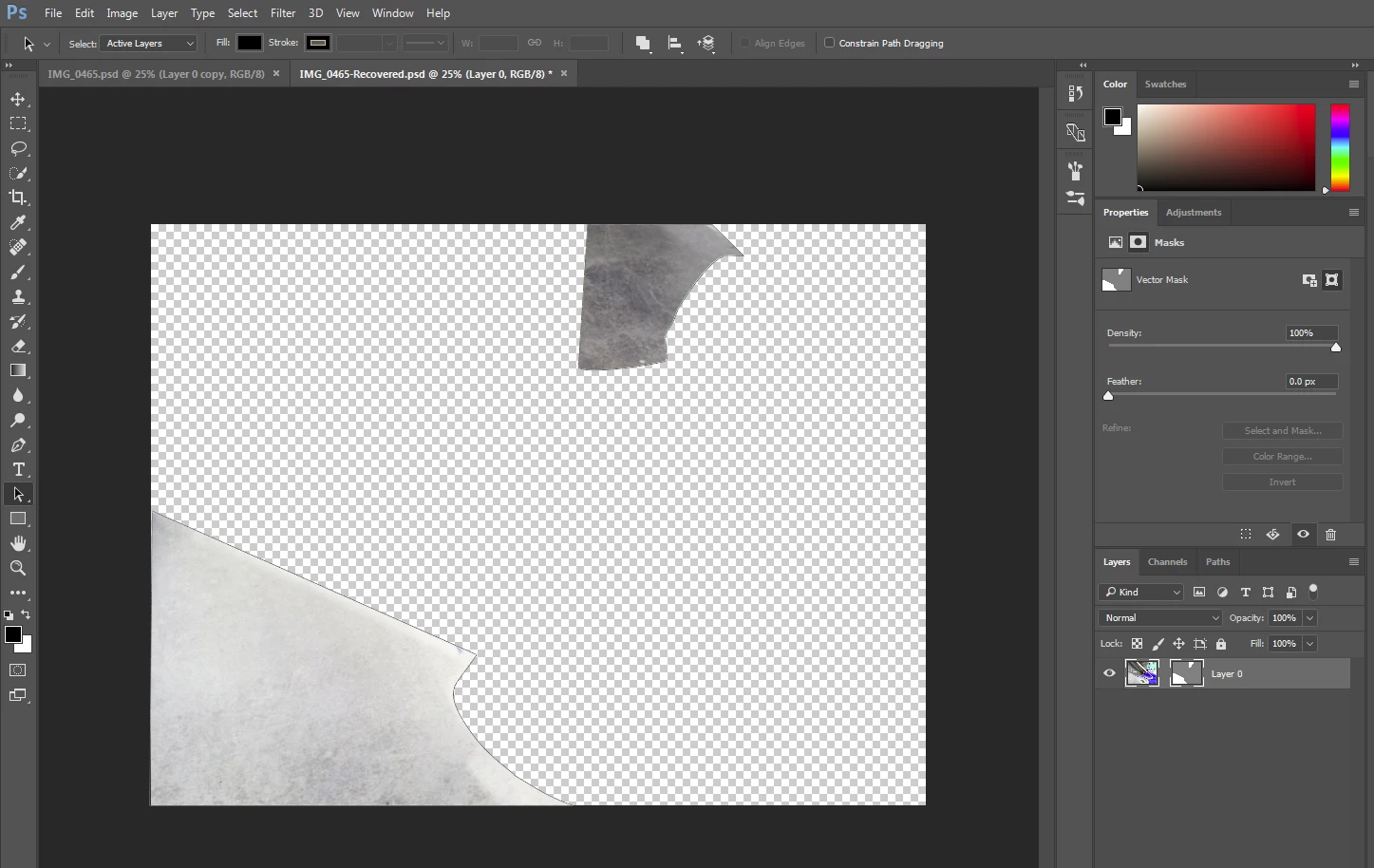
    Here's what I get after I apply the mask.  It's the inverse of what I want.

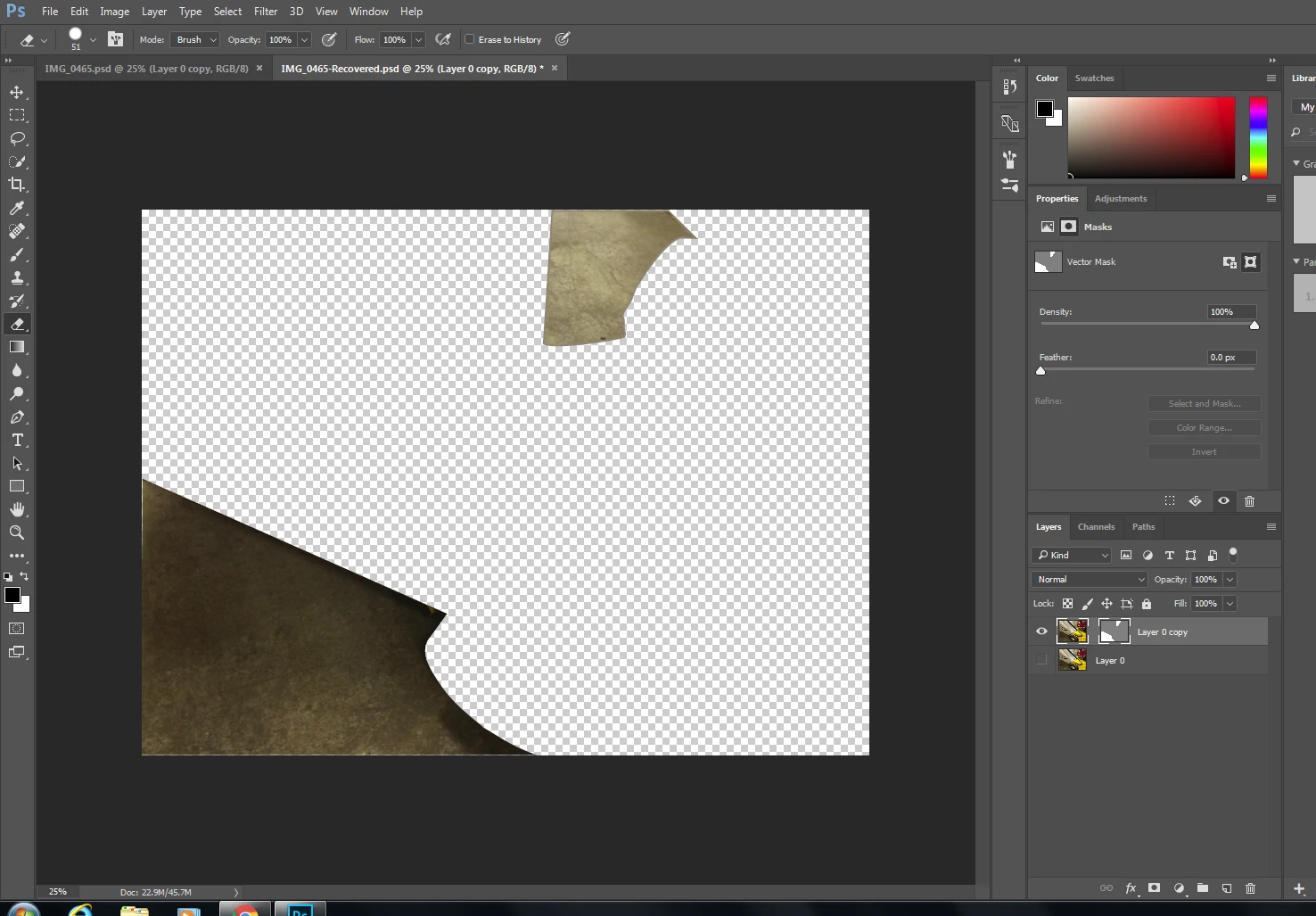
    After selecting the mask and hitting Ctrl-I, I get this:

    I now see that my mask is a 'vector mask' instead of a 'layer mask'.  How can I make it a layer mask?


    You have a vector mask, so using Ctrl/Cmd+I is giving you an Adjustment instead of Inverting the mask. Did you save your path? If not, hold down the Cmd/Ctrl and click on the layer itself to get your selection back, delete the vector mask and apply a layer mask instead so that you can refine it as needed. You can inverse your selection either before or after you have made your mask.

    4 replies

    Participant
    September 3, 2017

    When a path is selected using the path selection tool you can use the + & - keys quicklyley switch between Combine(+) and subtract(-). This is what you might use instead of CMD+I, as someone else mentioned this is an adgustment not a state change when using the pen tool. 

    JJMack
    Community Expert
    Community Expert
    September 2, 2017

    The layer mask you created is it a vector layer mask or a raster layer mask? in Either Case it can be inverted one way or and other. How you invert a layer mask depends on the type of layer mask it is. A raster layer mask is  done via invert whar a vector mask you need to change the closed path type  add, suntract, exclude, or intersect.  You need to use the path selection tool to select the path the use the tool option bart to change the path type.

    JJMack
    michelew83603738
    Community Expert
    Community Expert
    September 2, 2017

    Just so I understand, you made the path and refined it, they are both in the same path layer. Then you turned the path into a selection, but the selection doesn't give you the layer mask that you want, so you need to inverse your selection? If that is correct, to inverse the selection, you can go to Select>Inverse or use the shortcut Sht+Cmd/Ctrl+I then make the layer mask. Sorry if I misunderstood the question.

    Norman Sanders
    Legend
    September 2, 2017

    I think the confusion rests with Invert/Inverse.

    Select > Inverse the Selection

    Image > Adjustments > Invert the Mask

    Inspiring
    September 2, 2017

    Here's what I get after I apply the mask.  It's the inverse of what I want.

    After selecting the mask and hitting Ctrl-I, I get this:

    I now see that my mask is a 'vector mask' instead of a 'layer mask'.  How can I make it a layer mask?

    Norman Sanders
    Legend
    September 2, 2017

    Is it possible that, in the Layers panel, the image rather than the mask has a double frame around it indicating you want the change in the image and not the mask?

    Click on the mask in that layer, then invert