Exit
  • Global community
    • Language:
      • Deutsch
      • English
      • Español
      • Français
      • Português
  • 日本語コミュニティ
  • 한국 커뮤니티
0

Pen tool and selection what happened in 2025?

Community Beginner ,
Jul 04, 2025 Jul 04, 2025

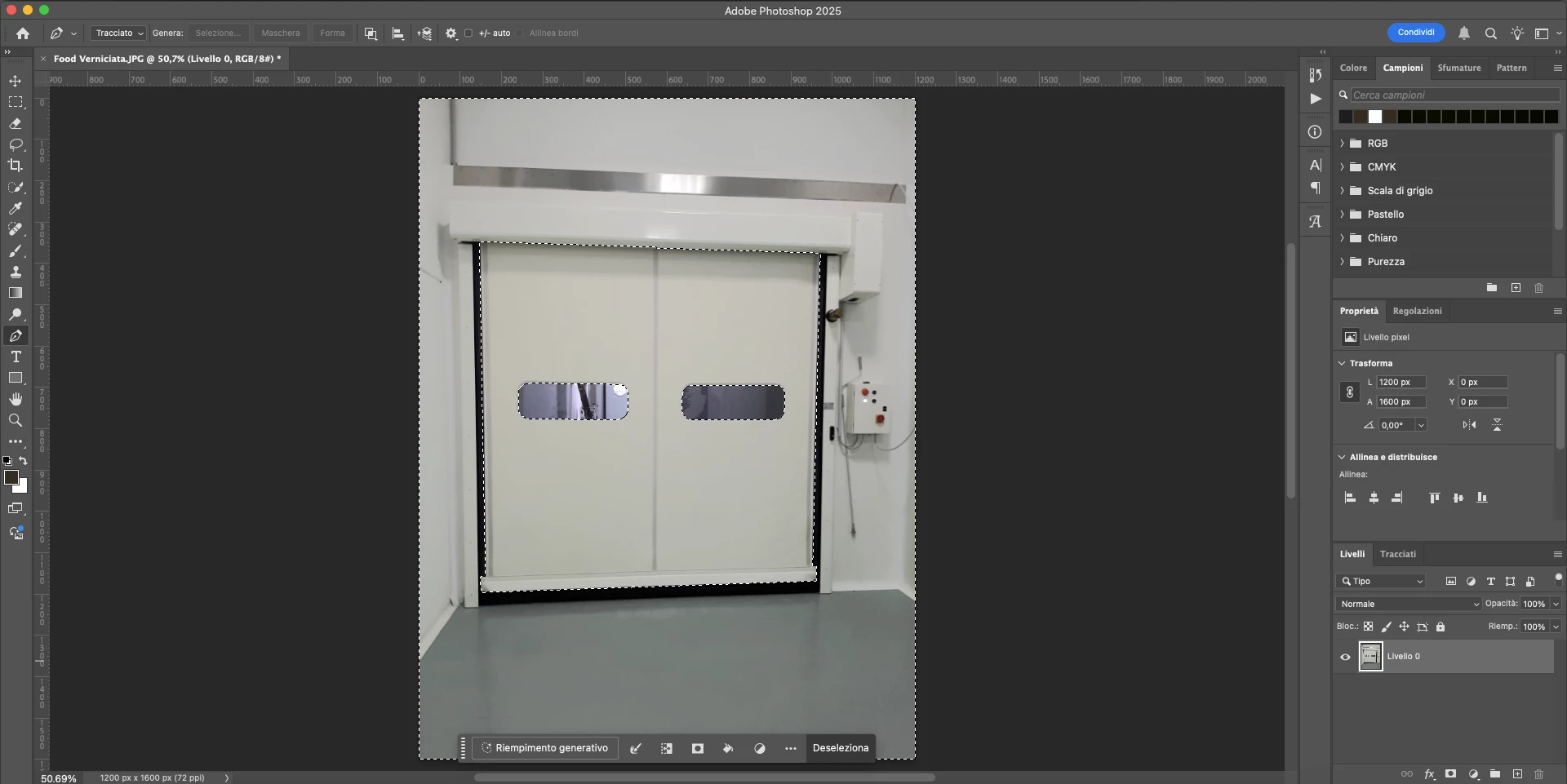
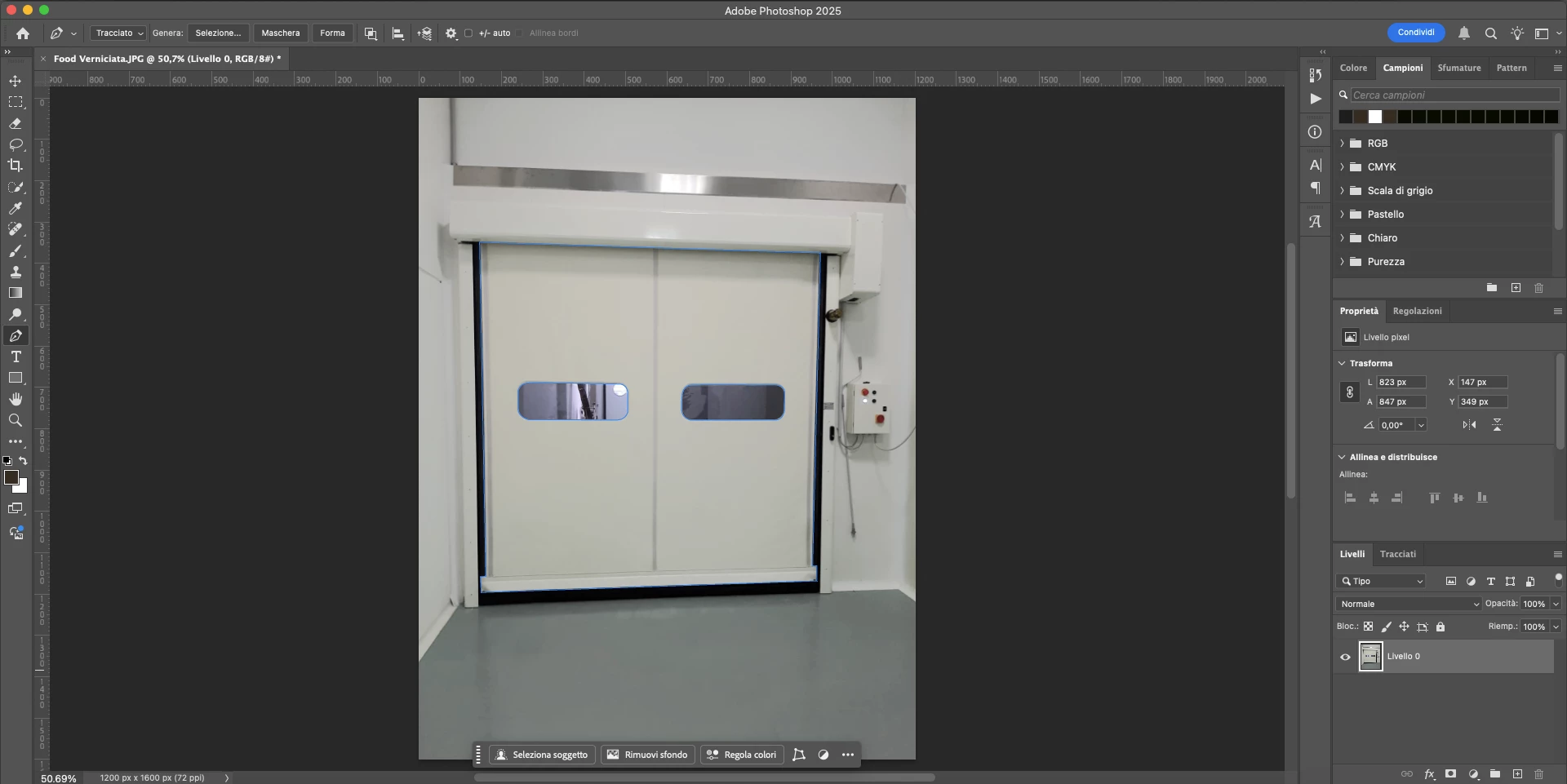
I’m using Photoshop with the latest release (26.8.1), but I’m encountering the same issues even with slightly earlier versions. Screenshot 2025-07-04 alle 16.15.16.pngScreenshot 2025-07-04 alle 16.15.03.pngMac OSX chipset M3 Pro

I’ve been using the Pen Tool for 20 years, so I believe I know it quite well.

Issue: I create a clipping path with the Pen Tool, even for complex images with intersections (with the “Intersect Shape Areas” option selected). After spending several minutes carefully outlining the subject, I right-click and choose Make Selection, but I get the error: "No pixels were selected".

After several attempts (luckily I saved the path) and switching the Path Operations option, Photoshop finally creates the selection… but it’s always inverted.

Am I missing something introduced in the recent updates? Is there something new I should be aware of? Or is something simply not working properly?

TOPICS
macOS
1.4K
Translate
Report
Community guidelines
Be kind and respectful, give credit to the original source of content, and search for duplicates before posting. Learn more
community guidelines

correct answers 1 Correct answer

Community Expert , Jul 04, 2025 Jul 04, 2025

You could try resetting the tool, but it sounds like the path operations were set incorrectly. When you look at the paths panel (you can make the thumbnails bigger so you can see them) if you don't see any white then no pixels will be selected when you try and turn it into a selection. In a correctly set path, the white areas will be turned into a selection the grey areas will not.


To reset the tool go click on the down arrow next to the pen tool icon in options bar, then click on the cog wheel

...
Translate
Adobe
Community Expert ,
Jul 04, 2025 Jul 04, 2025

Can you please show your paths panel in your screenshot.
Dave

Translate
Report
Community guidelines
Be kind and respectful, give credit to the original source of content, and search for duplicates before posting. Learn more
community guidelines
Community Beginner ,
Jul 04, 2025 Jul 04, 2025

I’d also like to add that, even when using the Paths panel and clicking on ‘Load Path as a Selection’, I still get the error: ‘No pixels were selected’.

Translate
Report
Community guidelines
Be kind and respectful, give credit to the original source of content, and search for duplicates before posting. Learn more
community guidelines
Community Expert ,
Jul 04, 2025 Jul 04, 2025

With intersect path operations, the selection will be made only where all the subpaths intersect - which is nowhere in your example.

Assuming you want the garage door and want to exclude the windows, set path operations to exclude overlapping shapes then draw around the door then the windows.

Dave

Translate
Report
Community guidelines
Be kind and respectful, give credit to the original source of content, and search for duplicates before posting. Learn more
community guidelines
Community Beginner ,
Jul 04, 2025 Jul 04, 2025

Thank's Dave for attention.....
Thanks for the suggestion for this specific case, but I’m still getting the warning 'No pixels were selected'. Even in the specific case like: 'Assuming you want the garage door and want to exclude the windows, set path operations to exclude overlapping shapes, then draw around the door and then the windows', the result of the selection is that it only selects the windows...

To sum up: sometimes I get the error message, and other times—after several attempts—the selection is simply incorrect.

What could be the cause? Where am I going wrong? I’ve been using Photoshop since CS3 and this has never happened before....


quote

With intersect path operations, the selection will be made only where all the subpaths intersect - which is nowhere in your example.

Assuming you want the garage door and want to exclude the windows, set path operations to exclude overlapping shapes then draw around the door then the windows.

Dave


By @davescm

"Okay, thanks for the suggestion for this specific case, but I’m still getting the warning 'No pixels were selected'. Even in the specific case like: 'Assuming you want the garage door and want to exclude the windows, set path operations to exclude overlapping shapes, then draw around the door and then the windows', the result of the selection is that it only selects the windows...

To sum up: sometimes I get the error message, and other times—after several attempts—the selection is simply incorrect.

What could be the cause? Where am I going wrong? I’ve been using Photoshop since CS3 and this has never happened before. Could I need to reinstall it?"


Translate
Report
Community guidelines
Be kind and respectful, give credit to the original source of content, and search for duplicates before posting. Learn more
community guidelines
Community Expert ,
Jul 04, 2025 Jul 04, 2025

You could try resetting the tool, but it sounds like the path operations were set incorrectly. When you look at the paths panel (you can make the thumbnails bigger so you can see them) if you don't see any white then no pixels will be selected when you try and turn it into a selection. In a correctly set path, the white areas will be turned into a selection the grey areas will not.


To reset the tool go click on the down arrow next to the pen tool icon in options bar, then click on the cog wheel and in the menu choose reset tool.

Dave

Translate
Report
Community guidelines
Be kind and respectful, give credit to the original source of content, and search for duplicates before posting. Learn more
community guidelines
Community Beginner ,
Jul 07, 2025 Jul 07, 2025

Thanks Dave, actually I also noticed that the white area was missing in the tracks panel..... Resetting the tool should have fixed it... I ran a few tests and it seems that everything is now working properly.

Translate
Report
Community guidelines
Be kind and respectful, give credit to the original source of content, and search for duplicates before posting. Learn more
community guidelines
Community Expert ,
Jul 07, 2025 Jul 07, 2025

Great news - thanks for confirming.

Dave

Translate
Report
Community guidelines
Be kind and respectful, give credit to the original source of content, and search for duplicates before posting. Learn more
community guidelines
New Here ,
Dec 21, 2025 Dec 21, 2025

I have the same complaint. Now with PS 2025, when I used the pen tool to make a selection the default is now to select everything BUT what I encircled.  This is not the way PS worked for many years. Sure, it's easy enough to add a new step and invert the selection. But this is illogical: I 'm selecting something because I want it, you know. to be selected. So folks, can you invert this feature in your next release and save all all a million SHIFT + CMD + I pushes.  Thanks!

Translate
Report
Community guidelines
Be kind and respectful, give credit to the original source of content, and search for duplicates before posting. Learn more
community guidelines
Community Expert ,
Dec 22, 2025 Dec 22, 2025

@Adjustable-Horizons 
Set the path operations when drawing the path to get the result you want. The default is 'Combine shapes'. If yours is set differently just change it in the options bar.

Dave

Translate
Report
Community guidelines
Be kind and respectful, give credit to the original source of content, and search for duplicates before posting. Learn more
community guidelines
New Here ,
Dec 22, 2025 Dec 22, 2025

Hi Dave, 
Thank you for your quick reply. I do hope I'm suffering from user-error, but to be clear. I use the pen tool to outline part of an image. When that loop is complete, I right click the blue line and select 'make selection'. I see no optortunity to adjust the way the selection is being made (as you can see in the screenshots, 'combine shapes' is greyed out.  The result is that everything but what I encircled is the default selection. I'd prefer that by default whats in the selection circle be selected.  Please let me know what setting I'm missing here for this?

Thanks!

selection_invert-2.jpgselection_invert-1.jpg

Translate
Report
Community guidelines
Be kind and respectful, give credit to the original source of content, and search for duplicates before posting. Learn more
community guidelines
Community Expert ,
Dec 22, 2025 Dec 22, 2025

When using the pen tool, the options bar at the top of the screen shows the path operations. If your path is inverted (for example by setting 'Subtract Front Shape') , your selection made from that path will also be inverted.

2025-12-22_17-50-22.jpg

Dave

Translate
Report
Community guidelines
Be kind and respectful, give credit to the original source of content, and search for duplicates before posting. Learn more
community guidelines
New Here ,
Dec 23, 2025 Dec 23, 2025

Thanks Dave, That works. I appreciate your help!

Translate
Report
Community guidelines
Be kind and respectful, give credit to the original source of content, and search for duplicates before posting. Learn more
community guidelines
Community Expert ,
Dec 23, 2025 Dec 23, 2025
LATEST

You're welcome 🙂
Dave

Translate
Report
Community guidelines
Be kind and respectful, give credit to the original source of content, and search for duplicates before posting. Learn more
community guidelines