
Participant
April 18, 2020
Answered

Perspective crop grid problem

  • April 18, 2020
  • 3 replies
  • 1744 views

I use this tool a lot, and a squared grid used to come up as a guide. However, recently this turned into tiny squares with running lines (different sides of the squares), which make it very hard to align anything. I have searched and searched to try to find a way of removing this but to no avail. Please can anyone help?
This topic has been closed for replies.
Correct answer davescm

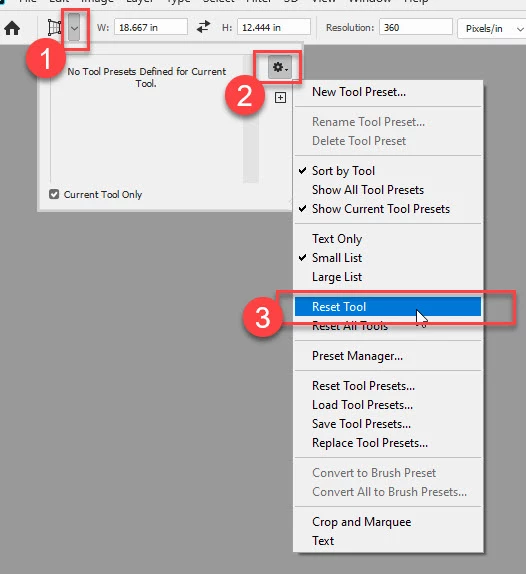
To reset the tool go to the top left of the options bar:

If that has no effect, then try resetting Preferences. Preferences > General >Reset Preferences on Quit, then close and restart Photoshop.

Dave

3 replies

davescm
Community Expert
davescmCommunity ExpertCorrect answer
Community Expert
April 19, 2020

To reset the tool go to the top left of the options bar:

If that has no effect, then try resetting Preferences. Preferences > General >Reset Preferences on Quit, then close and restart Photoshop.

Dave

Participant
April 20, 2020

Resetting the tool didn't work, but Resetting Preferences on Quit did - thank you so much Davescm - that did the trick! It is great to have the normal grid back.

roelk78454725
Participant
July 19, 2020

You're welcome

Dave


Hi Dave,

I've discovered this same problem on my PS too, and it's driving me crazy, because I use perspective crop all the time, and now it's really hard to see the image underneath this very busy grid that MOVES like the marching ants in a selection tool. I've tried going into Preferences and adjusting the grid line frequency and subdivisions, but it has no effect on the perspective crop grid. Clicking "turn grid on/off" in the tool just eliminates the grid entirely. Cmd Q just adds the grid to the confusing soup.

I just got the latest update on Win 10, which is I believe 20.2.1. I don't have this problem on PS on my MacBook Pro, and that version is 20.0.9, but the Creative Cloud on that computer is telling me that the latest update is not compatible (?), so maybe this is a brand new thing?

Anyway, I tried both your suggestions above, and nothing changed when I reopened PS. Do you have anything else I can try?

davescm
Community Expert
Community Expert
April 18, 2020

Hi

Can you confirm what version you are using and on what OS.
I am using PS v 21.1.2 here and perspective crop looks the same as always

Have you tried resetting the tool?

Dave

Participant
April 19, 2020

I am using Photoshop 21.1.2 in Windows 10. This is the grid I get. I used to get what you have, but may have inadvertently changed a setting that now gives me this grid (the lines move all the time, so you can't even use them to line something up easily). How do you reset the tool?

PECourtejoie
Community Expert
Community Expert
April 19, 2020

Hello, do you have any kind of scaling enabled in Windows?

Bojan Živković11378569
Community Expert
Community Expert
April 18, 2020

As far as I know there isn't any hidden option to revert to previous bahavior or "look". The only thing you can do is to ask developers on Photoshop family site to add option in preferences or in the Options bar or to revert their implementation https://feedback.photoshop.com/photoshop_family