



Perspective Crop With a Border ?
This is something I've wanted to be able to do for as long as we've had the Perspective Crop tool.
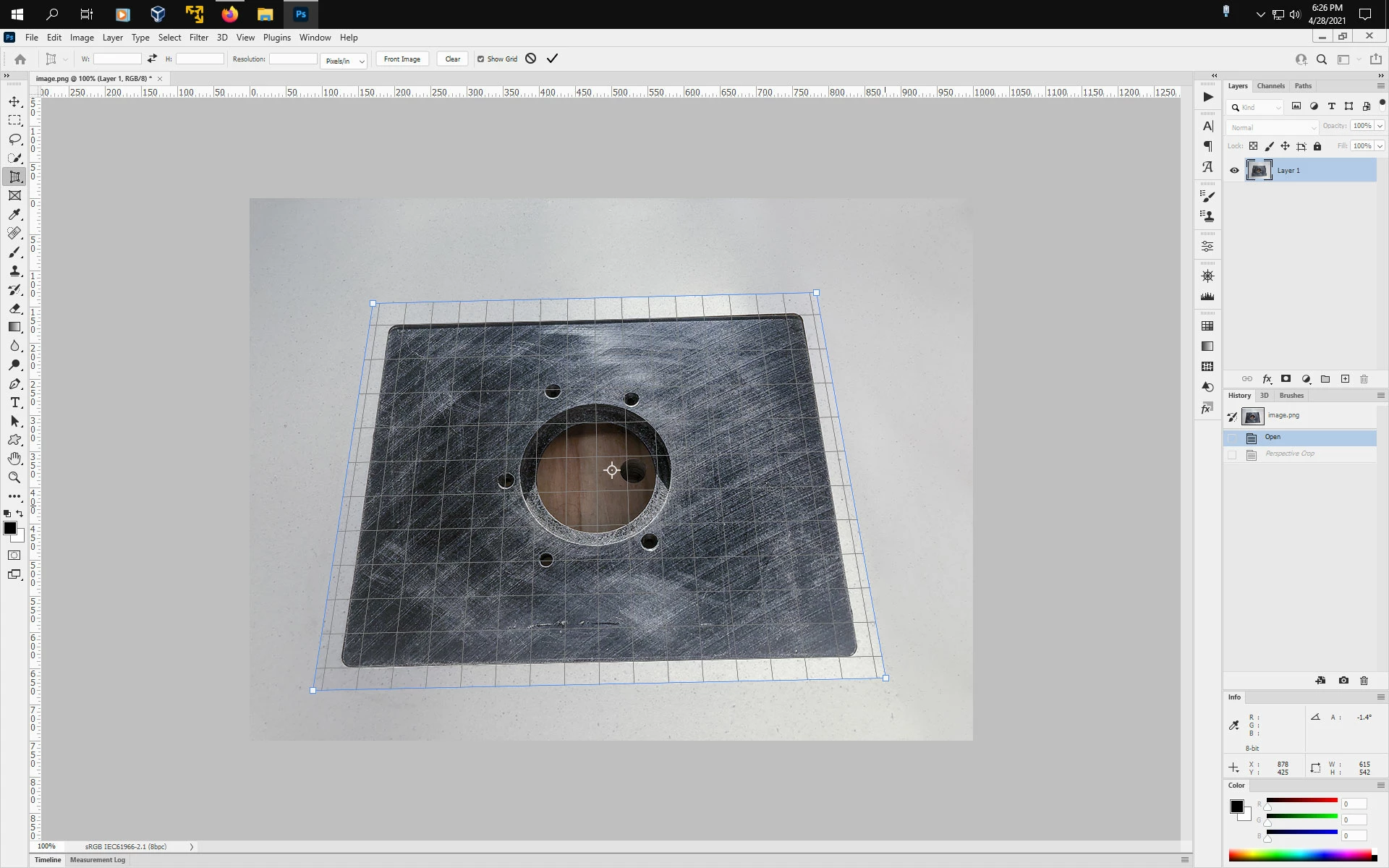
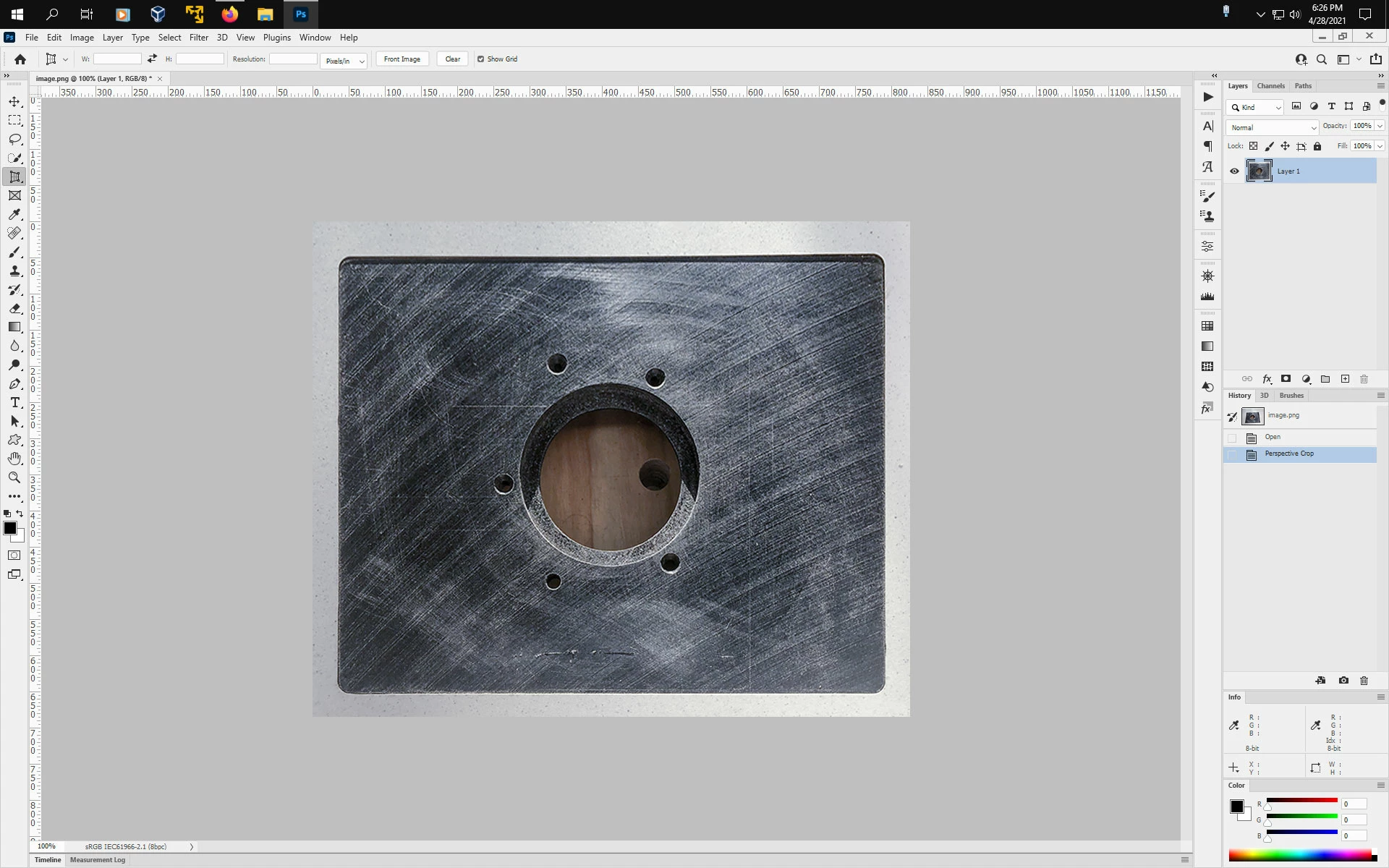
By way of some background, I like to make stuff, and right now I am making a router table for my workshop. I took this as a casual picture with my phone, for a woodworking forum. Like, I suspect most of the regular posters to this forum, I am a bit OCD when it comes to images and I'd like to square it up. The Perspective Crop Tool should be perfect for this task, but I need to keep some of the border, and there is no easy way that I can think of to do this.
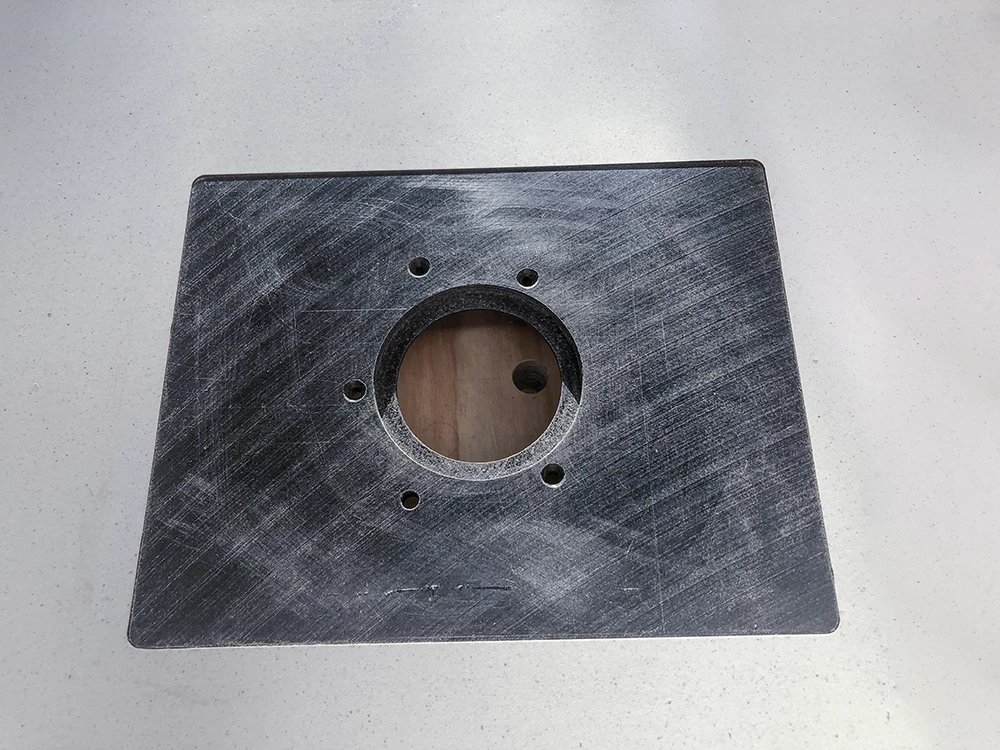
In the past I have experimented with keeping Delete Cropped Pixels unchecked hoping that after I use the PCT I'd be able to add canvas and find the border still there. It isn't.
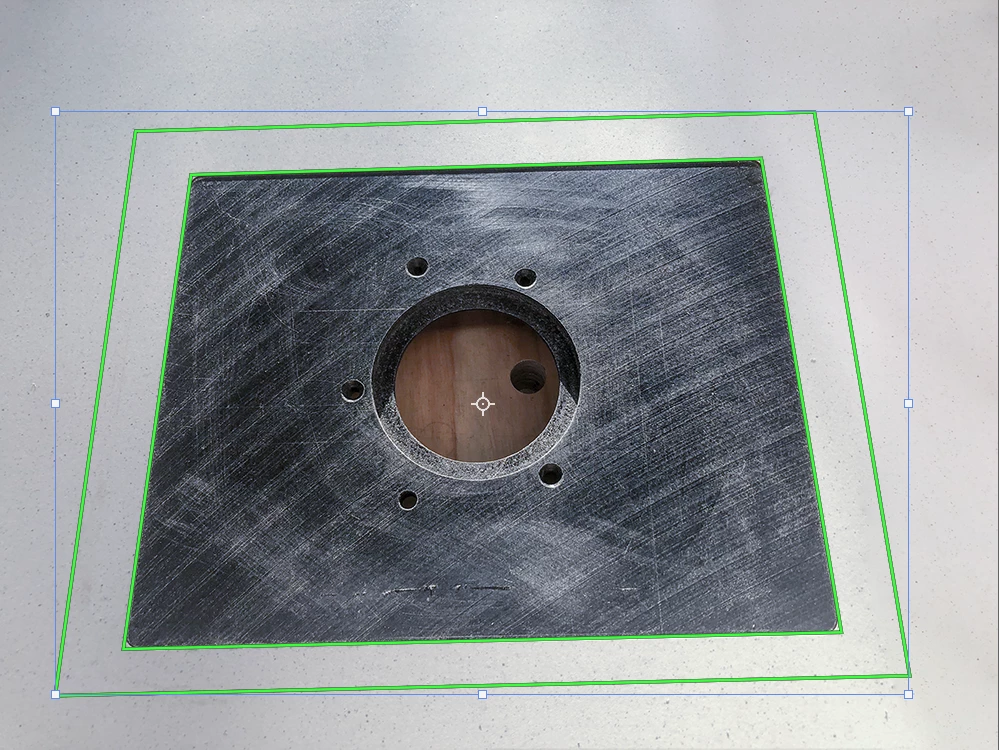
The best I can do is to create a Work Path around the rectangle I want to square up, and use Free Transform to expand it. This sort of works but you have the usual issue of a un-square aspect ratio producing unequal borders top and bottom to the two sides.
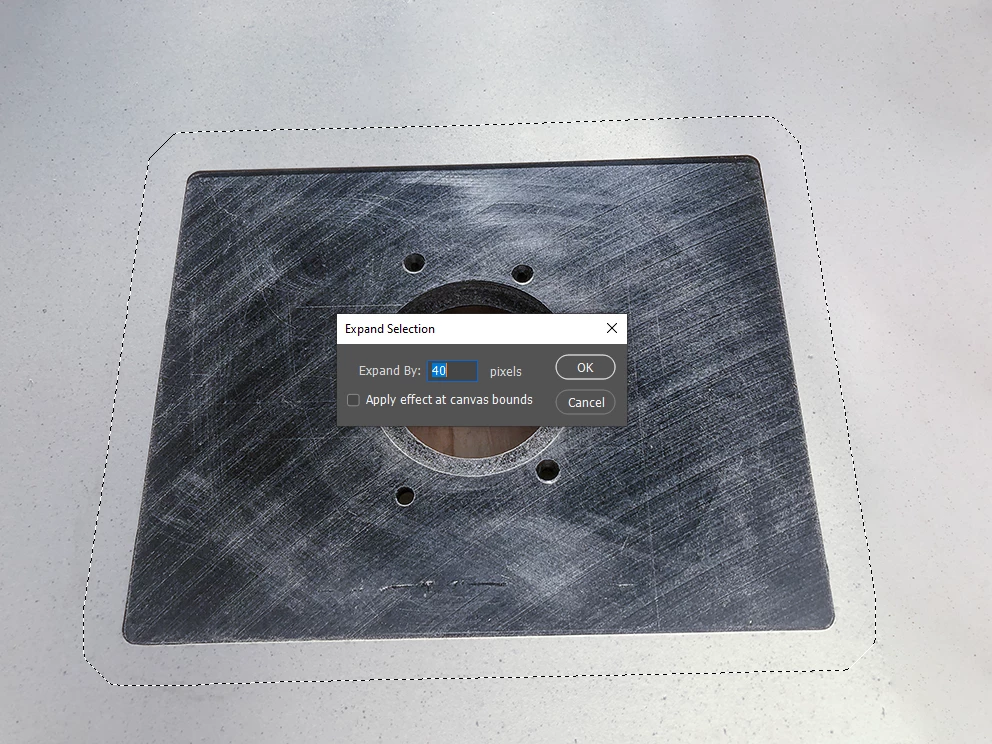
With this much contrast I can get an excellent result with select Subject and then use Modify > Expand which even allows me to get an identical width border all round, but the heavy corner radius is not ideal for locating the PCT corner handles.
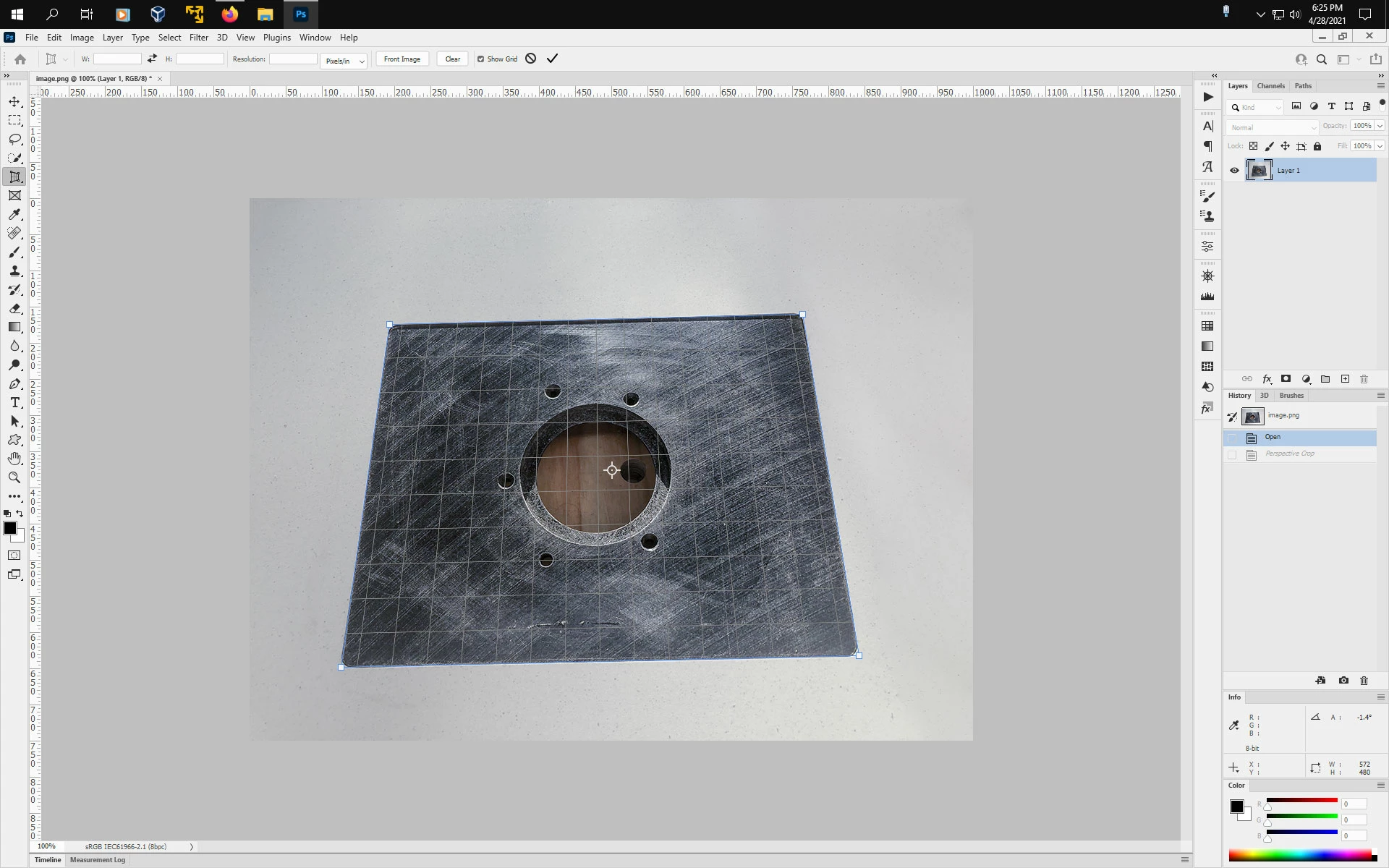
That's all I've got. I guess the Work Path comes closest, but it is too clunky. Perhaps if I could create and expand the workpath, and then Ctrl click to select it and simply click on the PCT which automatically cropped and squared the image to the selection, then I'd call that worthy of the 2021 version of Photoshop, (except it would require the GPU so wouldn't work).
Has anybody got a clever idea on how to streamline this process?
 AdChoices