

Mike_Gondek10189183
Community Expert
Community Expert
February 7, 2019
Question

Perspective Warp on multiple layers & stop pop up help windows

  • February 7, 2019
  • 2 replies
  • 636 views

I wish to for example do a perspective warp on a group called "Product", but that distortion works only on single layers. A similar situation is using liquify, and there is a useful "Load Last Mesh", I use to fix a layer mask.  I would prefer being able to distort multiple layers, without creating nested smart objects, any suggestions? Is there a last distortion filter or release smart objects?
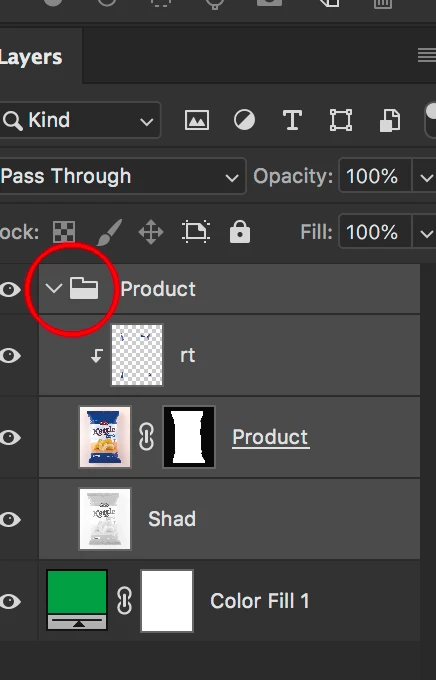
Layers

rt - retouching to take out UPC code date expiration code and imperfections

product - the original photography

Shad - shad in separate layer, so someone turn off and on in InDesign to multiple against background

Color Fill - a dummy layer I turn off when saving, there to proof mask is good

I also would like to stop seeing these pop ups, how do you get rid of them?
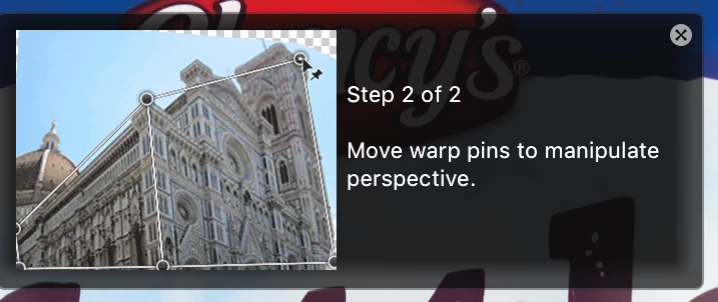
Love perspective warp though, thankyou Adobe!

    This topic has been closed for replies.

    2 replies

    melissapiccone
    Community Expert
    Community Expert
    February 8, 2019

    I don't think there is a way to do perspective warp on multiple layers without smart objects. I don't understand what you said about limiting others and having to flatten... you don't have to flatten anything when using smart objects...

    Melissa Piccone | Adobe Trainer | Online Courses Author | Fine Artist
    Mike_Gondek10189183
    Community Expert
    Community Expert
    February 8, 2019

    Hard to explain but will try.

    Lets say a retouching project starts out with 3 backgrounds living rooms shots, where the focus is set at different distances, and they like certain areas of each photo. You use load files into stack and end up with 3 layers.

    You add a TV above fireplace, a person in front of fireplace and some light rays from a window, shadow from a plant, and a dust removal; layer, so +5 more layers.

    They then ask you to extend the brick ledge above fireplace, remove a vase recenter tv, change the perspective some.

    They then want the bevels on tv to be enhanced.

    Next they want you to remove the opening to the hallways and fill with a wall.

    Now imagine if someone creates smart objects somewhere along the way, nest them inside another smart object,  and now all you have to do is make the TV larger. But the dust removal layer for the tv is part of a dust removal layer on top of all and you have to dig inside of nested smart objects, and hope you don't miss a layers that might for example enhance they fine edges on the logo of the tv.

    For me is similar to folder structure on a server and going to many folders deep or do an illogical organization becomes difficult to work with.

    Hope that makes sense.

    c.pfaffenbichler
    Community Expert
    Community Expert
    February 8, 2019

    I also would like to stop seeing these pop ups, how do you get rid of them?

    Have you tried turning off Photoshop > Preferences > Tools > Use Rich Tooltips?

    Mike_Gondek10189183
    Community Expert
    Community Expert
    February 8, 2019

    Danke Herr Pfaffenbichler. Your suggestion is excellent, at first I tired this and was disappointed that all pop ups still come up.

    Then I did exactly as you suggested, and the first half of pop ups stopped on Mac High Sierra CC2019.

    Thought I remebered tool tips being under general, so thank you for showing me with where that settings resides.

    For the main question I would do a smart object if I worked for myself. Working with others I want to limit them from making the images impossible to edit later without flattening.