
Participating Frequently
May 18, 2019
Answered

Photoshop 20.0.04 Brush Lag (High-Spec Computer)

  • May 18, 2019
  • 2 replies
  • 4631 views

I just bought a new laptop, with 32GB DDR4 memory, as well as Intel Core i7 8750H processor, NVIDIA GeForce RTX 2060 6GB graphics, 512GB PCIE M.2 solid state drive, 1TB hard drive, etc. This was because my old computer lagged, and I had some graphics driver errors coming up, which I thought was the problem.

But the textured mixer brushes (I'm using "Kyles", which Adobe endorses) still lag, when they're big. I can work on an A4 document at 600dpi, or an A3 at 300dpi and they still lag (though the latter lags less). Haven't tried anything bigger. Even the non-textured ones lag, as well as other brush sets I've used.

The laptop is plugged in, and I have all the latest drivers for my graphics card, and the Wacom 13HD tablet I use with it.

I've gone through and optimized Photoshop's performance (it has 85% of the RAM allocated, and the scratch disk is the SSD; I'm storing the paintings separately on my hard drive).

What makes it weird is that, despite the unworkable lag, Photoshop claims to be running at 100% efficiency, and my computer stats report not using more than max %30 of the RAM, CPU and GPU at any time. So why is Photoshop lagging instead of using the extra processing power to run better?

I've contacted Adobe Customer Support several times over this, but nothing's solved the problem so far. I've done screen shares twice, and will continue following it up. However, if anyone else is experiencing the same problems, I'd appreciate any feedback or "me too's" on this post, in case it's a bug Adobe needs to address.

I'll let you know if it gets fixed, too. So far I've trouble-shot turning different graphics drivers off, fiddling with a whole bunch of performance settings, installing older versions of Photoshop, etc.

Note: Smoothing and sample all layers are on when I paint, but they need to be. They're features I like to use, and my computer *should* be able to crunch them.
This topic has been closed for replies.
Correct answer JJMack

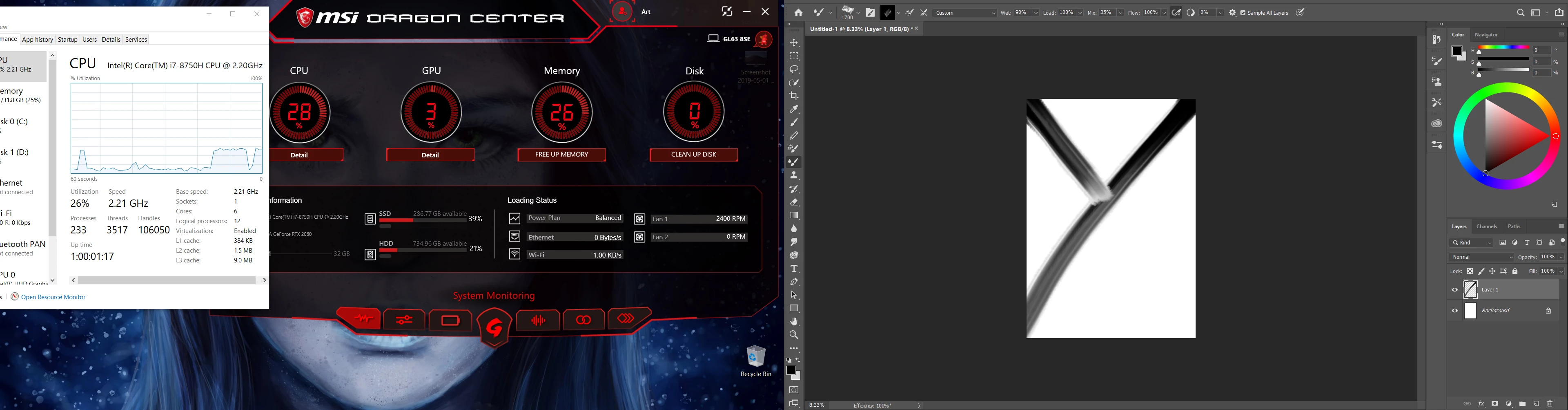
Here's a screen cap, mid-brushstroke:


Your screen capture of the task is not showing anything you can say as far a brush stroking goes.  You single Processor  has 6 cores and most likely can run 12 Threads.  You are not showing the load for each  thread.  You also need to not continually stroking with a brush so all your are seeing in the plot is basically your machine doing brush strokes all processor should more or less have  const level of utilization.

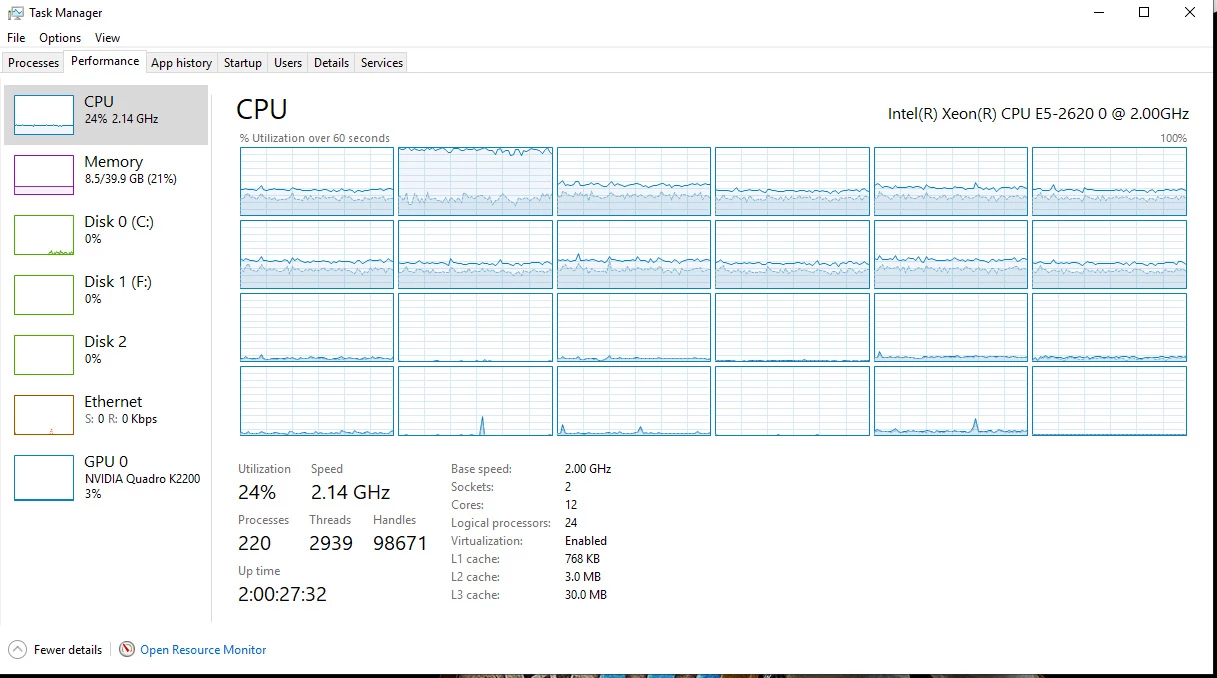
If you look at my machine it has two slow 6 core processor.  24 threads can  run concurrent. However,  It look like Photoshop is only using 12 Threads to do the brush stroking  only 12 thread seem to have as consistent load on them. And one is maxed out its has no more power. The sequential nature of a brush strokes means if you multi task it you need to sync all the task so  the stroke is laid down in order. If one task can not keep up with all the others it will slow all the other task.  It take a lot processing to render a brush stroke.   It takes time to process a pixel.  If you are  Processing millions of them it is likely you will not be able do the calculations required in near  real time.  Brush stroke will always lag some they need to be calculated and rendered. After  you start the stroke and will finish shortly after you finish your stroke if your machine is up to the task. If the amount of data is small you may not even notice the lag. The more you complicate the brush  size, sample tip  blending, smoothing etc increase the computations that  need be performed.  It is easy to produce unacceptable lag. I did so many quick large brush strokes on a large canvas zoomed out it most likely took minuets for Photoshop to catch up after I stopped brushing.

2 replies

Participating Frequently
May 26, 2019

Ok, so for others reading this thread I highly recommend this article by Puget Systems here: https://www.pugetsystems.com/recommended/Recommended-Systems-for-Adobe-Photoshop-CC-139/Hardware-Recommendations .

It explains a lot of how the hardware of a computer interacts with Photoshop's software - which doesn't match how computer hardware should theoretically work. Great stuff.

JJMack
Community Expert
Community Expert
May 18, 2019

How much smoothing and what is the brush spacing.   I would think 1% spacing Lots of smoothing and large canvas 600DPI print resolution A3 canvas size is 17MP zoom out so the canvas fits on your display a brush stroke may be quite a few pixels in 16bit color depth is pixels requires 6 bytes of data.    Try increasing your Brush Spacing setting and reduce the amount of smoothing.  See if you can fine some settings the work for you.

I find lots of lag with that size document. 1% spacing 50% smoothing. My Processor are slow 2GHZ Photoshop is using all the cores on one of my processor and one thread is maxed out at 100% so it most likely slowing all the other task.

JJMack
Participating Frequently
May 18, 2019

I have fiddled with the brush spacing, unfortunately for textured brushes it changes the look and feel a lot. A spacing of about 10 works well for the general ones though

I will try experimenting more with these however, if I can get brushes to look similar enough big then I can save them as different presets, specifically for the large-brush size painting.

This problem is just so strange though, my computer is able to turbo-boost up to 4ghz (3.9), it's just odd it's not using all the processing power.

Another trick for digital artists is to just use smaller canvases at the right dimensions, and 72dpi to make thumbnails, then upscale the image size as more details are added. It just makes them a bit blurry, even when using bicubic smoother, and crunch-wise the computer should be able to handle it :/ I'd be happier if I knew it was maxing out and doing the best it could. That it isn't is super weird.

JJMack
Community Expert
Community Expert
May 18, 2019

https://forums.adobe.com/people/The+Dreaming+Sentinel  wrote

Another trick for digital artists is to just use smaller canvases at the right dimensions, and 72dpi to make thumbnails, then upscale the image size as more details are added. It just makes them a bit blurry, even when using bicubic smoother, and crunch-wise the computer should be able to handle it :/ I'd be happier if I knew it was maxing out and doing the best it could. That it isn't is super weird.

That is not a trick Photoshop is working on an smaller canvas Photoshop is not working on 17MP your machine is not blend millions of pixel with each brush stroke so you computer can render a brush stroke in near real time. Photoshop work with your actual images pixels.  If you zoom out on a large canvas a brush stroke may need to change millions of bytes on data to render your long sequential stroke. All the requited computation takes time you see that as lag.   Keep stroking  and look at your task manager CPU graph if any thread is at 100% your maxing out that thread can not keep up to real time.

JJMack