
garethi55139778
Known Participant
November 6, 2018
Answered

Photoshop 2019 delete key does not bring up content aware

  • November 6, 2018
  • 2 replies
  • 4416 views

I have to say this release of creative cloud has not been fun.

In photoshop in a locked layer when I make a selection and hit delete, content aware used to come up. Now it does not.

How can I make it behave like it has for the past 5 years?

Cheers
    This topic has been closed for replies.
    Correct answer Muqqarib Hassan

    Hi,

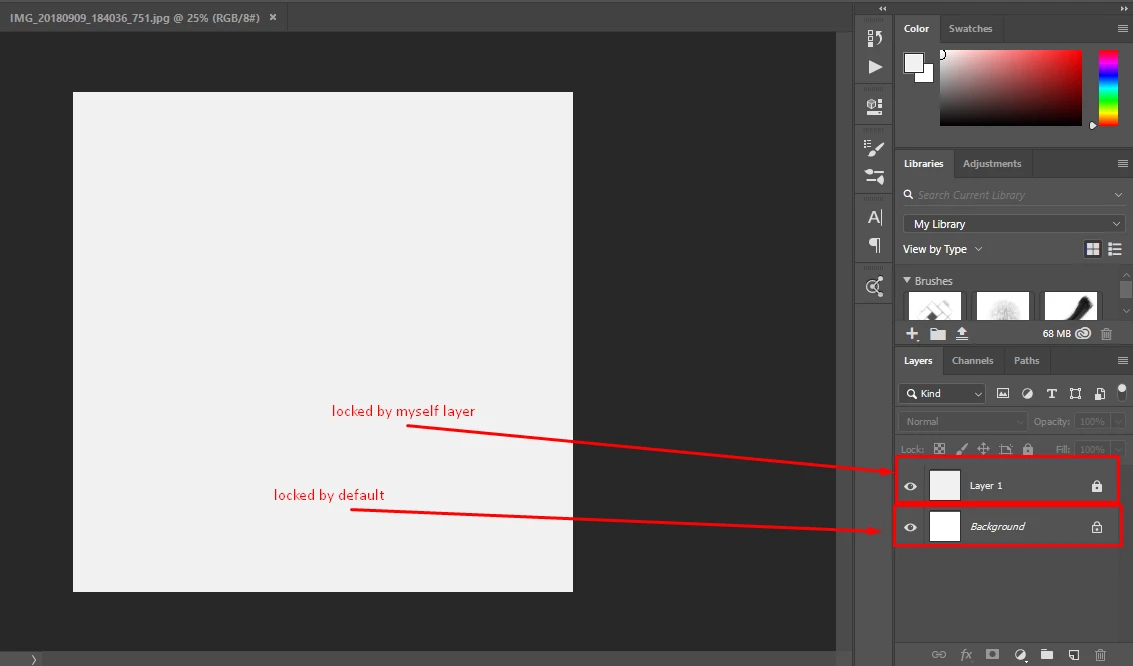
    In my point of view Delete button only work on that locked layer which is default created by photoshop. So It means When you create a new doc Ctrl + N and then create it It shows you default locked layer or when you open an image in photoshop it shows you default locked layer of that image so Content aware only show with Delete button when you have the default locked layer.

    It will not work you lock layer by yourself and then press the delete button it will not work.

    Hope you understand.

    Thanks.

    2 replies

    Muqqarib Hassan
    Muqqarib HassanCorrect answer
    Inspiring
    November 6, 2018

    Hi,

    In my point of view Delete button only work on that locked layer which is default created by photoshop. So It means When you create a new doc Ctrl + N and then create it It shows you default locked layer or when you open an image in photoshop it shows you default locked layer of that image so Content aware only show with Delete button when you have the default locked layer.

    It will not work you lock layer by yourself and then press the delete button it will not work.

    Hope you understand.

    Thanks.

    garethi55139778
    Known Participant
    November 6, 2018

    OK thanks that would appear to be it, I locked the layer myself but it was the only layer.

    How can I sue content aware in this circumstance then? I tried from the edit menu but it did a terrible job of it. When I opened that image rather than pasting and locking it, it worked perfectly.

    Muqqarib Hassan
    Inspiring
    November 6, 2018

    when you lock layer by yourself then you cannot perform any action on that layer because it shows you this message when you perform any step on lock layer.

    So for use of content aware tool make selection of your image and then right click on it and select the fill option then select the content aware .

    OR Check this video guide to make your pictures perfect.

    OR you can try new method which is introduced in photoshop Cc 2019. That is very easy to use and make perfect content aware.

    1. Open an image in Photoshop. Using any selection tool, create an initial selection of the area you want to fill.
    2. From the menu bar, choose Edit > Content-Aware Fill.

    New and enhanced features | Latest release of Photoshop CC

    Here is new content aware fill Video guide. Watch video from the end and see how you can use the new content aware fill

    November 6, 2018

    Hi

    It's still working for me, PS CC2019 Windows 10, have tried resetting Photoshop preferences