
Participant
October 13, 2020
Answered

Photoshop 2020: Pen Pressure not working

  • October 13, 2020
  • 2 replies
  • 1232 views

Hello,


Then Pen Pressure isn't working. I had previously had help from dobe (Case number: XXX).
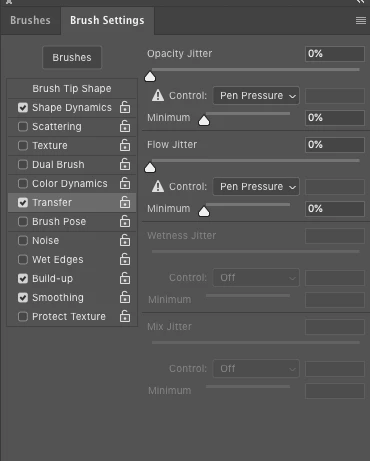


I'm still experiencing the same problem.


Kind regards,


Humayun


{Removed the case number by the moderator}
This topic has been closed for replies.
Correct answer JJMack

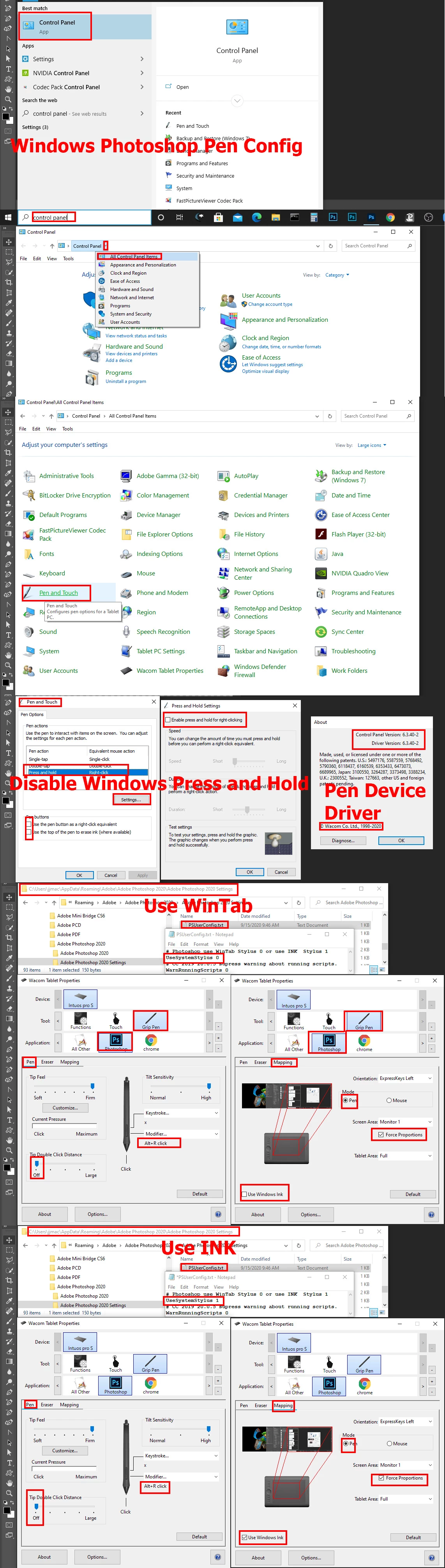
On windows Application interface WinTab works better than INK when configured well.  Here is how you configure for WinTab  or INK on Windows.

2 replies

JJMack
Community Expert
JJMackCommunity ExpertCorrect answer
Community Expert
October 14, 2020

On windows Application interface WinTab works better than INK when configured well.  Here is how you configure for WinTab  or INK on Windows.

JJMack
Participant
October 29, 2020

I'm on a Mac Pro but thanks for the detailed reply, hopefully useful to Windows users.


I think perhaps there is an issue with the Wacom software/hardware itself - I say this because the pen pressure DOES begin working as it should after a few minutes.


JJMack
Community Expert
Community Expert
October 29, 2020

I do not know how to configure Pen  support on a Mac I would think it will be quite like wacom tablets they have been used on Mac for years.  Apple may also have a added a Windows INK like Pen interface  I do not know what support Apple added to their system for pen support.  You most like have a configuration problem. Mac usesr have been using Pens with Photoshop for years. Your Pen is most likely supported.  Adobe did brake Photoshop  Wacom Wintab Pen support  in version 20.1 but  fix that in version 21.2.3.

JJMack
Akash Sharma
Legend
October 14, 2020

Hi there,


Sorry that Pen pressure for your Wacom tablet is not working for you in Photoshop 2020.


Could you please try the steps below?

  • On Windows: You will need to set the tablet to use Windows Ink for Photoshop and you will also need to delete the PSUserConfig.txt file. See https://helpx.adobe.com/in/photoshop/kb/tablet-support-faq-photoshop.html 

  • On your Mac, go to System Preferences. In the System Preferences window, locate Ink and open it.

    In the Ink window, set the Handwriting recognition option to Off and deselect Allow me to Ink in any applicationFor related information, see Apple's support article Change preferences in Ink on Mac.

  • Also, make sure that the driver is installed, and that your tablet is connected correctly to the computer. Update the tablet driver from manufacturer's website.


Let us know how it goes while we check the case # you provided for more details.


Thanks,

Akash

Participant
October 14, 2020

Hi Akash,


I've switched the Handwriting Recognition to off. I have updated the wacom drivers.


The problem is still there.


What else can I do?


Kind Regards,


Humayun