
Inspiring
November 16, 2021
Answered

Photoshop 2022 Scratch Disk not showing all hard drives

  • November 16, 2021
  • 14 replies
  • 10824 views

Hi,

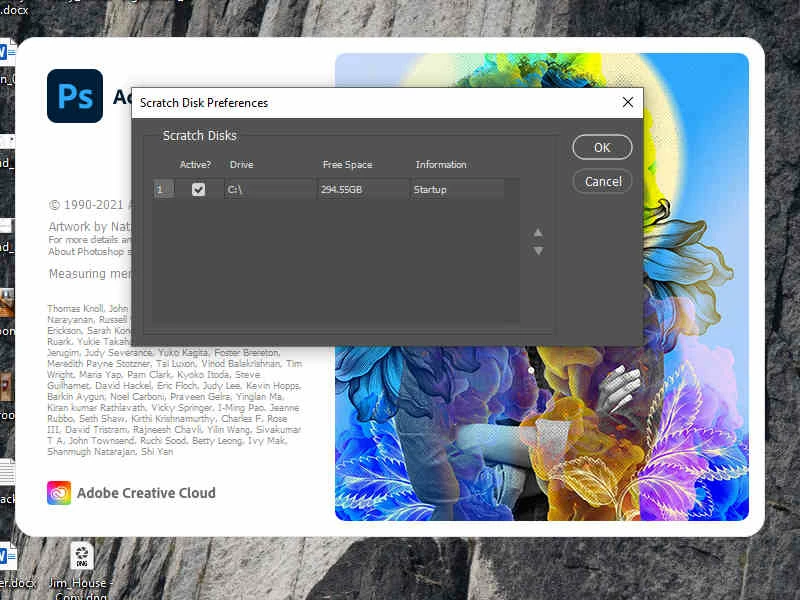
I am experiencing an issue with Photoshop 2022 (Ver 23.0.1) in configuring my scratch disk. I currently have 3 hard drives, 2 are internal SSD drives (C:\, D:\) with 1TB each. The other (E:\) is an external 1TB backup drive. All drives have 200+ GB of space. The only drive recognized is C:\. I have restarted several times holding CTL + ALT to try and make changes. As shown in the below photo, the only drive recognized at startup and Preferences is C:\.
 

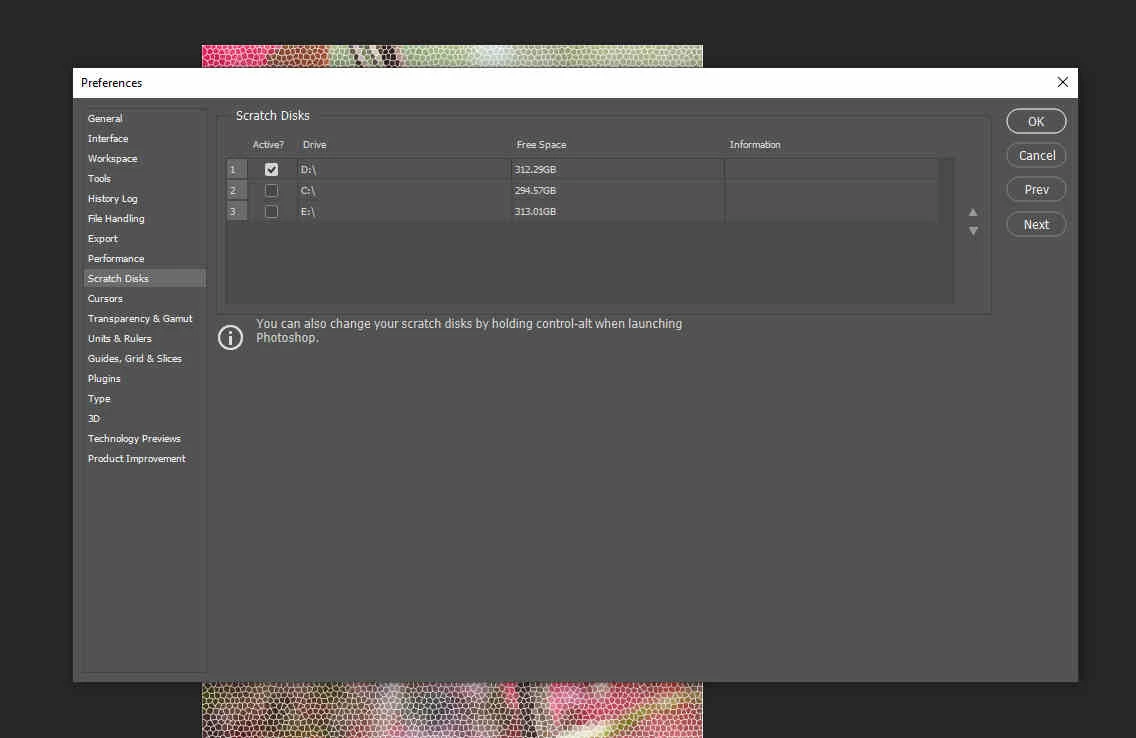
A screenshot from PS 2021 shows all three drives with D:\ configured as the scratch disk drive, along with displaying the other 2 drives.
 

Not sure what is causing this. Any thoughts?

My current configuration consists of:  an AMD Ryzen 3600x with an Nvidia Quadro K5000 (4GB VRAM), Win 10 Pro, and have 16 GB RAM.

Correct answer davidz38719464

Thanks again for the help. Reached out to some other sources and got a solution or  workaround for the issue and that was to go to  Photoshop.exe in Explorer, right click and grant Administrator privledges. Now when I open PS I get a small spalsh screen asking me if I want to "allow this app to make changes to your device?" I click "Yes," the program opens and I am able to see all drives. From that, I selected a scratch disk to use.

14 replies

Participant
September 12, 2023

Hey! This worked for me and I'm thrilled. I reformatted my external hard drive:

Supported drive formats for scratch disks:

macOS: APFS or macOS Extended (Journaled)

Windows: NTFS, exFAT, FAT32

Drives not recommended for scratch disk

  • Thumb drives
  • Any USB-2 drive
  • NTFS formatted drives on macOS
Participant
April 15, 2023

Hi Y'all,

I have a solution for this Problem... This is it You need to format the orther hard drives before you fix it in the laptop. This is why you're formatting; If you had windows on any of the HDD and you changed it to your SSD you have to format the HDD so that photoshop will See the HDD in the laptop.

Inspiring
April 15, 2023

Had the same problem w/ PS 2022, on a Windows 10 Pro machine, and used the solution as Vino suggested. Worked like a charm. The only caveat is to make sure if you have any data on the drive, is BACK IT UP. Did not experinece similar issues w/ versions of PS 2023  or PS Beta.

Inspiring
May 30, 2022

Hi,


Just to report that I have exactly the same problem. Photoshop only sees the C:\ drive when trying to set the scratch disk to another drive UNLESS I run it as an administrator. It doesn't see any other disk D:, E:, F: or whatever... They are all accessible, no permission problem, and they have a lot of available space. Of course, any other application on the system can access these disks and read from and write to them. What on earth is this code doing when enumerating the system drives ?


Would you please start to consider this as a bug, not just a strange behavior ?


Thanks.


Patrick


--Patrick
Inspiring
May 30, 2022

By the way, please don't ask the same questions as above because you'd get exactly the same answers about resetting the preferences, adding a new user, giving detais about disk properties and technologies, etc. Just, I can't save an image to any of these drives from Photoshop (unless I run it as an admin). I can do that from any other imaging software, though. The message is


This doesn't make sense since full access to these disks has been given to everyone. I don't have any such problem with other apps.

I'm suspecting an impersonation problem. PS apparently doesn't execute under my own logon. Otherwise, how could it decide that I don't have the permissions that I actually have ?

--Patrick
Inspiring
May 30, 2022

Also, during the PS startup, the following debug messages are emitted :


[17756] [1376][Warn] [general] We are going to deprecate this interface soon. Please use HostControllerInfo instead.
[17756] [1376][Warn] [general] We are going to deprecate hostInfo access soon. Please use HostInfoController instead.
[17756] [1376][Warn] [general] We are going to deprecate this interface soon. Please use HostControllerInfo instead.
[17756] [1376][Error] Failed to open logger file for writing.
[17756] Access is denied.
[11392] The command line parameters are mismatched
[19348] RecursiveDirectoryCreate( C:\Users\xxxxxx\AppData\Roaming\Adobe\UXP\PluginsStorage\PHSP\23 directory exists )
[19348] Failed to create directory C:\Users\xxxxxx\AppData\Roaming\Adobe\UXP\PluginsStorage\PHSP\23\Shared, last error is 5
[19348] Failed to create one of the parent directories
[7616] RecursiveDirectoryCreate( C:\Users\xxxxxx\AppData\Roaming\Adobe\UXP\PluginsStorage\PHSP\23 directory exists )
[7616] Failed to create directory C:\Users\xxxxxx\AppData\Roaming\Adobe\UXP\PluginsStorage\PHSP\23\Shared, last error is 5
[7616] Failed to create one of the parent directories


At the same time, all the mentioned folders are fully accessible.

--Patrick
davidz38719464AuthorCorrect answer
Inspiring
November 18, 2021

Thanks again for the help. Reached out to some other sources and got a solution or  workaround for the issue and that was to go to  Photoshop.exe in Explorer, right click and grant Administrator privledges. Now when I open PS I get a small spalsh screen asking me if I want to "allow this app to make changes to your device?" I click "Yes," the program opens and I am able to see all drives. From that, I selected a scratch disk to use.

Legend
November 18, 2021

That's very strange that a new Admin user account didn't have the same result.

Legend
November 18, 2021

The other thing we just noticed is the name of the drives is all the same "OS" - If you give the drive unique names does it work? (try not to use names of default OS directies like Documents or Applications - and use unique proper names like "Steve" and "John")

Legend
November 18, 2021

One of the engineers has asked "I'd check that the user can create files at the root of those drives (try saving a PS doc there)."

Inspiring
November 18, 2021

Morning Mohit,

Well, I just spent 1 1/2 hours CAREFULLY going through the process step-by-step as outlined in the documentation. I restarted my computer and brought up PS 23.0.1.  The C:\ drive still remains as the single option for a Scratch Disk. The D:\ and E:\ drives are not shown as options. Nothing has changed. 

What other avenues should I persue?  

Mohit Goyal
Community Manager
Community Manager
November 18, 2021

Hi there,


Thanks for the update. Could you please uninstall Photoshop 23.0/23.0.1 using the Adobe Cleaner tool, restart your machine and reinstall Photoshop via Creative Cloud Desktop app and check if that helps.


Let us know if that helps.

Thanks,

Mohit

Inspiring
November 17, 2021

Jeffrey,

Thanks for your perseverance on my issue. Much appreciated. Here are screen shots of the drives showing the General and Security tabs views. Please let me know if there is any other information you need this end.

David


Legend
November 17, 2021

For each of the drives, right click and choose properties and screen shot the dialog - want to see the File System  and security on each drive: