
Dave_Draws
Inspiring
December 4, 2022
Resuelto

Photoshop 2023 will not associate with image files in Windows 11

  • December 4, 2022
  • 13 respuestas
  • 4255 visualizaciones

I thought I was having a problem with some kind of settings, but after a thorough purge of all Adobe related programs and files (as explained in this earlier post), followed by a re-installation, I now believe this is some kind of bug.


With a completely fresh install of Photoshop 2023, Photoshop does not appear as an option when I right click on a .JPG file and select "open with..."
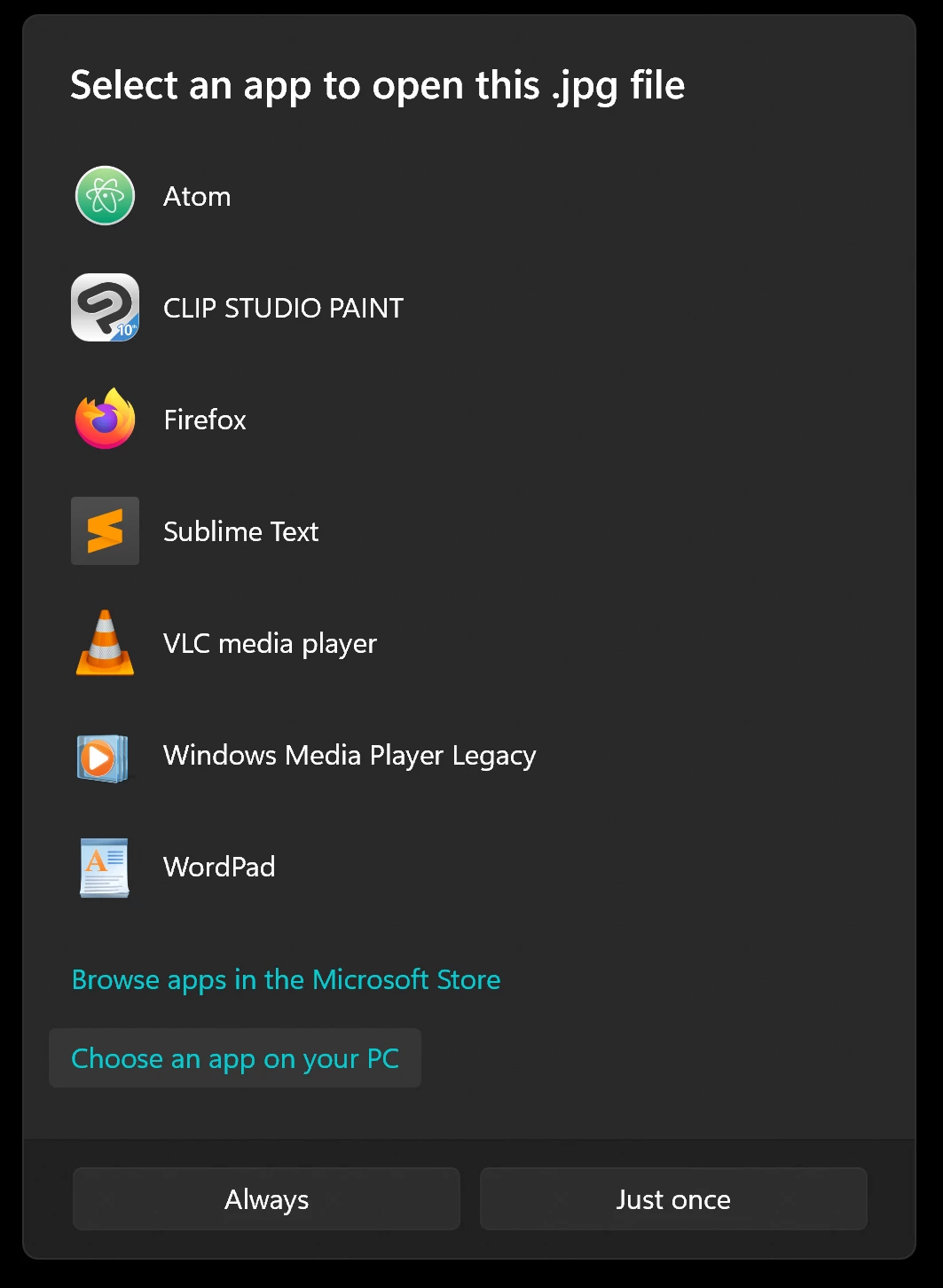
 

So, I select "Choose an app on your PC" and select to open with Photoshop by finding the program on disk:
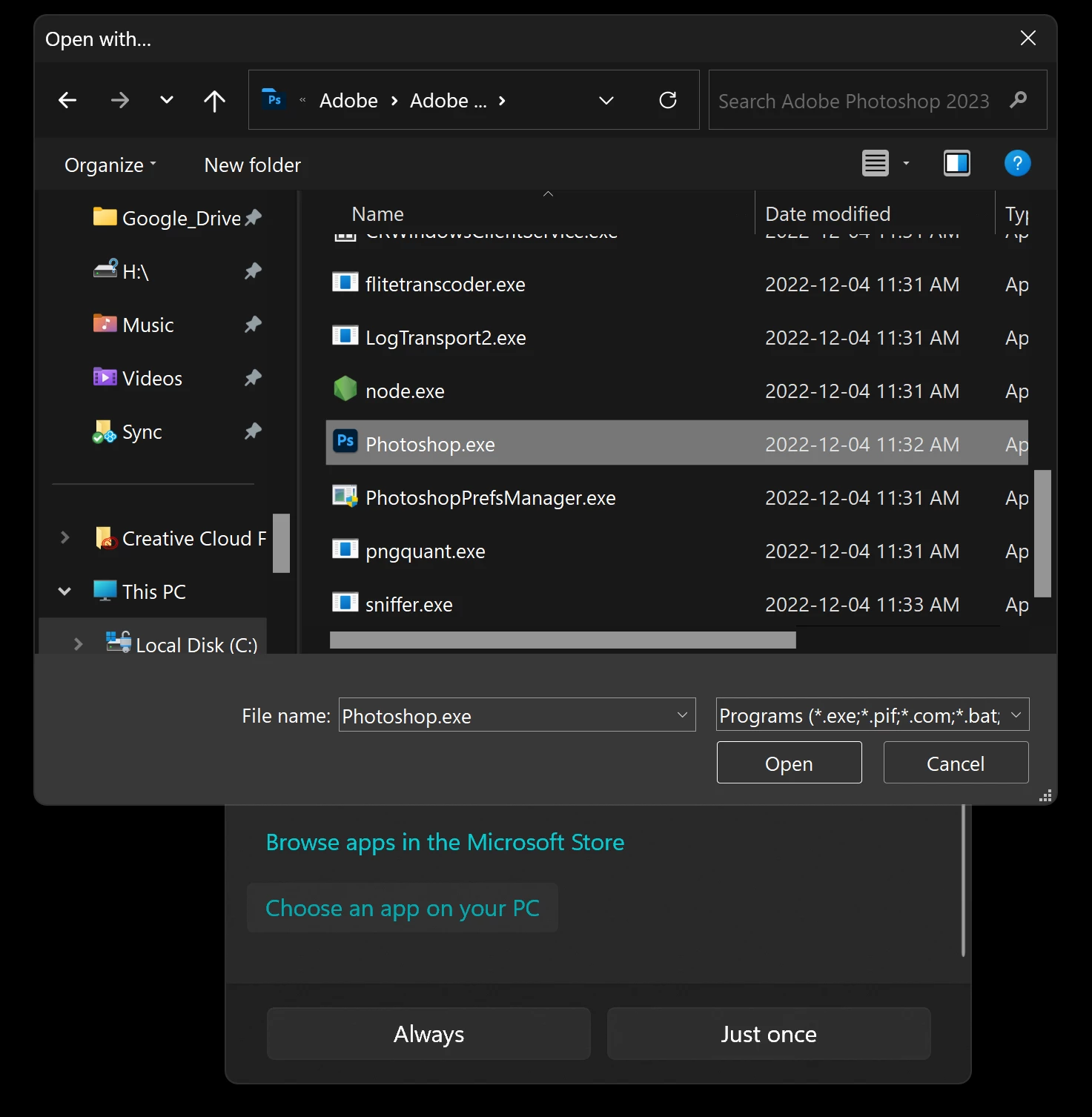


However, when I press the "Open" button, I get an error message that says "Cannot associate file type with this program":
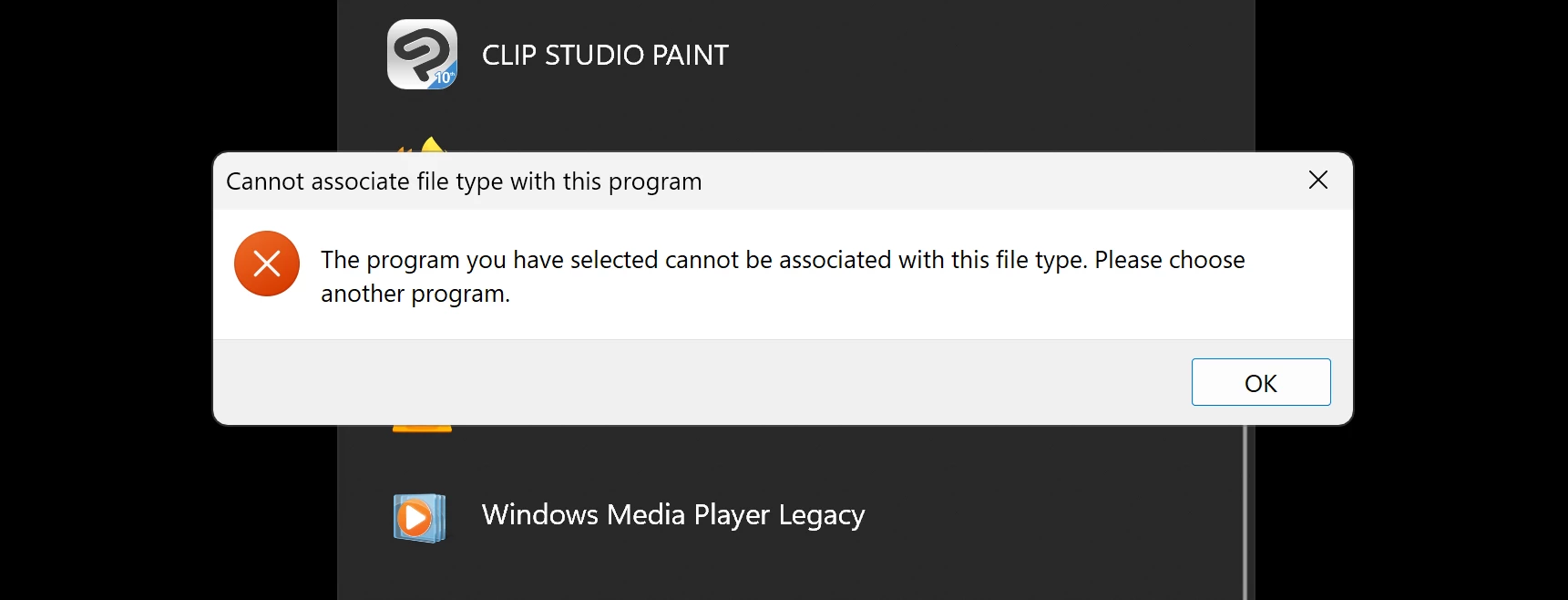
 

This is true for any image file, such as PNG or GIF or anything else. The only file format that will open in Photoshop from File Explorer is PSD.


How do I get Photoshop to appear in the "Open with" dialog, and open image files?

Mejor respuesta de Dave_Draws

I found a solution to this problem, on this web page. The web page refers to Windows 10, but I did this in Windows 11 and it all worked out.

Basically, I used the Registry Editor, in administrator mode, and navigated to:


Computer\HKEY_CLASSES_ROOT\Applications\Photoshop.exe


I noticed that my registry was a little different than what was described on the web page. There were two entries. One was:

Shell > Open > Command

And the other was:

Shell > Edit > Command


Although the values in both referred to the correct location of Photoshop.exe, I compared the registry entries for Illustrator.exe, and saw that Illustrator had no entry for "Edit." So I suspected there might be something problematic about that.

In any case, I deleted everything inside the Photoshop.exe entry, both "Edit" and "Open."


After that, I was able to right click on a JPG file, select to find Photoshop.exe on my computer, and open the file. The second time I right clicked on a JPG file, Photoshop was offered as one of the options, and had the correct icon.

Hope that information is helpful for future people with a similar problem.

13 respuestas

Dave_Draws
Inspiring
December 4, 2022

@Mylenium, also, a Google search for "context overflow syndrome" returns no results related to Windows or registries or programs. Not even when I add terms like "Windows" or "registry." Is this a term you made up?

Dave_Draws
Inspiring
December 4, 2022

No other program is exhibiting this kind of behavior. The problem is therefor most likely the single program that is having the problem.

Also, I have already tried various methods of cleaning the registry.

Lastly, Photoshop has been exhibiting other bugs, as described in my other post. All evidence indicates to me that Photoshop is where the problem lies.

Mylenium
Legend
December 4, 2022

Most liekly nothing to do with PS, but rather "context overflow syndrome", i.e. too many programs creating file associations. You can comb through the Registry manually or use respective tools to clean things up.


Mylenium