
Inspiring
December 27, 2017
Answered

Photoshop and Camera Raw

  • December 27, 2017
  • 3 replies
  • 2180 views

Hello,

I just starting using the Camera Raw 6.7.1 inside of my Photoshop CS5. Even though I don't have an actual Camera Raw format on my PC, I still can open a JPEG or TIFF inside Camera Raw. For example, click file open as instead of file open and then select the file and Camera Raw format. Everything seems to work great, except I'm having an issue that I need to stop. Any file that I opened in camera raw, now always opens in camera raw just by clicking file open. Where as any file that I never did open in Camera Raw will open regularly inside Photoshop CS5. I can't have this, I need to be able to choose when to open a file in camera raw and when not to inside Photoshop CS5. I looked at the preferences and settings inside Camera Raw and Photoshop CS5 and don't see how to stop this from happening. I don't use my Bridge CS5 and never plan to. Therefore, I'm not looking for a solution that involves Bridge CS5.

Thanks,

Leo
    This topic has been closed for replies.
    Correct answer Jeff Arola

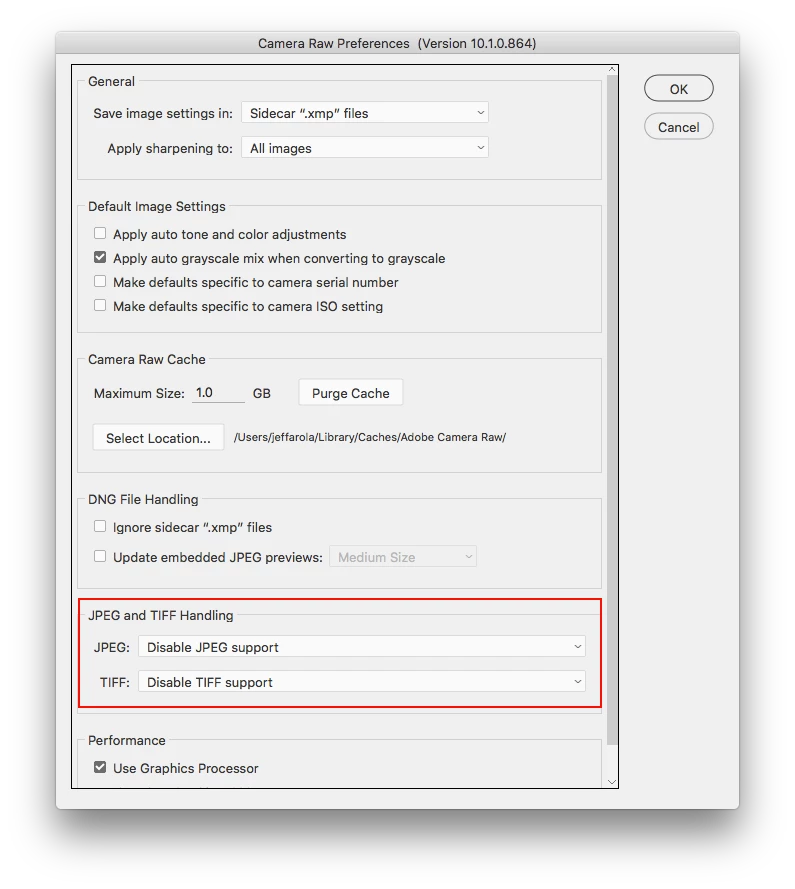
    Go to Edit>Preferences>Camera Raw and set Jpeg and Tiff Handling to Disable Support for both Jpeg and Tiff.

    3 replies

    Trevor.Dennis
    Community Expert
    Community Expert
    December 27, 2017

    Why on earth would you preclude Bridge from any solution?  It is far too useful in so many ways, not to take advantage of.  You can chose to open suitable files in ACR by selecting them and using Ctrl R, or just Ctrl O to open them directly in Photoshop.

    You can give files star rating (Ctrl 5 = 5 stars) and then filter to view just the files you are interested in.  A great way to sort out your best pictures.  You can sort by all the same criteria as Explorer (or Finder if you are using a Mac) and you can also sort by dragging.  You can batch rename, batch resize, view small or full screen previews.  You can view metadata, give files attributes to help you sort and re-find them.  It even has an Output Module that lets you add four images per page, or any arrangement you want so you can store or print them later.

    But best of all, it would get you past your current problem.

    Inspiring
    December 27, 2017

    "Go to Edit>Preferences>Camera Raw and set Jpeg and Tiff Handling to Disable Support for both Jpeg and Tiff."

    I saw this before I made the post and thought by disabling support for Jpeg and Tiff, I would no longer be able to open a Jpeg or Tiff in Camera Raw at all. However, somehow it worked. All Jpeg and Tiff files open regularly now and I can still open them in Camera Raw if I want to.

    Thanks!

    Jeff Arola
    Community Expert
    Community Expert
    December 27, 2017

    "With adobe bridge you can actually delete the camera raw metadata in the tiff and jpeg files that are causing them tp open in camera raw, which in turn reduces the file sizes of the photos. Edit>Develop Settings>Clear Settings.

    Also, if you have or ever get a camera that shoots camera raw photos, bridge is very a convenient way to look at the photos, since windows may not support a lot of newer camera raw formats for viewing."

    Exactly how do I do this? I can see the one image that I opened in Camera Raw has a camera icon, inside Bridge. I guess this indicates that it has CR metadata, but when I have the image highlighted and go to Edit>Develop Settings>Clear Settings, it's greyed out.

    Thanks,                   


    You have to go to Edit>Preferences>Camera Raw and under Jpeg and Tiff Handling enable a setting other than Disable Support such as Automatically Open Jpegs or Tiffs with Settings, then the Edit>Develop Settings>Clear Settings will work.

    After you clear all the settings from your photos you can change it back to disable.

    As you found out, you can still open jpegs and tiffs into camera raw even with disable.

    Jeff Arola
    Community Expert
    Community Expert
    December 27, 2017

    With adobe bridge you can actually delete the camera raw metadata in the tiff and jpeg files that are causing them tp open in camera raw, which in turn reduces the file sizes of the photos. Edit>Develop Settings>Clear Settings.

    Also, if you have or ever get a camera that shoots camera raw photos, bridge is very a convenient way to look at the photos, since windows may not support a lot of newer camera raw formats for viewing.

    Jeff Arola
    Community Expert
    Jeff ArolaCommunity ExpertCorrect answer
    Community Expert
    December 27, 2017

    Go to Edit>Preferences>Camera Raw and set Jpeg and Tiff Handling to Disable Support for both Jpeg and Tiff.