


- Home
- Photoshop ecosystem
- Discussions
- Re: Photoshop and Lightroom much more saturated th...
- Re: Photoshop and Lightroom much more saturated th...
Photoshop and Lightroom much more saturated than rest of PC

Copy link to clipboard
Copied
Let´s see if I can explain what is going on
Whenever I edit in lightroom o PS and export an image, colors are less saturated and less bright.
Sent a tiff file to a friend that uses Mac, opens my image, export it and looks the same as my exported image, both tiff and exported jpeg.
So I guess both LR and PS are using different color profiles than rest of my PC.
Hope I´m making myself clear on this, sorry for my english.



Explore related tutorials & articles
 24
Replies
24
24
Replies
24


Copy link to clipboard
Copied
No, but Lightroom and Photoshop support color management using icc profiles, which a lot of other applications don't.
It sounds like you are sending from Lightroom to Photoshop as ProPhoto RGB. The problem is that ProPhoto absolutely requires full, end-to-end color management to display correctly. Without color management, a ProPhoto file looks dull and desaturated, a little dark and slightly greenish.
I suggest first of all that you go into Lightroom Preferences > External Editing, and change the color space to sRGB.
A screenshot would make it a lot clearer.
Copy link to clipboard
Copied
Actually no, I'm sending from LR to PS in rgb.
There are no differences in color betwen photoshop and lightroom. This happens when exporting files on either programa.
On mi friends Mac it doesn't happen
Copy link to clipboard
Copied
There is no such thing as "RGB". That's a generic model. What we're discussing here is specific color spaces: sRGB, Adobe RGB, ProPhoto RGB etc.
Go into Lightroom Preferences > External Editing and see for yourself. It will be set to ProPhoto if you haven't changed anything. Change it to sRGB.
Copy link to clipboard
Copied
that is the way it is set
Copy link to clipboard
Copied
There's no way to know what's going on with the minimal information you're giving us. What does "that's the way it is set" mean? Is it set to sRGB, or is it set to ProPhoto RGB?
Let's start with a side by side screenshot. Lightroom or Photoshop on one side; the "less saturated" version on the other. Don't crop the application interfaces, it's important to see which application displays what.
(and let's not confuse the issue with your friend's Mac. Let's keep that out of it).
Copy link to clipboard
Copied
Maybe I´m not makin myself clear.
Lightroom Preferences > External Editing is set to sRGB.

That is side by side. Happens the same with LR or PS.
For extra info, if I open the exported jpeg in PS, side by side they look excatly the same
Copy link to clipboard
Copied
this is how they look both in PS
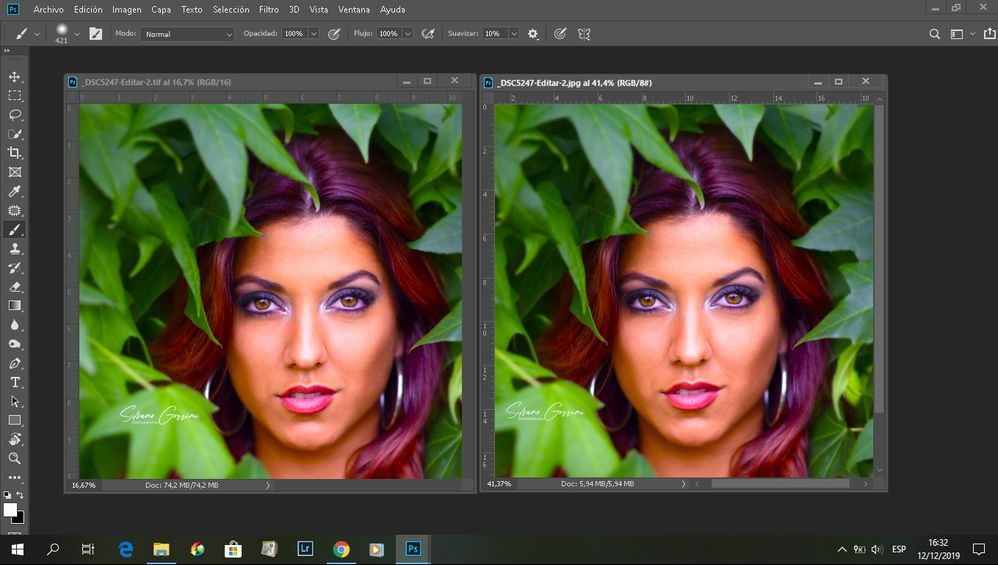
Copy link to clipboard
Copied
The question is whether IrfanView is color managed or not. I don't use it and don't know, someone else who uses it will have to answer. If it isn't color managed, that explains it.
The point here is that this doesn't have anything to do with the file itself. It is what it is. The question is whether it is correctly displayed.
If IrfanView is indeed color managed, then you may have a defective monitor profile. All color managed applications should always display identically under all circumstances.
sRGB usually minimizes the difference, but it will still be there, how much depends on the monitor. What monitor are you using? Are you using a calibrator with it?
Copy link to clipboard
Copied
It is not a calibration issue, both my monitors, (notebook and Dell p2417h are calibrated).
That is why I am saying that on another computer, there are no differences between original file and exported jpeg with same parameters.
In my case if I open jpeg on windows native viewer is the same difference, even opening the file on chrome shows the same difference.
That is why I think there is a problem with PS an LR displaying.
In photoshop using 

Copy link to clipboard
Copied
Lightroom Preferences > External Editing is set to sRGB.This setting has no effect on files that you export.
Which profile did you choose in File settings > Color space in Lightroom's Export dialog?
Also, have you enabled color management in Irfanview?

Copy link to clipboard
Copied
Which profile did you choose in File settings > Color space in Lightroom's Export dialog? this is set to srgb
Also, have you enabled color management in Irfanview? yes!!!!!
Copy link to clipboard
Copied
If you just enabled color management in Irfanview, you will need to restart it for color management to work.
But since Chrome also is displaying wrong, I suspect a defective monitor profile.
Try setting the monitor profile to sRGB, and it that fixes the issue, recalibrate, making sure to create a version 2 (not version 4), matrix based (not table based) profile.
Press the Windows key + R, type colorcpl in the box and press Enter.
Add the sRGB profile, and set it as default.
All color managed applications must be restarted to become aware of the new profile.

Copy link to clipboard
Copied
It´s not a monitor issue, both my monitors were calibrated recently and profiles are being used my friend.
The issue is that both LR and PS appear more saturated. If I decrease saturation in PS by 20% then exports and files in PS look the same, but the problem still remains in LR.
I hope I make myself clear beacause my english is rough
Copy link to clipboard
Copied
Whoops, I see you even have "desaturate monitor color" checked in Color Settings - that should always be unchecked!
I agree with Per. This has to be a seriously broken monitor profile. What calibrator are you using?
You need to understand that the monitor profile is not about adjusting the monitor. It is a standard icc profile, used by color managed applications only, in a standard profile conversion. That's why there is a difference! The profile doesn't adjust anything, it's just a description, a map. The adjustment is done (or not done) by the application.
Edit: I see I need to be crystal clear about this. You keep saying "it's not the monitor". No, we know it's not the monitor. It's the monitor profile, it's made by the calibration software, and it's broken. You need to make a new one.
Copy link to clipboard
Copied
Whoops, I see you even have "desaturate monitor color" checked in Color Settings - that should always be unchecked!
I told you that, if I unchecke it, difference is huge, it is the only way images look alike.
I agree with Per. This has to be a seriously broken monitor profile. What calibrator are you using?
Both monitor profiles broken at the same time. I used spyderpro calibrator 30 days ago my friend
Copy link to clipboard
Copied
Monitor profiles can become corrupted, and Windows is also known to install low quality profiles when doing updates.
There is also the possibility that you used wrong parameters in the calibration software when calibrating, see my previous posts. And a monitor profile is not something you can pass on to a friend, it only works properly with the monitor it was created for. All monitors are different.
Try setting the monitor profile to sRGB, it's quick and easy, and will either confirm or rule out that the profile is the issue.
Copy link to clipboard
Copied
If the problem was monitor calibration, both jpeg and original file in PS would both look the same with wrong color
Copy link to clipboard
Copied
A monitor profile can work perfectly with one application, and produce wrong colors with another.
So I ask you again, try setting it to sRGB. It's an important troubleshooting step.
Copy link to clipboard
Copied
Tried that and all seems to be looking fine, no difference, only the wrong color balance.
What should I do to correct that??
Copy link to clipboard
Copied
Do images now display identically in all applications? (PS, LR, Irfanview Chrome).
If the answer is yes, and you think the color balance is wrong, you have to edit the images to get the color balance right.
Using sRGB as a monitor profile may be close enough, but for best results, using a hardware calibrator is recommended.
You may want to consider buying your own calibrator, and make sure to calibrate using the parameters I mentioned previously.
Copy link to clipboard
Copied
I will calibrate monitors again, I can borrow a calibrator.
What can I do to prevent corrupted color profiles?? Save a copy on another folder maybe??
Copy link to clipboard
Copied
We don't know if the profile was corrupt. It could have been replaced with a bad profile in a Windows update, or it could have been created using the wrong parameters. Again, you should create a version 2, matrix based profile.
There is no way to prevent corruption, but you can always keep a backup of the profile in case it gets corrupted. But you should also calibrate regularly, at least every couple of months. Also keep an eye on the Color management dialog, in case a Windows update has replaced the profile.
Copy link to clipboard
Copied
If a color managed application doesn't display correctly, it means that the color management chain from document profile to monitor profile is breaking down. The conversion is not producing the correct result. Usually the point where it breaks is the monitor profile, that's always the most exposed and vulnerable link in the chain.
That's why replacing the monitor profile with a known good profile is the first step in any troubleshooting.
The monitor profile can be corrupt, it can be built on the wrong parameters, it may not be written to correct ICC specification - or it can simply be the wrong one. There is only one basic requirement for a monitor profile: it has to be a correct description of the actual and current response of the monitor. It's a map that has to correspond to the landscape.
Of course, it can often be very difficult to determine which version is the correct one - how the file is really supposed to look. That's what caused all the back and forth confusion in this thread. This is usually pretty easy to determine when you're in front of the computer, not so much when all you have to go by is screenshots.
But again - replacing the monitor profile with one you know is healthy and will produce a roughly correct result, should give you a reference point. As long as you know the general behavior of the monitor, so that you can pick a suitable generic profile that isn't too far off. In most cases that's still sRGB.

Copy link to clipboard
Copied
Hi Silvano
IF you have to have "desaturate monitor colors" checked to get the match you are seeking then something is seriously wrong.
Every file you send out will be the 20% oversaturated because Photoshop is making you think the file is less saturated than it is.
If Photsoshop, and Lightroom match then we have to look at the other application to find a fault perhaps. Or the monitor profile/s are corrupted in some way perhaps
a good check of monitor appearance requires something like this:
http://www.colourmanagement.net/products/icc-profile-verification-kit
try downloading this image to view in Photoshop
does it "look right? the skintones natural etc? (that is without "desaturate monitor colors" checked)
you also wrote:
"It´s not a monitor issue, both my monitors were calibrated recently and profiles are being used my friend."
do you mean that your friend is using your moinitor profile?
I hope this helps
if so, please "like" my reply
thanks
neil barstow, colourmanagement.net
[please do not use the reply button on a message in the thread, only use the one at the top of the page, to maintain chronological order]


Find more inspiration, events, and resources on the new Adobe Community
Explore Now
 AdChoices