
Known Participant
March 21, 2020
Answered

Photoshop black levels display too bright

  • March 21, 2020
  • 2 replies
  • 5924 views

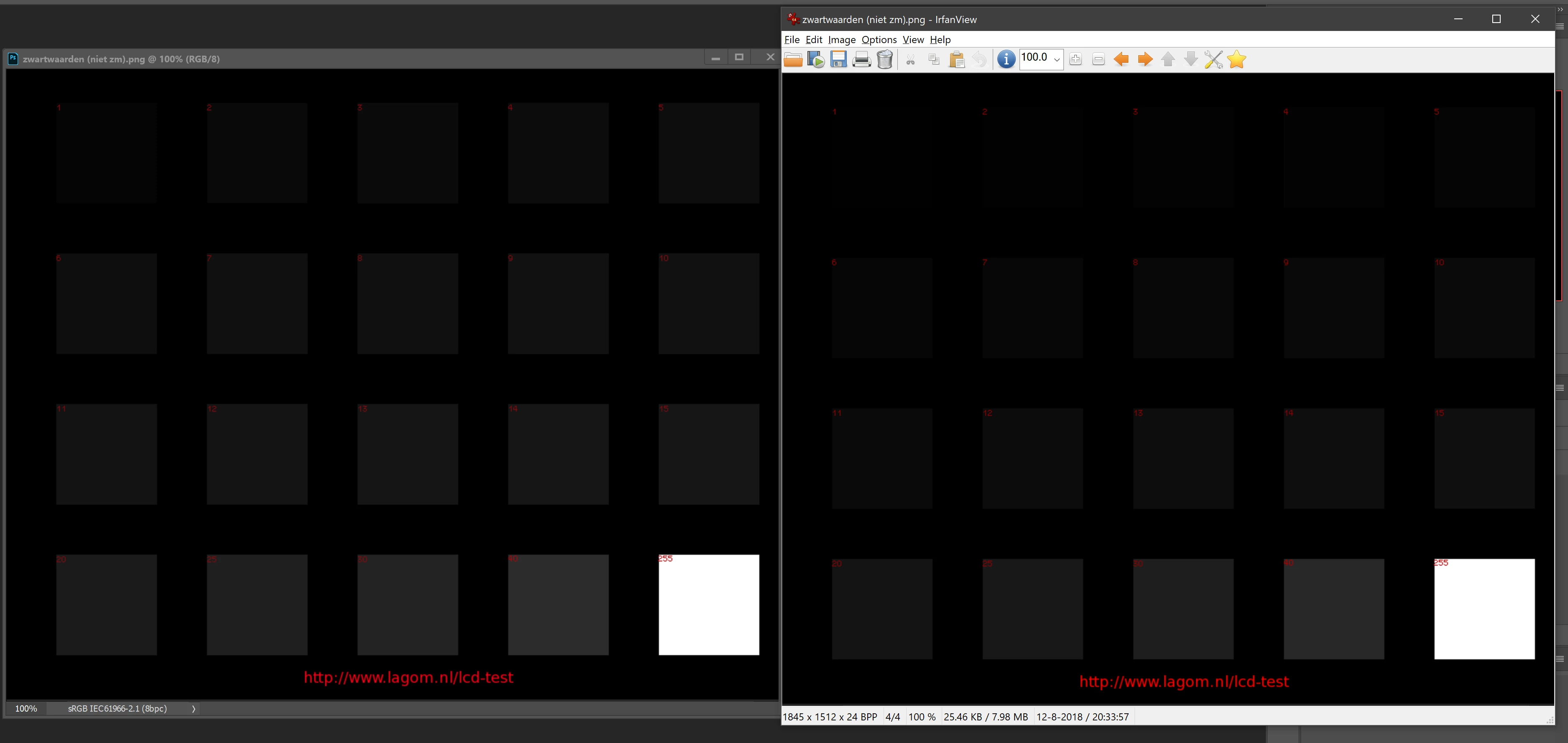
As can be seen in the below screenshot, I just discovered that the black levels of Photoshop are being displayed too bright. I don't know when this started happening, but it did not use to be that way.


I recently installed SpyderX color calibration software. I am not sure if that could be the cause, but no other software is having this issue. Also, when I quit the Spyder software it's still the same. Also, SpyderX color profiles do not appear in a screenshot. But the wrong colors are picked up in the screenshot as seen below, so it is really rendered like that in Photoshop.


So my guess right now would be that this is a programming error since a recent version of Photoshop (probably the version before 21.1.1). It's rather painful, as now I can't edit anything in photoshop because the black levels are wrong. I've been editing over a 100 photo's wrongly by now.


I also tried chaning the color settings in Photoshop but nothing changes actually. Bridge does show the right colors but I still use Bridge 8 since the new bridge GUI is worse. Win10 latest PS version.


Anyone that cares to test this, here is the used image: http://www.lagom.nl/lcd-test/black.php
 

This topic has been closed for replies.
Correct answer davescm

"However, that profile is used to correct the colors using the videocard. I've also calibrated a TV screen and colors of my monitor and the TV are now identical"


Calibration and profiling are separate things. Calibration brings a monitor close to a standard - that is all that is done with TVs (when calibrated at all).  There is no monitor profiling in video, only calibration.

Colour management takes things a step further and, via a series of measurements, produces a data file (the ICC profile) which describes exactly how your calibrated monitor displays colours. 

It is the loading of the calibration look up table (LUT) that is correcting colours in the video card. The profile is not used by the video card at all. The profile is only used by colour managed applications to convert colour numbers in the document into those required by the screen.
What sometimes confuses people is that the calibration LUT can be, and often is, stored in the same file alongside the actual monitor profile. However , although stored together in the same file they are separate things.


So to summarise. Your ICC profile file is likely to contain two elements.

1. A calibration LUT which is loaded to the video card and brings some benefit in all applications

2. A monitor profile that describes how your calibrated monitor displays colours. That is loaded at system level but is used only by colour managed applications. If that profile is accurate then colour managed applications will display more accurately than none colour managed applications. However, if it is inaccurate then the colour managed applications could be made worse as they will be converting on the basis of an inaccurate profile.


Dave


2 replies

davescm
Community Expert
Community Expert
March 22, 2020

You are showing some basic misunderstanding of colour management.

A colour managed application such as Photoshop will display colours differently to an application/browser that is not colour managed. That is because the colour managed application will use the document profile and the monitor profile to correct the numbers sent to the screen in order to display colours correctly. Applications that are not colour managed just send the numbers uncorrected and display incorrectly.

So step one - go back Photosop colour settings and set the RGB working space for new documents to either Adobe RGB (1998) or sRGB IEC61966-2.1.  Also set color management policies to Preserve Embedded Profiles


Step 2 - get your monitor profile to describe your particular monitor. Hardware calibration and profiling is done in two stages (your Spyder carries out both). The first run is calibration and that adjust the monitor to be close to a standard. A table of calibration data is produced and that is loaded to the GPU on startup (and is what you see switching when you turn it on and off). That step impacts all applications. The second stage (usually done immediately after by the calibration and profiling software) is profiling. That produces an ICC profile that tells colour managed applications exactly how colours are displayed on the monitor in its calibrated state. It is therefore more accurate than the calibration stage alone. There are two versions of ICC profile v2 and v4 and the former is read by more applications so is a safer bet.

The step shown by D.Fosse is a temporary workaround to give an acceptable (but not accurate) screen view whilst you sort out your monitor profile. So rerun your Spyder calibration and, if given a choice, make sure you are producing a v2 profile.


That is it. There are no more steps. Properly colour managed applications will display correctly. Non colour managed applications (or some browsers and viewers with poor implementation) will display incorrectly.


Documents should always have a color profile embedded. If you come across one that does not then you can assign one (as safe bet for web sourced images is sRGB). One caveat though is screenshots. If you take a screenshot (as opposed to downloading an image) then it will have no profile, but in Photoshop should be assigned the monitor profile then converted to a standard document profile (Adobe RGB/sRGB). That is the only time you should be assigning the monitor profile to a document.


A bit more reading if you are interested:

Colour Management simple explanation

Digital images are made up of numbers. In RGB mode, each pixel has a number representing Red, a number representing Green and a Number representing Blue. The problem comes in that different devices can be sent those same numbers but will show different colours. To see a demonstration of this, walk into your local T.V. shop and look at the different coloured pictures – all from the same material.

To ensure the output device is showing the correct colours then a colour management system needs to know two things.

1. What colours do the numbers in the document represent? 
This is the job of the document profile which describes the exact colour to be shown when Red=255 and what colour of white is meant when Red=255, Green = 255 and Blue =255. It also describes how the intermediate values move from 0 through to 255 – known as the tone response curve (or sometimes “gamma”).
Examples of colour spaces are (Adobe RGB1998, sRGB IEC61966-2.1)
With the information from the document profile, the colour management system knows what colour is actually represented by the pixel values in the document.

  1. What colour will be displayed on the printer/monitor if it is sent certain pixel values?
    This is the job of the monitor/printer&paper profile. It should describe exactly what colours the device is capable of showing and, how the device will respond when sent certain values.
    So with a monitor profile that is built to represent the specific monitor (or a printer profile built to represent the specific printer, ink and paper combination) then the colour management system can predict exactly what colours will be shown if it sends specific pixel values to that device.

    So armed with those two profiles, the colour management system will convert the numbers in the document to the numbers that must be sent to the device in order that the correct colours are displayed.

So what can go wrong :

  1. The colours look different in Photoshop, which is colour managed, to the colours in a different application which is not colour managed.
    This is not actually fault, but it is a commonly raised issue. It is the colour managed version which is correct – the none colour managed application is just sending the document RGB numbers to the output device regardless without any conversion regardless of what they represent in the document and the way they will be displayed on the output device.

  2. The colour settings are changed in Photoshop without understanding what they are for.
    This results in the wrong profiles being used and therefore the wrong conversions and the wrong colours.
    If Photoshop is set to Preserve embedded profiles – it will use the colour profile within the document.

  3. The profile for the output device is incorrect.
    The profile should represent the behaviour of the device exactly. If the wrong profile is used it will not. Equally if the settings on the device are changed in comparison to those settings when the profile was made, then the profile can no longer describe the behaviour of the device. Two examples would be using a printer profile designed for one paper, with a different paper. A second example would be using a monitor profile but changing the colour/contrast etc settings on the monitor.
    The monitor profile is set in the operating system (in Windows 10 that is under Settings>System>Display >Advanced) which leads to a potential further issue. Operating system updates can sometimes load a different monitor profile, or a broken profile, which no longer represents the actual monitor.


Colour management is simple to use provided the document profile is correct, always save or export with an embedded profile, and the monitor/printer profile is correct. All the math is done in the background.


I hope that helps


Dave

SkiesmdbAuthor
Known Participant
March 22, 2020

Wow thank you Dave, I hope you did not write all that just now 🙂


If I understand correctly, I had everything set up correctly already at the start.


D_Fosse suggests a corrupt profile. Hovever, that profile is used to correct the colors using the videocard. I've also calibrated a TV screen and colors of my monitor and the TV are now identical. So the profile is not corrupt.


I just discovered that Irfanview (from the screenshot) is actually behaving the same with files that have a color profile (it supports color management as well).

This is just really weird. Gray level 1 (that's the lowest value next to pure black on an 8bit file) should never be that bright. I hope I can return the Spyder because this is extremely frustrating. Why on earth should colors change in-program based on the system profile. That makes no sense at all to me and mixes up web-colors as well.

MIkhail A.
Participant
March 4, 2021

That's right. Any color management always needs two profiles, a source and a destination, to complete the chain. One icc profile is like one hand clapping (how's that for a zen koan...)


Also, you can forget that calibration tester and I don't know why you introduce that into the mix. Calibration and monitor profile are two different things, as has been emphasized several times at various points in this thread.


Calibration is a monitor adjustment separate from the color management chain. Being a monitor adjustment it is obviously global, affecting everything equally. In the video world, this is where it stops.


The monitor profile doesn't adjust anything. It is a map, used by the application to correct the numbers sent out to the monitor. That's color management, and some applications do it, some don't. The profile has a much higher precision than the calibration.


Thanks for yor answers!

Defenetly I don`t get something fundamental.


Maybe it is worth to reduce everything to a simple model.
Lets say
1)We have LUT correction curves created after calibration process and loaded to our GPU (calibration settings gamma 2.2 , standard sRGB gammut)
2)we have sRgb image with embeded standard sRGB profile
and we open it in non Color Managed Viewer "X" (so no ICC conversion)
3) In this case RGB values of this image send to the Monitor directly BUT through the GPU correction, which , I think(probably wrong) gives us right colors?

davescm
Community Expert
Community Expert
March 21, 2020

Photoshop is colour managed so displays any document by using the monitor profile, set in your operating system, and the document profile. PS translates the document numbers on the fly to display correctly on your monitor.


IrfanView can be set to colour management but whether you have it set on , and whether it is working correctly with your profile, the images suggest not.


Yes I downloaded the image and it has embedded profile called "PNG sRGB" and displays fine in Photoshop v21.1.1. here on a calibrated and profiled monitor.


I don't understand your comment about what happens when you quit the Spyder software.You use the software to calibrate, then profile your monitor and that's it.


Start with the your profile, make sure your calibration and profiling software is set to produce v2 profiles (not v4). Then make sure the resulting profile is set in your OS.  Then start Photoshop.


Dave

SkiesmdbAuthor
Known Participant
March 21, 2020

Thanks for the reply.


Something is really wrong. In the SpyderX tray menu I can easily disable the color management. ALL colors on the screen change (subtly) when doing that. Including photoshop and whatever is open in Photoshop. This can not be print-screened.


Photoshop seems to be loading the active color profile ON TOP of that or something, resulting in messed up colors in general (all gray values are too bright actually). When I set the system profile back to sRGB, colors return normal in PS, but calibration goes down the drain as well (but still WAY better).


Photoshop sould NOT be changing any colors, since the system is already doing that. What's going on here?

SkiesmdbAuthor
Known Participant
March 21, 2020

I've just 'solved' the problem by setting the RGB color profile in the Color Settings to the measurement profile from the SpyderX.


Is it me or is this totally counter-productive and far from logical?

I do not see any benefit in this. I am quite sure 75% of the people calibrating their monitor do not change this in Photoshop.