
Dave_Draws
Inspiring
October 12, 2023
Answered

Photoshop breaks "open with" functionality in Windows with every upgrade
  • October 12, 2023
  • 2 replies
  • 6438 views


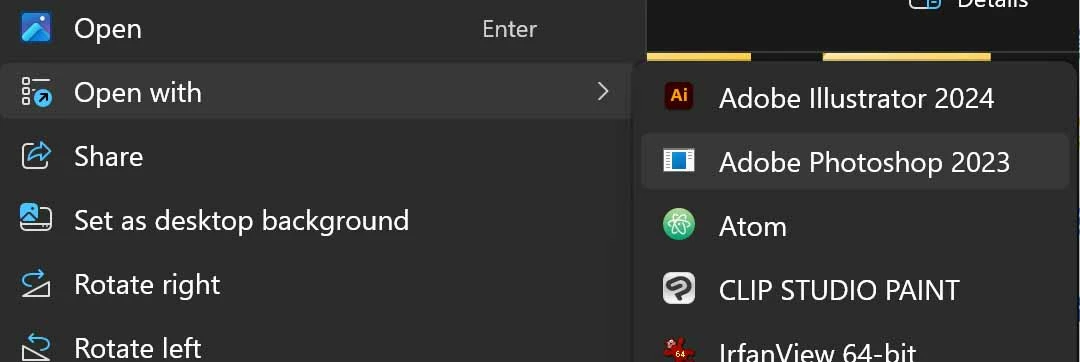
I recently upgraded to Photoshop 2024. However, as you can see in the image above, if I right click on an image file (of any format) and select "Open with," it still shows "Adobe Photoshop 2023," and the icon is a generic windows icon.


If I select "Adobe Photoshop 2023," nothing happens. No version of Photoshop opens, and the "Open with" dialog re-appears.


I've seen on this forum and other discussion groups in the internet that others have had problems similar to this going back as far as 2011. Solutions involve manually editing the registry, which I try to avoid as much as possible.


The thing is, this has happened to me at least once before, when I upgraded from Photoshop 2022 to Photoshop 2023. It's possibly happned with previous upgrades, but I am not 100% certain.


In any case, I am looking for a solution that not only fixes this current problem, but also ensure that I will not have to do manual registry edits with every upgrade.


How do I resolve this issue?

This topic has been closed for replies.
Correct answer Dave_Draws

https://helpx.adobe.com/creative-cloud/kb/cc-cleaner-tool-installation-problems.html 


I forgot that I had actually solved this problem before.

https://community.adobe.com/t5/photoshop-ecosystem-discussions/photoshop-2023-will-not-associate-with-image-files-in-windows-11/m-p/13416035#M690745

Would be nice if Adobe corrected their update process so as not to have to deal with this over and over.

2 replies

Known Participant
January 15, 2024

I just experienced the same thing today. It is so annoying and frustrating! I'm not a "techie" and I will not mess with my computer's registry. I work on a Win 11 Pro PC & all my photo post-processing is in Ps 2024 (commercial, no beta usage, version). I need to be able to open all my images with any file extension (.jpg, .jpeg, .tif, .tiff, .psd/.psb, etc.) using "Open with... Ps 2024".


I downloaded a release of  Ps 2021 (22.2) yesterday to add to my already installed Ps 2024 (pls no suggestions that I uninstall and re-download Ps 2024 I will not risk that due to tenuous 3rd party plugins that I might lose in the process and cannot risk b/c they can never be downloaded/installed again ...). Now, all that shows up as an option for me to open with for .jpgs of any file extension is Ps 2021, not the Ps 2024 I need to show in the Open with popup box. 


How can Adobe correct this so we can easily get a list of our installed Ps apps in the Windows apps list and add the one(s) we need to be our default Ps app (for me it would be the current Ps 2024 rel.)? We are photographers, artists, etc. not coders or developers. We need a simple, intuitive way to assign our default Ps Open with version w/out messing around in registries or anywhere on our computers where we could do irrevocable harm b/c we don't have the correct expertise. Somebody at Adobe should have the skills to do that for us - they come up with all sorts of "sexy" Sneaks for MAX....

D Fosse
Community Expert
Community Expert
January 15, 2024

This is how Windows works. The latest installed version will always take over the file associations.


Go to Windows Settings > Default Apps > Default Apps by File Type. You need to change file associations for each extension (psd, tiff, jpeg etc).


If you want to add an earlier version, the proper way to do it is to first uninstall the new version, then install in version order. The last one you install will be the one that opens files by default.


D Fosse
Community Expert
Community Expert
October 12, 2023
quote

How do I resolve this issue?


By @Dave_Draws


With a little bit of precaution. There is a safe way.


Yes, it's a problem, but it's avoidable. Always install/uninstall in strict version order. Last in > first out. The latest installer activity sets file associations, ingoing and outgoing.


The CC installer does it in the wrong order. It first installs the new version, and then it uninstalls the old. The problem is that the outgoing version takes file associations with it, leaving them orphaned.


So. Uncheck "remove old versions". If you want to remove it later, uninstall the new version first, then the old version, then reinstall the one you want to keep.


Dave_Draws
Inspiring
October 12, 2023

Thank you for responding.

If I do the process as you suggest, won't that lose my settings?

D Fosse
Community Expert
Community Expert
October 12, 2023

No, you can choose to keep settings when you uninstall, there's a checkbox for that too. Settings and preferences are stored in your user account, separate from the program installation files.