
Photoshop brush stroke doesn't render correctly (With Pressure)
I've been having issues with my photoshop brushes for a while. Sometimes, they don't render correctly and it causes the brush to appear smaller than it really is, and also creates a border like a black square if I press it hard enough. It usually occurs on brushes with texture, and so far only happened to my downloaded brushes. I've never had an issue with brushes until I started using PS 2019, then I tried using 2020 to see if it could fix the issue but it still persisted. The only way to fix it from what I can tell is either to wait or switch to other brushes before coming back to the specific brush (not guaranteed).
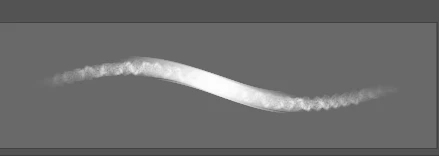
When the border appears and the brush is having some kind of rendering error (above). As you can see there's a rectangle/square border that appears, you can see it in the actual strokes you make if you press harder (pen pressure).
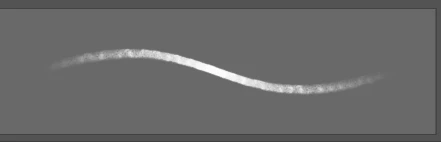
When the brush returns to normal (above).
From what I observed there is no predetermining factor (visually) that could indicate the problem has come on and I don't know what else this could affect. I have tried restarting Photoshop, and using an older version. It is because the older versions didn't work that I updated to see if it could fix the issue but I still experience it.
I use a 64-bit system with 16gb RAM, with an Intel core i7-8750H, Windows 10.
 AdChoices