Participant
February 26, 2017
Answered

Photoshop CC 2017: I want the 3D camera not to move position while I rotate it.

  • February 26, 2017
  • 4 replies
  • 6492 views

Hello,

I have a problem, as said in the title.

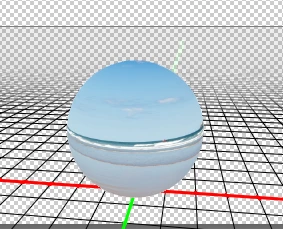
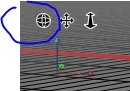
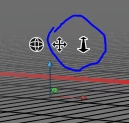
I want to paint 360 degrees images from scratch. For that, I take a grid and make a spherical panorama on which I can paint. My problem is that to paint this panorama, I need to move around the camera, but I don't want it to move. It was possible with CS6, where when you used the "rotate" tool, only the angle of the camera would be affected but not it's position in space. Now, the rotate tool makes the camera orbit around an arbitrary point... The only thing I found is to rotate the sphere itself instead, but it takes more time, and each time I want to move, I have to wait for it to load...

So I wonder if there is a tool to change only the angle of the camera, and not its position?

Regards,

Nils
This topic has been closed for replies.
Correct answer davescm

Hi,

Actually, maybe do you know the reverse process? Do you think you would know how you could make the camera orbit instead of staying at the same position?


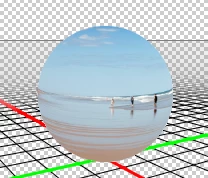
Yes just pan (up and down) or dolly the camera (front to back) before rotating - in the example below I have come all the way out of the sphere and now look in

Orbit still goes around the sphere

Dave

4 replies

Participant
June 13, 2018

Has there been any fix for this issue? I have just encountered this issue with the newest, I mean newest update from Photoshop CC2018 release 19.1.4. Just updated today. There was not issue with my older version from home, but once I reached the office and opened the same file, the camera now rotates AROUND the origin and not ON the origin. It acts like the center of view is locked at the origin (with everything 0'ed out). Instead, what I want, is when I orbit camera that it looks around and doesn't change position. This is how it used to be and it is how it should be to make a spherical VR camera work correctly.

In addition, I have done all the typical tests to reset coordinates and I select "current view" etc, I am not moving the sphere on accident. It is obviously moving and pivoting around the origin and it shouldn't be. Does anyone know how to reset this and get it working with the newest PS?

Participant
August 20, 2018

I am trying to do a 360 degree dolly move around an object, the way I would look using the orbit tool or with a curved track in film. I'm trying to do this in the timeline with keyframes. I see no parameter for rotating the object in the timeline, so orbiting the camera seems to be the only option. If I use the orbit tool to move the camera and make keyframes it keeps going haywire on the x rotation. Is there a way to do this without using the tools and just putting in values? It seems like I should just be able to put in 360 on the y rotation. Thanks

davescm
Community Expert
Community Expert
August 20, 2018

L_L_I  wrote

I see no parameter for rotating the object in the timeline, so orbiting the camera seems to be the only option.

To keyframe rotation of a 3D object, just click the arrow key next to "3D Meshes". Choose your object , switch on keyframes and move/rotate it as required. For a 360 add keyframes every 90 degrees that way the keyframes can follow the chosen direction of rotation.

Dave

francescom49456149
Participant
August 1, 2017

Dear elaeoth,

After I spend like 2 months to fix this problem, I found the solution.

The problem is in the Photoshop language different from English GB.

If you go in the folder Application/Locales/ try to rename the folder inside and launch Photoshop.

Example in my case I've it_IT, and I renamed it in it_ITb. 

When you're launching Photoshop there will be an error message where Photoshop can't find a shortcut. 

Press Ok and keep going.

Try to create a Panoramic Sphere.

If the camera works perfectly, uninstall Photoshop without keep preference.

Go to the Creative Cloud app, and in the gear of the preference change the language to English International.

After install again Photoshop, and enjoy your Pano!

Participating Frequently
June 29, 2017

Hi,

Same problem here. I'm using the last version of Photoshop CC 2017.1.1

I wanted to do a 360° painting inside the sphere following a tutorial but, with the current view selected, the orbit camera tool move the position of my camera. (I also checked I had the same co-ordinates for my current view and for my sphere).

Here is what I want to achieve : Learn 360° Painting in Photoshop (Panoramic Painting) - YouTube  (at 9:19)

What is strange is the fact that if I dezoom out of the sphere, the orbit turn normally around it. It just doesn't work when I'm inside the sphere like if the anchor point of the sphere wasn't in the middle.

Thanks in advance,

Nicolas

davescm
Community Expert
Community Expert
June 29, 2017

Hi
It sounds like you are moving the camera not just rotating it.

With the camera selected in the 3D panel , use the co-ordinates in the properties panel to move the camera back to the zero point.

With the model selected - use the co-ordinates to move the sphere to the same point.

Now either rotate the camera or rotate the object.

Dave

Participating Frequently
June 29, 2017

Hi,

I though I already tried that but it just worked !

(Putting the Z axis of the Current View and of the Sphere at 0)

Thanks a lot !

Nicolas

davescm
Community Expert
Community Expert
February 26, 2017

In properties for current view, set the position co-ordinates for the current view to be the same as those for the model. Now they are both centred on the same spot you can rotate the camera around that spot by typing into the angle co-ordinates (the Z angle rotates horizontally) or with the rotate tool.

Dave

elaeothAuthor
Participant
February 26, 2017

Hi!

Thanks for the quick answer.

Actually, when I open the 3d model from the 2d image using spherical panorama, the camera is by default on the same position as the object, so if I change manually the angle position of the current view, the camera rotates on its position like I want, but if I use the tool (which is what I want to use, otherwise the painting would feel way less natural), the camera not only rotates, it also orbits around another point in space (which seems arbitrary chosen...), and thus changes the position coordinates...

Would there be something to "lock" the camera position without locking the angle? Or to change the tool so it affects only the angle?

Thanks again,

Nils

davescm
Community Expert
Community Expert
February 26, 2017

Hi - that sounds strange and I am not seeing it here (CC2017.0.1).

I just created a spherical panorama - as you said the co-ordinates of the camera were the same as the model.

When I use the Orbit camera tool - the X and Z angles change but the X/Y Z co-ordinates and the Y angle remain the same. So I am always looking out from the centre as long as I don't touch the other tools

I can't see any setting that I have that is out of the ordinary. I do use my own 3D workspace but switched to the standard 3D workspace, to check, and the behaviour was exactly the same.

Dave