Kelly McCathran
Inspiring
October 23, 2017
Question

Photoshop CC 2018 Bug? Smart Filter > Surface Blur

  • October 23, 2017
  • 3 replies
  • 2240 views

This bug in Photoshop CC 2018 is 100% repeatable:

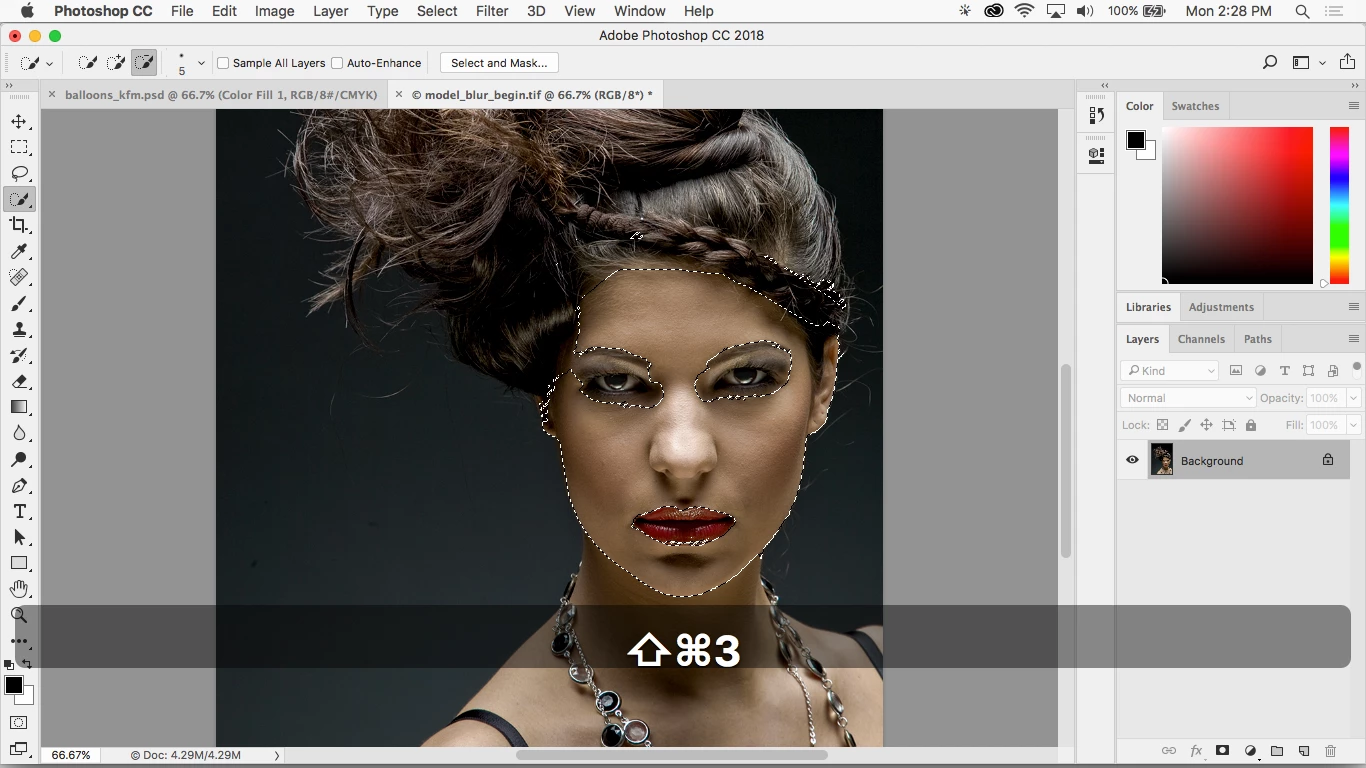
  1. Select some skin in a photo
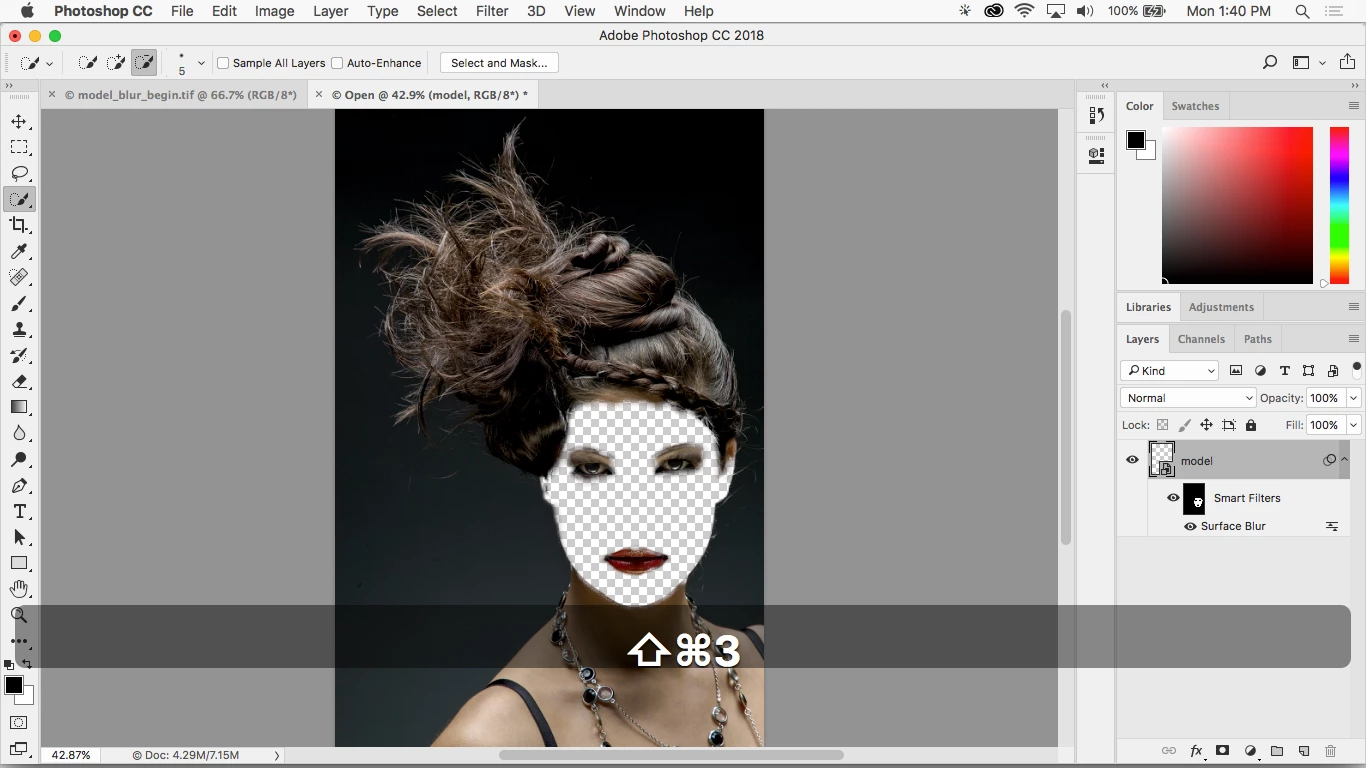
  2. Right-click the layer and Convert to Smart Object
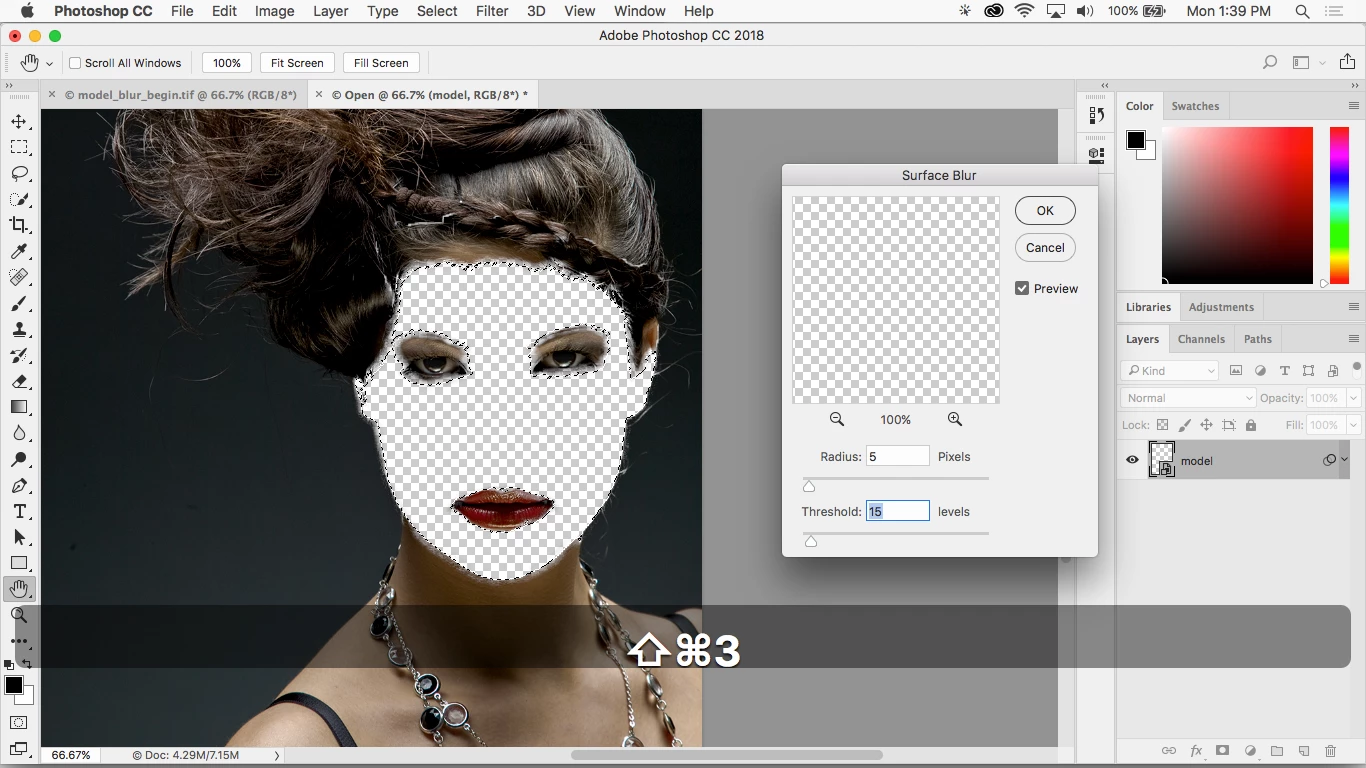
  3. Go to Filter > Blur > Surface Blur
  4. The skin DISAPPEARS! I've tried quitting and re-starting Photoshop. Plus deleting my preferences.

This doesn't happen with ANY other Blur under Filter > Blur. Screen Shots below.
    This topic has been closed for replies.

    3 replies

    Participating Frequently
    January 22, 2018

    How do we get this Smart Blur "greyed out" issue solved? Is anyone at Adobe looking into this. The papers to be an issue several months old and no solution yet?

    DJJC

    peterk2677293
    Participating Frequently
    October 30, 2017

    Same issue here. Already reported details in another thread or two...

    Anyone have any news?

    Thanks

    Pete

    Inspiring
    October 30, 2017

    Hi Pete,

    Sorry this is happening, we are aware of the issue and have logged this issue as a bug, our Engineering team is working towards a fix, I will update once we have a workaround/resolution for the issue.

    Regards

    Tanuj Sandal

    Inspiring
    October 24, 2017

    Hi Kelly,

    Thank you for reporting this issue, I tried it at my end and I am able to reproduce this issue. And it seems that the issue is specific to macOS only.

    We have logged a bug for the issue, I would request you to try a workaround, go to Preferences>Performance>deselect "use graphics processor", restart Photoshop and then try to use surface blur.

    Let me know if it helps.

    Regards

    Tanuj Sandal

    Inspiring
    October 27, 2017

    I have the same issue. Disabling the GPU does not fix the issue on my MacBook Pro. All the other Blur filters work fine with the GPU on.