Mario Arizmendi
Legend
October 17, 2018
解決済み

Photoshop CC 2019, transform handles not showing [2019]

  • October 17, 2018
  • 返信数 17.
  • 44125 ビュー

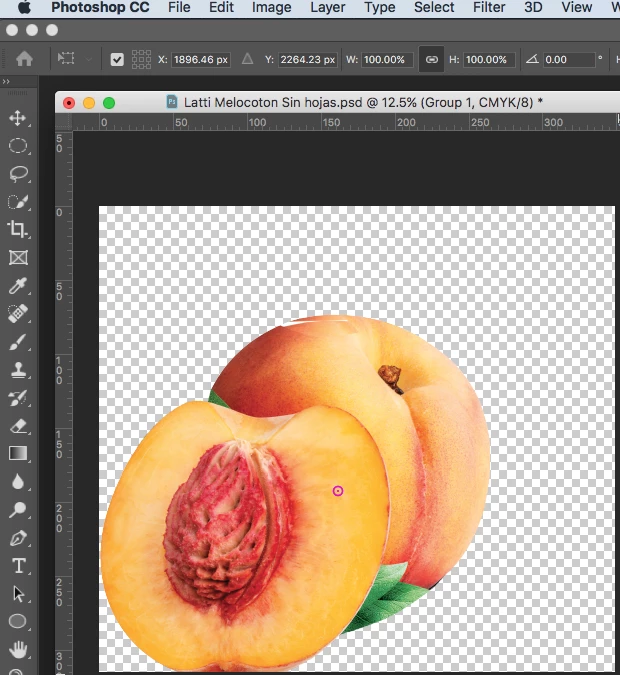
Normaly in photoshop, when hit Comand+T the handles appear to do any transformations, however now in CC 2019 handles not appearing at all, only the reference point is visible, I saw preferences and dont see any to activate it.
 

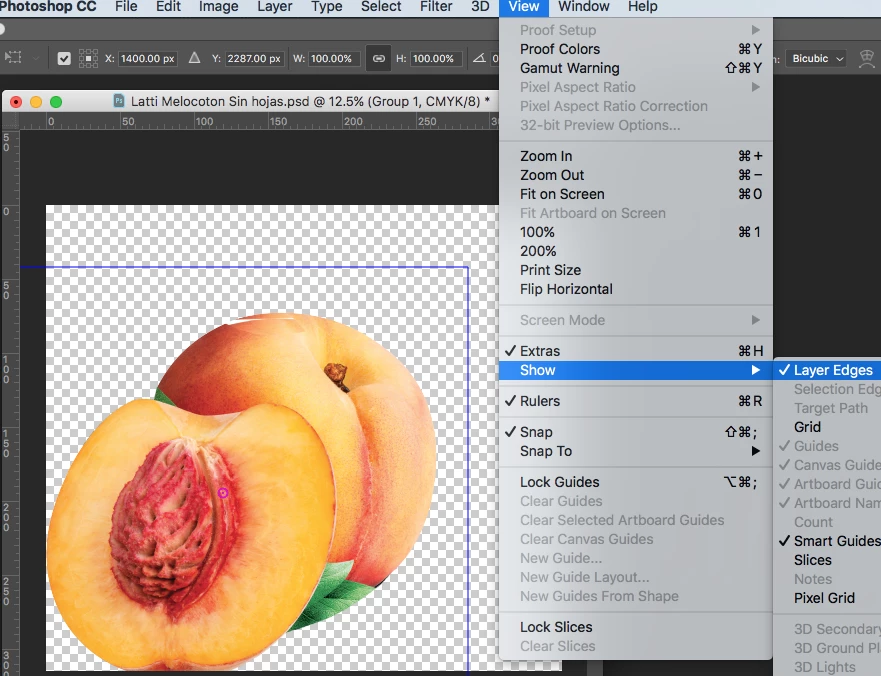
Only when I activate View/Show layer edges  a blue line appears.. How can I fix this?
このトピックへの返信は締め切られました。
解決に役立った回答

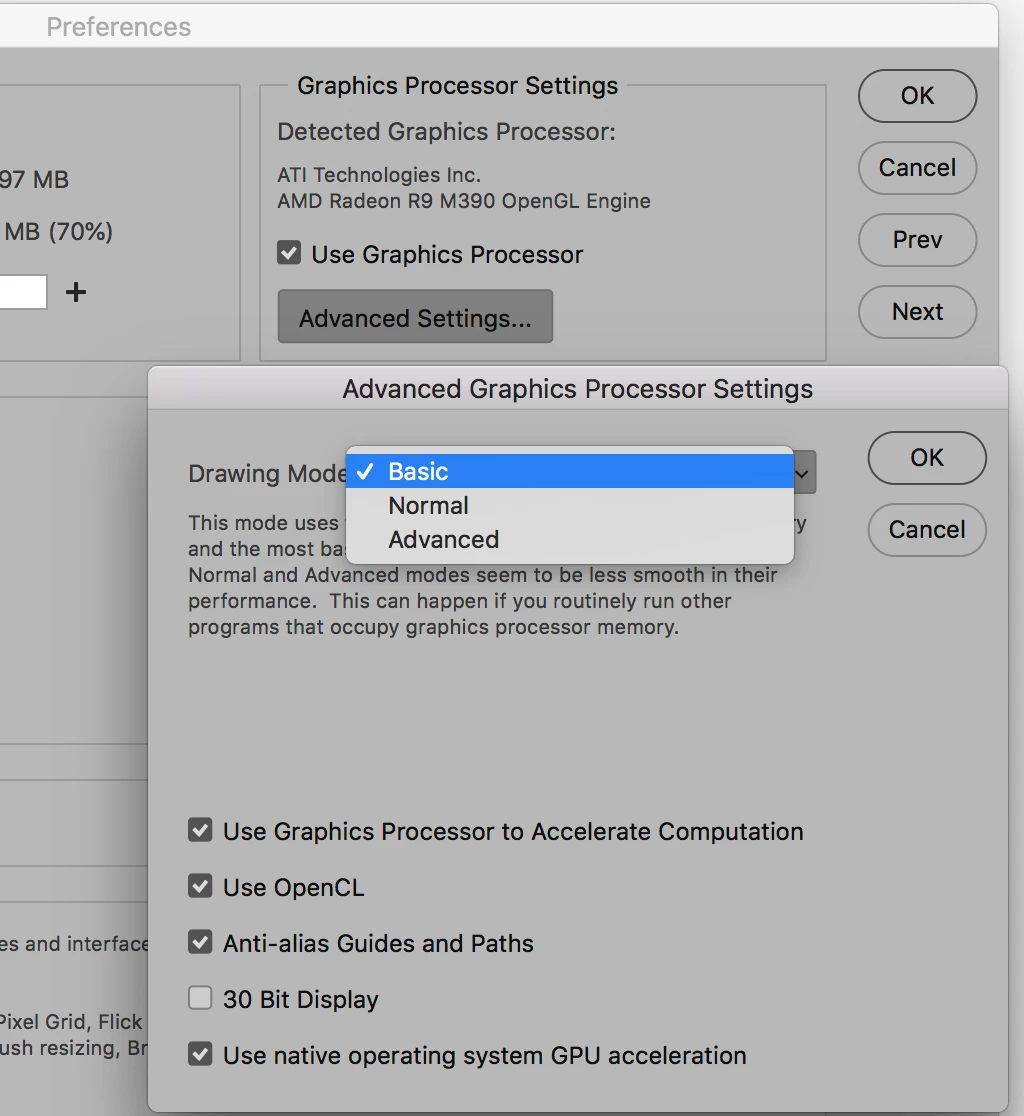
I found if I go into Preferences, Performance, and click on "Advanced Settings" under the "Use Graphics Processor setting, then changed the drawing mode from Advanced to Basic, then the Transform controls would show. If I have it set to Normal or Advanced, it wouldn't show. Not sure if it's a good thing to go with Basic as opposed to Advanced or not.

返信数 17

Participant
November 7, 2018

Driving me crazy as well. I've had to disable 'Use Graphics Processor' to re-enable the disable of the transformation handles.

I've bought a brand new top of the line MacBook Pro with maxed out CPU, RAM and GPU and now I'm using Photoshop without graphics acceleration by the looks of it. I'm thinking of going back to Photoshop CC 2018. Hopefully this will be addressed in an urgent update.

I've already had to jump through hoops to disable the terrible 'hold shift' to disable proportional transformations which has changed after nearly 30 years of muscle memory and is the convention used in almost every other graphics application in existence.

November 7, 2018

Have you tried going to Preferences, General, "Reset Preferences on Quit"? After quitting Photoshop and relaunching, Transform controls appear as they should without having to mess around with the Graphics Processor settings. Of course you'll need to go through all your preferences settings and put them back the way you like them. I suggest making screen shots of all the different preference settings before doing so to make it easier to set it back up the way you want.

Iwan Zeller
Known Participant
November 6, 2018

this problem and many others drives me crazy! please Adobe fix this asap!

October 17, 2018

Actually just tried Preferences, General, "Reset Preferences on Quit". After quitting Photoshop and relaunching, Transform controls appear as they should without having to mess around with the Graphics Processor settings! Of course you'll need to go through all your preferences settings and put them back the way you like them. Suggest making screen shots of all the different preference settings before doing so to make it easier to set it back up the way you want.

解決!
October 17, 2018

I found if I go into Preferences, Performance, and click on "Advanced Settings" under the "Use Graphics Processor setting, then changed the drawing mode from Advanced to Basic, then the Transform controls would show. If I have it set to Normal or Advanced, it wouldn't show. Not sure if it's a good thing to go with Basic as opposed to Advanced or not.

Inspiring
January 28, 2021

This menu does not appear in the 2021 version of Illustrator.

Sahil.Chawla
Adobe Employee
Adobe Employee
October 17, 2018

Hi Mario,

As transform controls are not appearing, could you please try deselecting "Use Graphics Processor" located in Photoshop's Preferences > Performance, then relaunch Photoshop and let us know if it helps?

Regards,
Sahil

Mario Arizmendi
Legend
October 17, 2018

Sahil

I deactivated "Use Graphics Processor"  as you suggested and now it is working normal, thanks for that

my question now is why this happened and what other functions will be affected now that I have deactivated this feauture?

Sahil.Chawla
Adobe Employee
Adobe Employee
October 17, 2018

I would recommend you to check for updates for the Graphics processor on manufacturer's website.

You can check the list of features which use Graphics processor acceleration: https://helpx.adobe.com/photoshop/kb/photoshop-cc-gpu-card-faq.html

Participant
October 17, 2018

Same issue for me as well. Also tried the legacy compositing option and nada. Are you able to highlight text at all?

Mario Arizmendi
Legend
October 17, 2018

Uhhhh, Cant highlight text either,,, looks like we have a bug here.... Adobe team?

October 17, 2018

Hi

Try this to see if it helps, go to Edit > Preferences > Performance and enable Legacy Compositing and restart Photoshop

Mario Arizmendi
Legend
October 17, 2018

I already did but no change, still not working

I am on iMac  Mac Os Sierra 10.12.6

Participant
October 17, 2018

You know what just worked for me is deselecting the Use Graphics Processor. Under Performance in Preferences. Unsure of the cons to doing this but at least I can see transformation controls and highlight text. Hope that helps!