

1evilnikki
Participant
April 29, 2018
Question

Photoshop color Banding help

  • April 29, 2018
  • 3 replies
  • 1094 views

So recently, I've had this issue that occurs after Windows 10 decides to do one of its huge anniversary updates that is suppose to close the loopholes in how passwords and other important information is taken from unsuspecting users. I've discovered that these updates also include managing all the drivers of your systems, so it updates them and controls how they function so you don't have to (which would be fine for those that don't know how to do that and are using a computer for fun and surfing the web or something).

I've discovered that it affects how the colors appear in photoshop (and yes they also print that way too, it's not a display issue). I have an LG IPS monitor that reflects color as accurately to printed material as possible, and I have made sure that it's as accurate as possible (which it always is, unless these Windows 10 updates happen). Reinstalling a previous version of Windows fixes the issue, but recently Windows suggested I try contacting Adobe because "it's not our fault your apps are dangerous" was my answer when I asked why these updates affected things like banding colors after blending them with a brush, or why my video card and screen could not run 60fps (when they're fully functional to do so), nor why Windows 10 decides to run my RAM at 14gb when I open any of the Adobe apps (just open them, not even use them) and it never did so before.

I have changed the files setting to Adobe RGB, I made sure it was in 16bit, I double-checked all the possible reasons why this could happen and none of these resolve the issue (besides reinstalling a previous version of Windows). I don't particularly think it's Adobe's programs doing this, I honestly and fully believe that Windows doesn't know when to stop meddling in people's things. Any ideas?
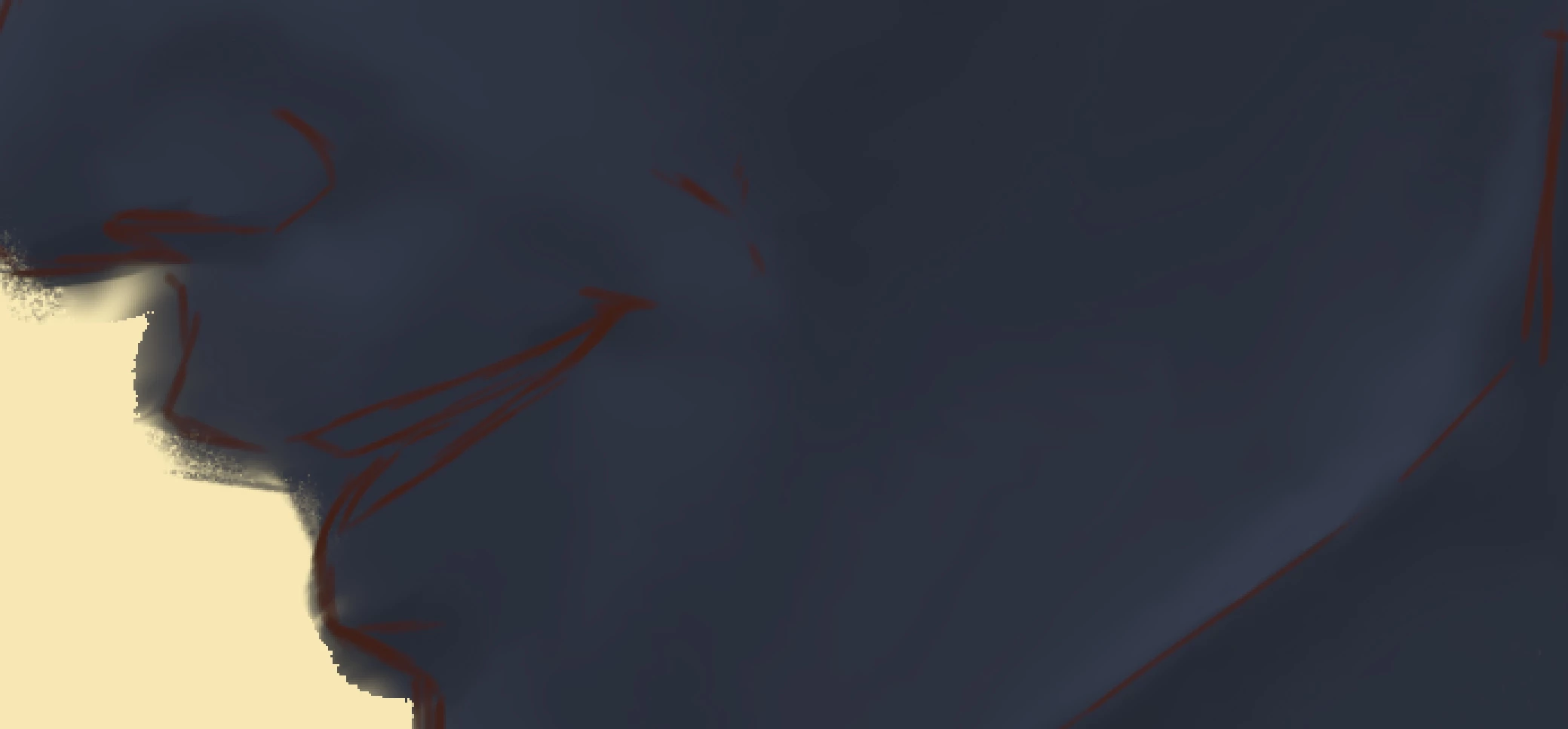
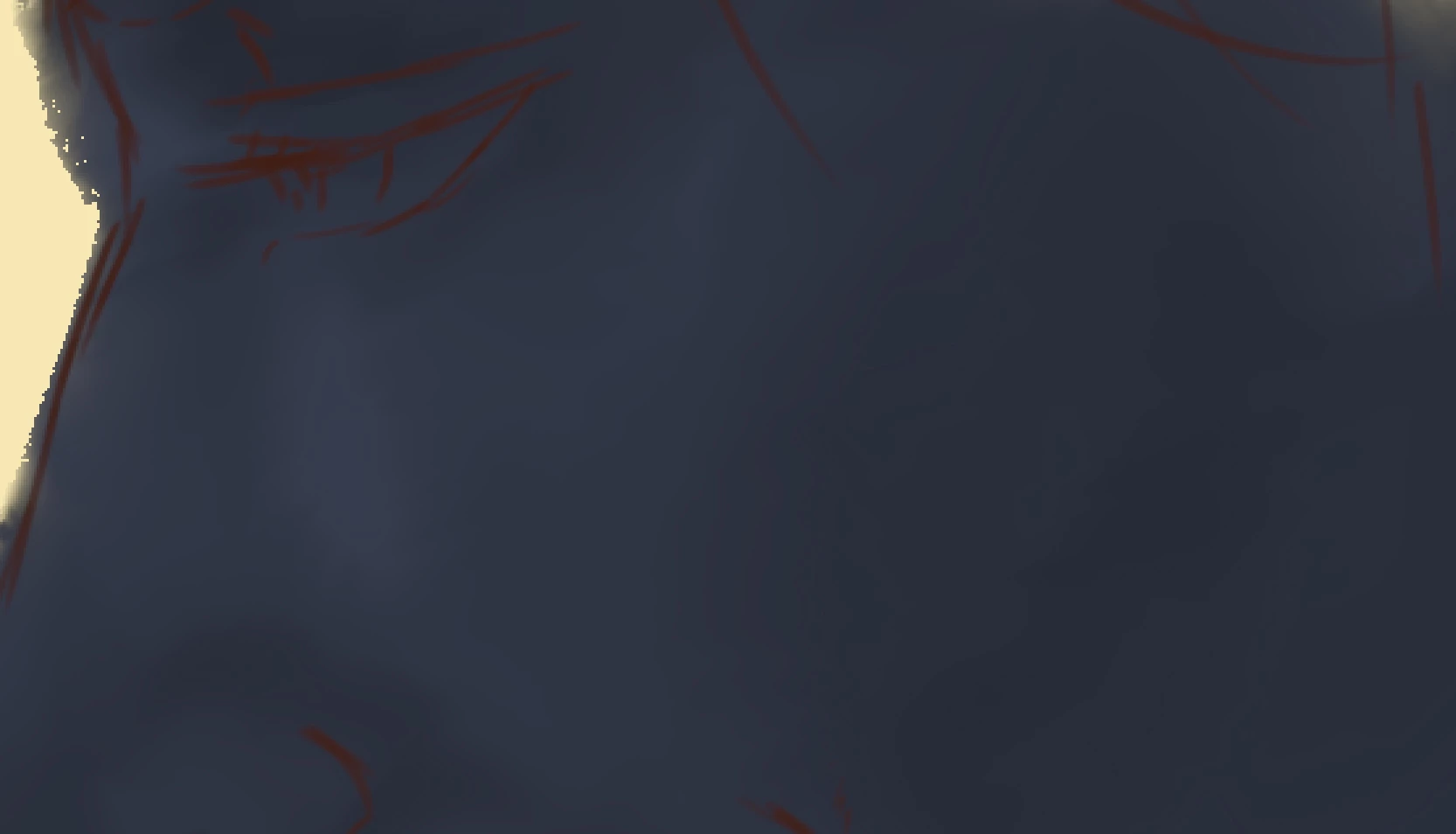
This happens in all colors, dark or light, although the lighter or more de-saturated they are the less they show these bands. I have also checked to make sure it is also not the brushes and tested out the various issues that sometimes affect the way a brush bleeds colors or takes colors, this occurs with that as well.

If anyone could help or if my true goal is to just buy a different OS, It'd be good to know.

Thanks!

This topic has been closed for replies.

3 replies

D Fosse
Community Expert
Community Expert
April 30, 2018

There's one pretty simple way to find out: Find a good, fine-grained photograph shot at low ISO (not a jpeg!), one that also has some of these smooth gradients.

If there's banding there too, something's wrong. But there most likely won't be, because there's just enough noise. Yes, the common advice is to add noise, and then people stall because they imagine tons of it is needed. But it takes very little, so little that you don't see it. All you see is the banding goes away.

You don't say which LG monitor, but if this bothers you, get a 10 bit capable monitor, one that also lets you hardware calibrate directly to the internal high-bit LUT. You also need a 10-bit capable video card to go with it, and you absolutely need a calibrator to make sure your monitor profiles are good.

1evilnikki
Participant
April 30, 2018

One last thing to add, this is the selection I showed because it is the selection that I worked on. Any blues that do not represent the banding occurring is because I did not blend any other colors there, so no, it's also not an extreme. This is a selection yes, but a selection of where I worked. If it's extreme, then it should show the severity of this issue.

D Fosse
Community Expert
Community Expert
April 30, 2018

1evilnikki  wrote

Like actual paper prints have these bands in them.

A print is also an 8-bit process. And there are still only 15 or so discrete RGB values from one end of this gradient to the other. You will see those 15 values jump from one to the next.

A Windows Update doesn't do anything to the monitor. But you do get video card updates, and new monitor profiles, bundled with the Windows Updates.

And as I said, there's no way a 16 bit file will natively contain banding in the image data. There's no way for Photoshop to do that - except for the two special circumstances I mentioned above, only the second of which actually touches the original data. The 66.67% threshold still only affects the on-screen preview.

1evilnikki
Participant
April 30, 2018

So why does the banding, if it's only a visual representation and not a physically accurate representation, happen AFTER the windows updates, when all other programs were fully updated or had no changes?

It didn't use to happen prior to this massive security update that Microsoft claims photoshop is what is causing the problem. Anytime this update or updates similar to this one are uninstalled, this banding issue disappears all together. What you see is at its worst, where the color changes from its original color to something different,  eg., blue to green, red to orange. This "visual only" issue happens only when Microsoft updates to close it's "security loopholes".

D Fosse
Community Expert
Community Expert
April 30, 2018

If you're certain this changed after the Windows Update, the explanation has to be that you got a bad display profile as part of that update. That's a fairly common problem.

In a 16 bit file, any banding you see on screen is in your display system. That's the whole path from display profile to GPU to the panel itself. Don't forget, your display pipeline is consistently 8 bit, even with a 16 bit file.

There are only two possible exceptions to this:

  • One is that you're viewing at less than 66.67% zoom. At these ratios all Photoshop previews are 8 bit. This is just legacy code for performance reasons.
  • The other is that you have used a selection as basis for an extreme tonal adjustment. While masks follow the bit depth of the document, selections are always 8 bit.

I don't see any banding beyond the expected in your examples. You have this gradient in the face tones - that's only 15 or so discrete display values:

Now, as for a bad display profile, the fix for that is to use a calibrator to make a new one. If you don't have one, use sRGB IEC61966-2.1 until you do. It won't be entirely accurate, but better than a profile that is broken. Change the profile in the Windows Color Management > Devices tab. Relaunch Photoshop when done, it needs to load the profile at application startup:

One more thing:

I have an LG IPS monitor that reflects color as accurately to printed material as possible

That's a pretty meaningless statement unless you specifically calibrate the monitor to do so. No monitor ever made does that out of the box - it simply can't. You need to set the parameters for white point and black point so that it corresponds to the paper and ink. If you happen to get a good match to your own desktop printer, that's purely by accident, and you can probably get a better match.

It should be said that in some cases calibrating the monitor can introduce banding on its own. This happens if the adjustments are done in the video card, again in 8-bit depth. In high-end monitors these adjustments are done directly to the monitor's internal LUT, in high bit depth, and that avoids this particular problem. But it can still be minimized with video card calibration tables, by doing as much as possible in the monitor's OSD controls prior to running the calibration.

And to be clear - the monitor profile is not the same as calibration. The profile is a description of the monitor's response in its calibrated state, used only by color managed software. The profile has a much higher precision level than the calibration.

And finally: To break up banding in synthetic gradients, add a tiny bit of noise. It doesn't take much. A photograph usually has just enough so you don't see banding.

1evilnikki
Participant
April 30, 2018

I should have specified, that prior to these updates this sort of banding does not happen AT ALL. Tjr banding shown happens after such updates and changing color profiles, or calibrating the monitor does not change the banding.

Next, when I said I have an ips screen I meant I bought for its purpose to represent color as accurately as POSSIBLE, not that it does so every single time. I set up it's display as you so mentioned when I first got my computer and Photoshop running, and tested out the accuracy. Like I said it was as accurate I could possibly get it to be, meaning it had like a 90% chance of printing out what I saw on my monitor. I mention that because the update also takes control of this monitors ability to handle refresh rate and frame rates, and yes, I calibrated these as well to be wjat they could run.

I have done all of these things before and they did not help and the constant answer of adding noise DOES NOT change the fact it still bands AND IT PRINTS THIS WAY. If this was merely an issue what my monitor was seeing, then possibly someone else's wouldn't look like this, but this is in Photoshop, and it's prints that way. Like actual paper prints have these bands in them. It's not a simple add noise to make it go away problem, it's also changing the color to a different color, not from blue to a light blue, but more like blue to green, red to orange,  green to yellow.

I have done all that I can, calibrating the monitor to changing profiles, to adding noise and Gaussian blurs, these do not fix the problem, I'm sorry.