kalysince83
Participating Frequently
July 17, 2020
Answered

Photoshop Color Management - Change Document Profile

  • July 17, 2020
  • 5 replies
  • 3558 views

Hi there! I'm super new to printing and I have much to learn! 


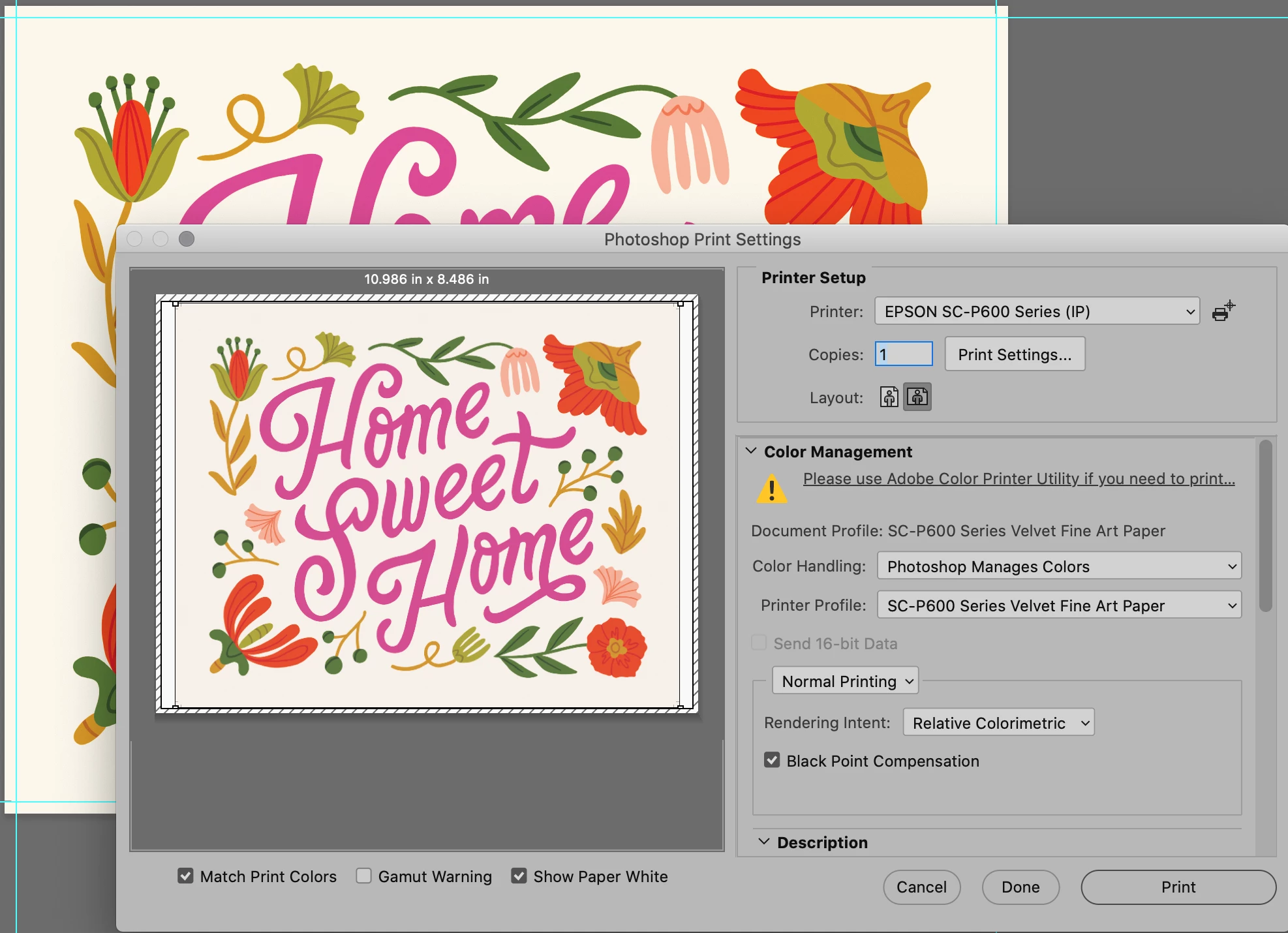
I am getting very inconsistent prints from my Epson SureColor P600. Some of them are vibrant and saturated, some are very dull. When they're dull, the print dialog box also shows dull colors in the preview, but I cannot figure out what settings to change.


I think I need to change the source profile so I can use PS for color management. 

(The color preview in this screenshot looks accurate)

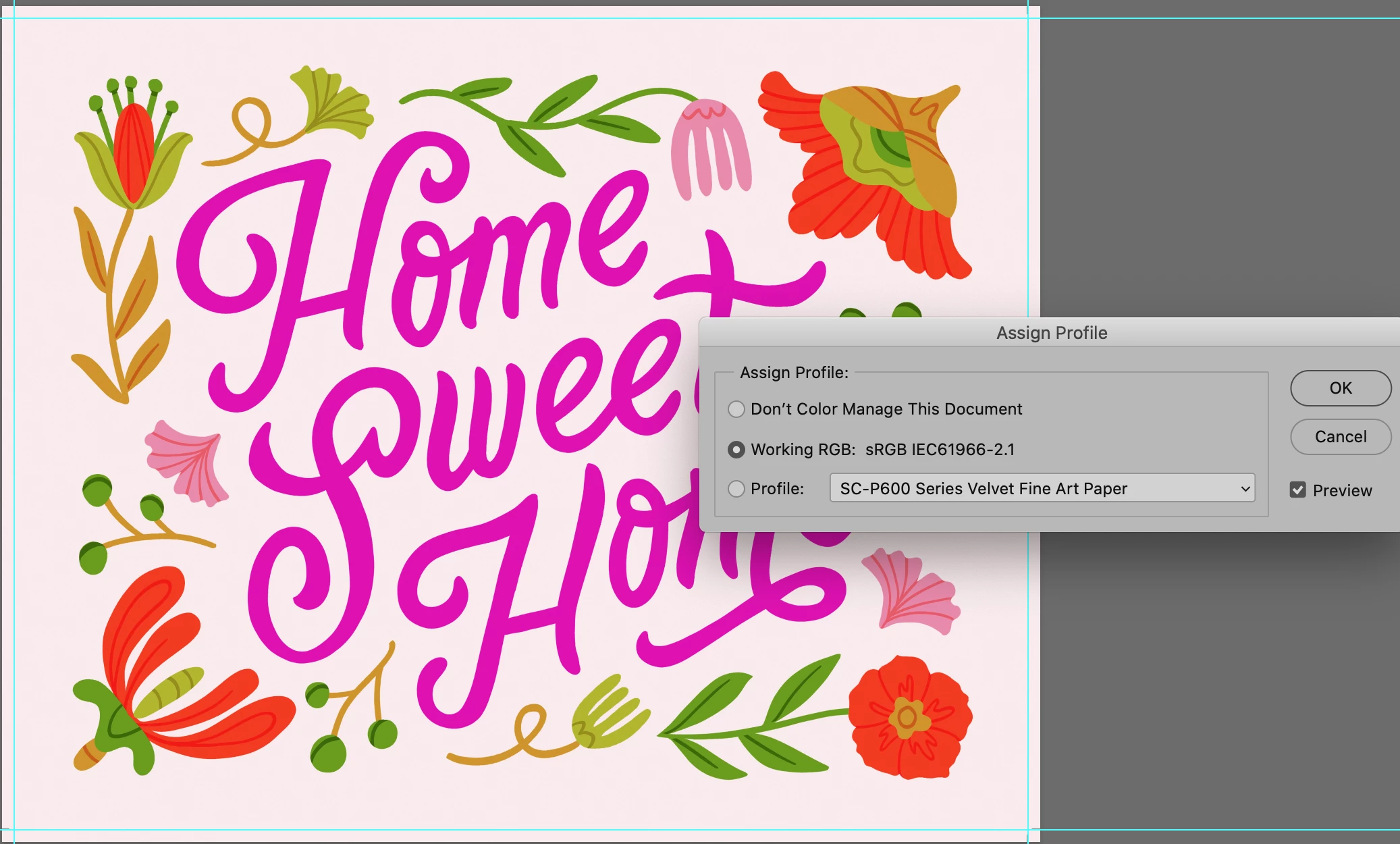
But if I go to change the profile off of the Velvet Fine Art profile, the colors are wild & oversaturated:


Any thoughts? I've tried uninstalling and reinstalling PS and resetting the default settings but I can't figure out what to do. 

I'm on a Mac: Catalina 10.14.4

Photoshop CC v21.2


Thanks so much - looking forward to the day that some of this starts to make sense! 

This topic has been closed for replies.
Correct answer davescm

Hi

The document profile should be a document colour space such a sRGB or Adobe RGB or Pro Photo. Never assign a monitor or a printer profile to the document. You are defeating colour management by doing so.


In simple terms - the monitor profile in your operating system should describe your monitor.

The document profile should describe the colour space for your document.

The printer profile should describe the printer/ink and paper combination you are using.


Colour Management simple explanation

Digital images are made up of numbers. In RGB mode, each pixel has a number representing Red, a number representing Green and a Number representing Blue. The problem comes in that different devices can be sent those same numbers but will show different colours. To see a demonstration of this, walk into your local T.V. shop and look at the different coloured pictures – all from the same material.

To ensure the output device is showing the correct colours then a colour management system needs to know two things.

1. What colours do the numbers in the document represent? 
This is the job of the document profile which describes the exact colour to be shown when Red=255 and what colour of white is meant when Red=255, Green = 255 and Blue =255. It also describes how the intermediate values move from 0 through to 255 – known as the tone response curve (or sometimes “gamma”).
Examples of colour spaces are (Adobe RGB1998, sRGB IEC61966-2.1)
With the information from the document profile, the colour management system knows what colour is actually represented by the pixel values in the document.

  1. What colour will be displayed on the printer/monitor if it is sent certain pixel values?
    This is the job of the monitor/printer & paper profile. It should describe exactly what colours the device is capable of showing and, how the device will respond when sent certain values.
    So with a monitor profile that is built to represent the specific monitor (or a printer profile built to represent the specific printer, ink and paper combination) then the colour management system can predict exactly what colours will be shown if it sends specific pixel values to that device.

    So armed with those two profiles, the colour management system will convert the numbers in the document to the numbers that must be sent to the device in order that the correct colours are displayed.

So what can go wrong :

  1. The colours look different in Photoshop, which is colour managed, to the colours in a different application which is not colour managed.
    This is not actually fault, but it is a commonly raised issue. It is the colour managed version which is correct – the none colour managed application is just sending the document RGB numbers to the output device regardless without any conversion regardless of what they represent in the document and the way they will be displayed on the output device.

  2. The colour settings are changed in Photoshop without understanding what they are for.
    This results in the wrong profiles being used and therefore the wrong conversions and the wrong colours.
    If Photoshop is set to Preserve embedded profiles – it will use the colour profile within the document.

  3. The profile for the output device is incorrect.
    The profile should represent the behaviour of the device exactly. If the wrong profile is used it will not. Equally if the settings on the device are changed in comparison to those settings when the profile was made, then the profile can no longer describe the behaviour of the device. Two examples would be using a printer profile designed for one paper, with a different paper. A second example would be using a monitor profile but changing the colour/contrast etc settings on the monitor.
    The monitor profile is set in the operating system (in Windows 10 that is under Settings>System>Display >Advanced) which leads to a potential further issue. Operating system updates can sometimes load a different monitor profile, or a broken profile, which no longer represents the actual monitor.


Colour management is simple to use provided the document profile is correct, always save or export with an embedded profile, and the monitor/printer profile is correct. All the math is done in the background.


I hope that helps


Dave



5 replies

Participant
March 16, 2022


Left image is a screenshot of the image in Photoshop (correct coloration) the right image is the export from Photoshop (red and icky). Any suggestions on how I get an export to look like the image on the left?


NB, colourmanagement
Community Expert
Community Expert
March 17, 2022

Hi, is it possible that your 'exported'** image is being viewed in a non-colour managed application program (there are many and they are not much use TBH) e.g. many versions of the Windows 'Photos' program? 


Of course, your image saved from Photoshop also needs an embedded icc profile

(so that another colour management savvy application program can get the info it needs to display properly).

In 'save as' see the option to embed the icc profile in the save as dialog. 


Then you need to view it in a colour managed application program. That way the appearance should match Photoshop's 


**BTW why use "export" when 'save' or 'save as' can do the job? 


I hope this helps
neil barstow, colourmanagement net :: adobe forum volunteer:: co-author: 'getting colour right'
google me "neil barstow colourmanagement" for lots of free articles on colour management

Participant
October 31, 2020

Hi, read the responses but I can't see how that advises how to change the source file.

I have applied a colour management profile using colour monkey, set up the printer (canon ix500 series) as instructed however to use photoshop to print looks like the source file needs to be RGB.

I can't see any way to get the source to RGB, currently sRGB.

Lots of printing issues at the moment trying to get windows, printer, screen and software to match up to replicate what I see on the screen.

As far as I can tell I have the screen and printer set up with the same profile, turned off the colour management in the printer driver. Now trying to set up photoshop.

I know it can get complicated but need some extra help to nail it. Thanks

davescm
Community Expert
Community Expert
October 31, 2020

You don't change the source .Nor should you ever have the printer and screen set to the same profile. A monitor profile, a document profile and a printer profile have different jobs to do. Each describes the behaviour of the monitor. the document or printer.


There is no generic RGB. The source file in RGB will have a document colour profile which could be sRGB, Adobe RGB, ProPhoto etc.  As long as the monitor has a profile that correctly describes the monitor, the  document does have a profile that describes the document colour space, and the printer is also set up with a profile that represents the particular printer , paper and ink  then all the conversion happens in the background.


You do though need to set Photoshop to manage colors (in the print dialogue) and set the printer to use the correct printer profile. in print settings make sure the correct media is selected and turn colour management in the printer off. That last step is to ensure you are not managing the colour conversion twice.


Dave


kalysince83
Participating Frequently
July 20, 2020

Outstanding - thank you so much! I ended up just saving another print file from my design file because I'd messed with it too much. This was very thorough & digestible - much appreciated! 

NB, colourmanagement
Community Expert
Community Expert
July 18, 2020

Hi


The profile associated with an image file provides Photoshop with information about the visually related meaning of the colour values.


Here is some reading on ICC profiles and how they work for you to provide accurate colour through the digital workflow: https://www.colourmanagement.net/advice/about-icc-colour-profiles/


Unless you are very confident that an image has the had wrong ICC profile assigned (it looks like yours do now if you assigned the SC-P600 profile) then 'assign profile' should not be used.


Your upper screen-shot of the print dialog shows 'document profile' as a printer profile, if you achieved that by using 'assign profile' then that’s a mistake.

How did your image (document) come to have the printer profile assigned to it?


What we need is for the document to be converted beteween its original colour space (maybe sRGB in your case?) and the printer profile for your Epson SC-P600 and the loaded paper stock. The printer dialog [with 'photoshop manages color' selected] does that for you if you get the settings right. 


To get decent accurate printing from your Epson you need an "output" or printer ICC profile for the actual paper you're printing on.


I hope this helps

if so, please "like" my reply and if you're OK now, please mark it as "correct", so that others who have similar issues can see the solution

thanks

neil barstow, colourmanagement.net :: adobe forum volunteer

[please do not use the reply button on a message within the thread, only use the blue reply button at the top of the page, this maintains the original thread title and chronological order of posts]


davescm
Community Expert
davescmCommunity ExpertCorrect answer
Community Expert
July 17, 2020

Hi

The document profile should be a document colour space such a sRGB or Adobe RGB or Pro Photo. Never assign a monitor or a printer profile to the document. You are defeating colour management by doing so.


In simple terms - the monitor profile in your operating system should describe your monitor.

The document profile should describe the colour space for your document.

The printer profile should describe the printer/ink and paper combination you are using.


Colour Management simple explanation

Digital images are made up of numbers. In RGB mode, each pixel has a number representing Red, a number representing Green and a Number representing Blue. The problem comes in that different devices can be sent those same numbers but will show different colours. To see a demonstration of this, walk into your local T.V. shop and look at the different coloured pictures – all from the same material.

To ensure the output device is showing the correct colours then a colour management system needs to know two things.

1. What colours do the numbers in the document represent? 
This is the job of the document profile which describes the exact colour to be shown when Red=255 and what colour of white is meant when Red=255, Green = 255 and Blue =255. It also describes how the intermediate values move from 0 through to 255 – known as the tone response curve (or sometimes “gamma”).
Examples of colour spaces are (Adobe RGB1998, sRGB IEC61966-2.1)
With the information from the document profile, the colour management system knows what colour is actually represented by the pixel values in the document.

  1. What colour will be displayed on the printer/monitor if it is sent certain pixel values?
    This is the job of the monitor/printer & paper profile. It should describe exactly what colours the device is capable of showing and, how the device will respond when sent certain values.
    So with a monitor profile that is built to represent the specific monitor (or a printer profile built to represent the specific printer, ink and paper combination) then the colour management system can predict exactly what colours will be shown if it sends specific pixel values to that device.

    So armed with those two profiles, the colour management system will convert the numbers in the document to the numbers that must be sent to the device in order that the correct colours are displayed.

So what can go wrong :

  1. The colours look different in Photoshop, which is colour managed, to the colours in a different application which is not colour managed.
    This is not actually fault, but it is a commonly raised issue. It is the colour managed version which is correct – the none colour managed application is just sending the document RGB numbers to the output device regardless without any conversion regardless of what they represent in the document and the way they will be displayed on the output device.

  2. The colour settings are changed in Photoshop without understanding what they are for.
    This results in the wrong profiles being used and therefore the wrong conversions and the wrong colours.
    If Photoshop is set to Preserve embedded profiles – it will use the colour profile within the document.

  3. The profile for the output device is incorrect.
    The profile should represent the behaviour of the device exactly. If the wrong profile is used it will not. Equally if the settings on the device are changed in comparison to those settings when the profile was made, then the profile can no longer describe the behaviour of the device. Two examples would be using a printer profile designed for one paper, with a different paper. A second example would be using a monitor profile but changing the colour/contrast etc settings on the monitor.
    The monitor profile is set in the operating system (in Windows 10 that is under Settings>System>Display >Advanced) which leads to a potential further issue. Operating system updates can sometimes load a different monitor profile, or a broken profile, which no longer represents the actual monitor.


Colour management is simple to use provided the document profile is correct, always save or export with an embedded profile, and the monitor/printer profile is correct. All the math is done in the background.


I hope that helps


Dave