FedericoAmante
Participating Frequently
January 8, 2023
Answered

Photoshop crashing when using Camera Raw or a filter (windows NVIDIA driver issue)

  • January 8, 2023
  • 18 replies
  • 20833 views

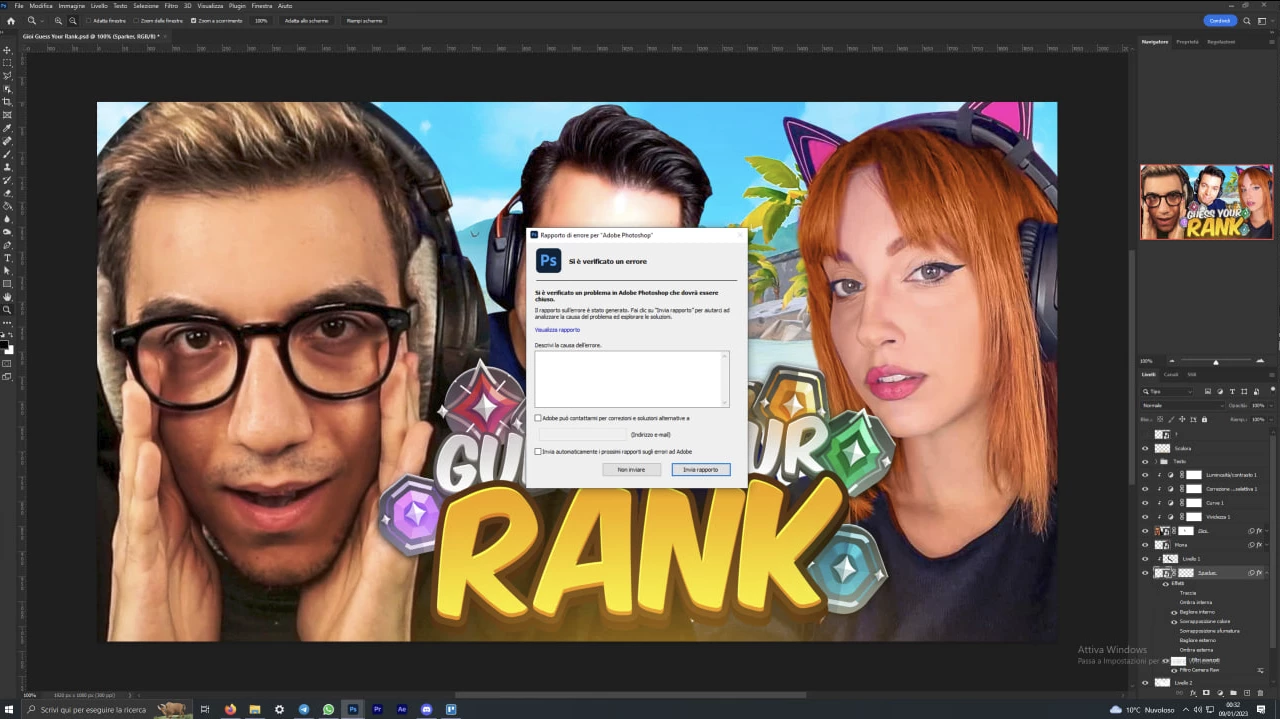
Every time i use camera raw, or a filter in photoshop 2023 (24.1) crush
I tried to unistall, to re-download the old version, but nothing seems to work

 

Correct answer D Fosse

Ok, good to know - but the general advice is to use the studio driv.er, not the game driver. The GeForce Experience app is also known to cause problems. You don't need it.


But as long as it works... 😉

18 replies

FedericoAmante
Participating Frequently
January 9, 2023

Did it, but still not working

TheDigitalDog
Inspiring
January 9, 2023
Author “Color Management for Photographers" & "Photoshop CC Color Management/pluralsight"
Participant
September 28, 2023

thanks , Fix worked for my laptop.


FedericoAmante
Participating Frequently
January 9, 2023


TheDigitalDog
Inspiring
January 9, 2023

Those are Photoshop's preferences, you need to access this from Adobe Camera Raw.

Here's one way:

Author “Color Management for Photographers" & "Photoshop CC Color Management/pluralsight"
FedericoAmante
Participating Frequently
January 9, 2023

I'm sorry but i can't find it, can you send me a screenshot


TheDigitalDog
Inspiring
January 9, 2023

Try resetting your ACR preferences, better? 

Hold down the Command key and select Photoshop > Preferences > Camera Raw (macOS) or hold down the Ctrl key and select Edit > Preferences > Camera Raw (Windows).

Click Yes in the dialog that asks "Delete the Camera Raw Preferences?"


Author “Color Management for Photographers" & "Photoshop CC Color Management/pluralsight"
FedericoAmante
Participating Frequently
January 8, 2023

Hi, i did everything and still doesnt work
but now, when i use camera raw, instaed of crushing photoshop just freeze

TheDigitalDog
Inspiring
January 8, 2023

When Photoshop crashes, this is the first thing to do, try resetting your Photoshop preferences. Press and hold Alt+Control+Shift (Windows) or Option+Command+Shift (macOS) immediately after launching Photoshop. You will be prompted to delete the current settings. You can also reset preferences upon a quit if Photoshop is running by going into General Preferences>General>Reset on Quit.

(macOS only) Open the Preferences folder in the Library folder*, and drag the Adobe Photoshop CS Settings folder to the Trash.

This action only affects the items found in the preferences dialog box. Numerous program settings are stored in the Adobe Photoshop Preferences file, including general display options, file-saving options, performance options, cursor options, transparency options, type options, and options for plug‑ins and scratch disks. Brushes (and lots of other setting) are not affected by the above instructions for deleting preferences. You may wish to make a screen capture of the settings in the Preferences dialog to reset them prior to deleting of this file.

Also: https://helpx.adobe.com/photoshop/using/preferences.html

*To manually delete Photoshop preferences:
Quit Photoshop.
Navigate to Photoshop's Preferences folder:
macOS**: Users/[user name]/Library/Preferences/Adobe Photoshop [version] Settings
Windows 10: Users/[user name]/AppData/Roaming/Adobe/Adobe Photoshop [version]/Adobe Photoshop [version] Settings
**Note:The user Library folder is hidden by default on macOS. In the Finder, hold down the Option key when using the Go menu. The library will appear below the current user's home directory.
Now you can drag the entire Adobe Photoshop [Version] Settings folder to the desktop or somewhere safe for a backup of your settings


If that doesn't fix the issue:
Go to Preferences > Performance... and uncheck Multithreaded Compositing - and restart Photoshop.
Still crashing? 
Go to Preferences > Performance... click Advanced Settings... and uncheck "GPU Compositing" - then restart Photoshop. Still crashing?  

Author “Color Management for Photographers" & "Photoshop CC Color Management/pluralsight"