Participant
March 25, 2021
Question

Photoshop CS4 (64 bit) Brush and Eraser cursor size problem

  • March 25, 2021
  • 4 replies
  • 958 views

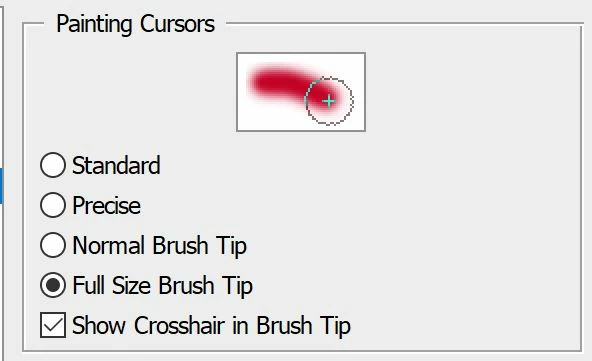
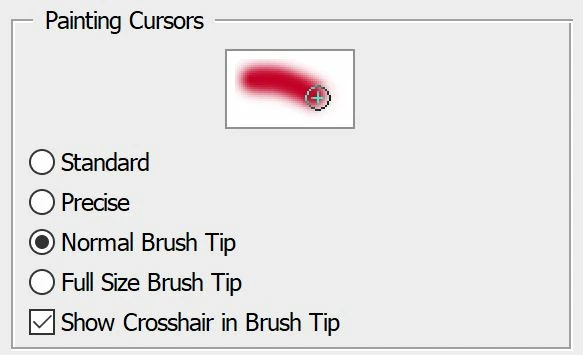
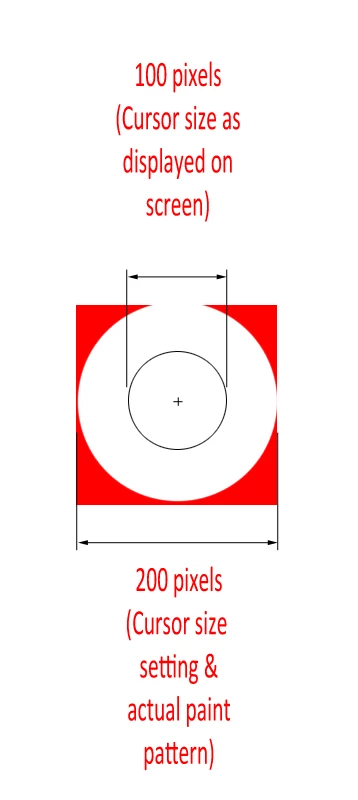
For some reaon, when using my paint brush and eraser, the cursor size shown on the screen is 1/2 the size of the cursor size settings.  This makes it hard to accurartely paint and erase.  The actual size of thei intended action on the image is the correct size, however the displayed cursor is only havlf the size such that I have to guess where the paint or erase actions will actually occur.  I've tried changing the Paint CUrsor settings from Normal to Full Size brush tip settings, but to no effect (see attached images of the settings).   I've also included an example image of what I'm experiencing.  I using MS Surface Book 2 running Windows 10 Pro.  Any help would be geratly appreciated.  
   

This topic has been closed for replies.

4 replies

Community Expert
March 26, 2021

Please set Full size brush and hardness of brush to 100%. Only in this case curosr size and brush size will be the same. Obviously chek that pen pressure is not activated, otherwise 100% brush hardness is not garantued.

If it doesnt work please try to reset preferences, unistall tablet driver and try to work only with mouse, or at the end, reinstall  photoshop with this tool:

https://helpx.adobe.com/creative-cloud/kb/cc-cleaner-tool-installation-problems.html

jane-e
Community Expert
Community Expert
March 25, 2021

@rnb4tla wrote:

I've tried changing the Paint CUrsor settings from Normal to Full Size brush tip settings, but to no effect (see attached images of the settings).   


Hi

When you use Full Size Brush Tip, PS will show the entire edge including the softness. Using the Normal Brush Tip will show the core size of the brush. Try changing the hardness of the brush to see the difference.

Jane

rnb4tlaAuthor
Participant
March 25, 2021

Thanks, but changing the brush tip setting (Normal to Full Size) along with combinations of Hardness settings does not fix this.  Basically, no matter what brush size I pick,  the cursor size shown on the screen is always 50% of what is actually painted on the screen when using the brush.  Same goes for the Eraser size settings.

JJMack
Community Expert
Community Expert
March 25, 2021

You are using a MS Surface Book 2 running Windows 10 Pro.  Are you using a Surface Pen or mouse?  If pen have you set brush pen controls off so pen will not effect brush tip size and paint opacity and you have set the tip hardness to 100% hard. Are your brush setting normal blending at 100% opacity.   Are your Brush strokes hard solid and narrowed then the normal brush  tip cursor?  A normal tip cursor should match the cursor and the stroke should be solid and constant.

JJMack
rnb4tlaAuthor
Participant
March 25, 2021

I mainly use my mouse, but I do have a pen.  How do you "set the pen controls off"?  Not seeing any clear way to do that.  You must have a different veriosn of PS, however most the settings you show are the same as mine (just laid out slightly different).   I've set brush setting to normal blending at 100% opacity and also 100% hardness.  Changing the brush tip setting (Normal and Full Size) along with combinations of Hardness settings does not fix this. Basically, no matter what brush size I pick (and various settings), the cursor size shown on the screen is always 50% of what is actually painted on the screen when using the brush. Same goes for the Eraser size settings.  If setting is 100 pixels, it paints at 100 pixels, however the displlayed cursor only displays at 50 pixels (regrdless of various cursor options/settings.

Community Expert
March 25, 2021

Hi please take a look here for cursor size and brush type and setting (fade as so on):

https://helpx.adobe.com/photoshop/using/painting-tools.html