MikeKPhoto
Known Participant
September 25, 2012
Question

Photoshop CS6 & Doc Size & File Size???

  • September 25, 2012
  • 5 replies
  • 86191 views

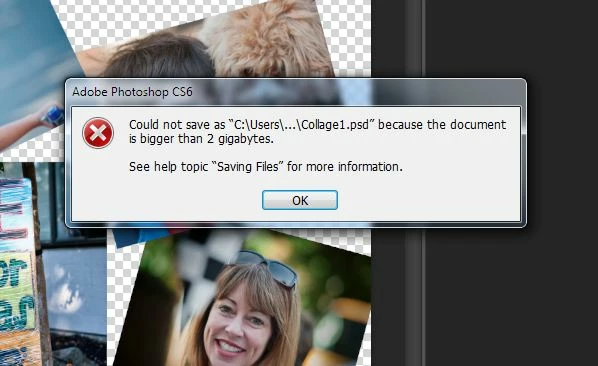
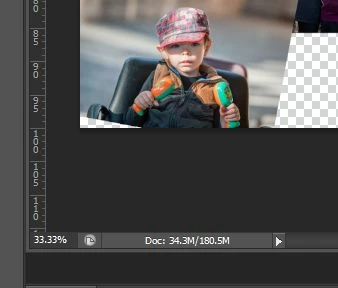
Working on a collage and have a relatively scall document, 6"x10" at 300dpi and used the Place command to add images and arrange and have 14 layers. The images were resized to fit using the Transform scale too. Was watching the document size at the lower left of the document window and it showed that the Doc was 34.3 M/178 M. Looked good so I went to save the beast as a PSD. At 75% of the save it threw an error message saying the document was greater than 2GB in size. Hmm, why did the doc size show otherwise. So ended up saving as a PSB whic worked. But the responsiveness of my system went to hell until I shut down Photoshop. I mean it was almost unresponsive. Starting Photoshop again, opening the PSB and making a few changes and my system was flying again. So maybe processing the PSD then throwing the error managed to grab all the resources. 

So maybe there are two issues I have seen, one is Photoshop reporting the wrong doc size and the other bad error processing?

Photoshop CS6 with the latest patch applied, Windows 7 x64 with 16GB RAM, i7 processor.

Here are a couple of screen shots that show the doc size problem

Mike
    This topic has been closed for replies.

    5 replies

    tranqfx
    Participant
    November 24, 2014

    We just need updated file types already.

    I don't know about you gents, but I frequently deal with files well into the 20 gig range for panoramic.

    Participant
    September 20, 2013

    found this solution in Adobe help :

    Save large documents

    Photoshop supports documents up to 300,000 pixels in either dimension and offers three file formats for saving documents with images having more than 30,000 pixels in either dimension. Keep in mind that most other applications, including versions of Photoshop earlier than Photoshop CS, cannot handle files larger than 2 GB or images exceeding 30,000 pixels in either dimension.

    Choose File > Save As, and choose one of the following file formats:

    Large Document Format (PSB)
    Supports documents of any file size. All Photoshop features are preserved in PSB files (though some plug-in filters are unavailable if documents exceed 30,000 pixels in width or height). Currently, PSB files are supported only by Photoshop CS and later.

    Photoshop Raw
    Supports documents of any pixel dimension or file size, but does not support layers. Large documents saved in the Photoshop Raw format are flattened.

    TIFF
    Supports files up to 4 GB in size. Documents larger than 4 GB cannot be saved in TIFF format.

    http://help.adobe.com/en_US/photoshop/cs/using/WSfd1234e1c4b69f30ea53e41001031ab64-7783a.html

    JJMack
    Community Expert
    Community Expert
    September 20, 2013

    PSB file format is a native Photoshop file format. One Photoshop uses itself when making temporary files for things like Autosave Recovery and working on embedded object.  PSB has been around  for as long as I can remember OS file system supporting files greater then 2GB in size.

    Photoshop RAW files are not Camera RAW files they have a special Adobe file formats that I have never found a need to use. 

    Some users work with layered Tiff files rather then PSD files they feel that the Tiff file format is better supported then PSD.  Still Tiff does not support file sizes greater then 4GB.  For sure more applications have support for Tiff then PSD&PSB.

    I use PSD and PSB file so I know which of my files are layered.  I would only use Tiff if a needed a flat file with 16 Bit color.   Other then that 8 Bit jpeg are good for printing.  I still have my original image RAW files and if I have done a lot of work on an image I have my PSd or PSB file with my work.

    JJMack
    Chris Cox
    Legend
    September 20, 2013

    I think I added PSB back in CS, when we added support for files over 2 GB and documents over 30,000 pixels.

    Participant
    June 13, 2013

    I know this post is old, but there were some questions about file size, saving, using resources, having to restart, etc.

    I found my performance increased by changing the Cache Tile Size in Preferences. Change it to how you work by the suggestions in the rollovers.

    Also, if you do not have a 'scratch' disk that has good speed to it, your saves and open's can be slow as well.

    My two cents, since I did not see it mentioned anywhere.

    K

    JJMack
    Community Expert
    Community Expert
    September 25, 2012

    MikeKPhoto wrote:

    Working on a collage and have a relatively scall document, 6"x10" at 300dpi and used the Place command to add images and arrange and have 14 layers. The images were resized to fit using the Transform scale too. Was watching the document size at the lower left of the document window and it showed that the Doc was 34.3 M/178 M. Looked good so I went to save the beast as a PSD. At 75% of the save it threw an error message saying the document was greater than 2GB in size. Hmm, why did the doc size show otherwise. So ended up saving as a PSB whic worked. But the responsiveness of my system went to hell until I shut down Photoshop.

    Mike

    A small document 6" x 10" at 300 dpi layerd PSD even with 14 Smart object layers that have embedded RAW file objects I do not think should exceed 2GB in file size. Something seems strange to me.  Lets say your raw files are 50MB each 14 of them would not add up to 1GB closer to .5GB.  The rendered composit is 6" x 10" at 300 DPI  1800 px by 30000  at 16 bit color depth that is 32,400,000 bytes less then 33MB uncompressed. I do not understand where the >2GB is comming from.

    You may want to have a look at my free Photoshop Photo Collage Toolkit Documentation and Examples

    Note: There is a bug in CS6 if you use my scripts please set your Photoshop Interpolation preference from Adobe Default setting "Bicubic Automatic". Adobe failed to add support for this new setting in CS6 scripting, Photoshop will produce and internal error when my script tries to retrive your preference if that is your setting.

    JJMack
    MikeKPhoto
    Known Participant
    September 25, 2012

    Thanks, these files are less that 50 MB and they are straight PSD files with the same color space. But I may have a handle on this, still testing though. Some of my source files have layers and these would remain intact as they are Smart Objects, but the largest with layers is only a tad over 100 MB and say they were all that big that is only 1.4GB not 2.1GB so something is not right.

    I do not have a problem working with large files, I do multi-row panoramas using a D800 and those files can get to over 4GB in a hurry, but the doc size is pretty accurate and shows it exceeds the PSD file size so it is natural to save as a PSB. The problem using Smart Objects is the DOC size shown is no where near reality and my case showed 180.5 MB (screen print in original post) so there is no way to see that it is futile trying to save as a PSD, the only indication you get is when the save bombs out telling you the file is too big - argh! Also when it bombs it looks as if all the resources are locked as performance goes to zero not just with PS but the system as a whole, and to free up the resources requires a close of Photoshop. Not a good process flow at all. With the newer cameras D800 at 36 MP and a rumoured 46 MP Canon this is going to become an issue in a hurry - so either Adobe can give us some sort of clue about the real file size rather than a save abort - or we will need to standardize on the PSB format

    I do not do many collages, and this was a favor for a local non-profit I have been working for.

    By the way I have opened a thread at http://feedback.photoshop.com/photoshop_family/topics/photoshop_doc_size_misleading_information for this bugaboo

    Cheers

    Mike

    JJMack
    Community Expert
    Community Expert
    September 25, 2012

    If you have 14 Smart Object layers that have embedded PSD file objects saving a layer file could be quite quite latge. Sill if all are in the 100MG size range it still does not add up to >2GB.

    As for DOC size that has nothing to do with File size. I would guess it may something like the combined size of each layer rendered pixels. 14 6"x10" 300 DPI layers with no tramsparency would only be about 400MB with transparency  a much lower number like 180MB seems OK to me.  Including the Embedded smart Objects size might scare users......

    JJMack
    sudarshan.t
    Inspiring
    September 25, 2012

    What you see on the left is the print size (flattened layers) and right is with layers intact.

    When you save your PSD file, if you have enabled 'Maximize Compatibility' to be able to work between other versions of Photoshop, Photoshop adds a hidden flattened layer to the file, thereby doubling the filesize. If you uncheck 'Maximize Compatibility' while saving your file (you cannot preview your document elsewhere and you cannot work on a lower version of Photoshop in this case), Photoshop only saves the layers to file, ignoring the flattened version. This filesize will exactly be what you see under 'Document Sizes' in Status bar.

    It's a call you have to make. If you're sure you wont be using this PSD file on a lower config system/ anywhere outside of Photoshop, you can uncheck 'Maximize Compatibility'. If you want to always disable 'Maximize Compatibility', you can goto Photoshop Preferences > File Handling > Maximize PSD & PSB File Compatibility - Never (See screenshot below).

    Trust this helps!

    MikeKPhoto
    Known Participant
    September 25, 2012

    Thanks for getting back to me, but maybe it's me as I am still confused with the numbers being displayed. By the way I do have Maximise Compatibility turned on.

    You say the left hand number is the Flattened file size and that makes sense. But you say the number to the right is the size of the document with all the layers intact, which in my case is 180.5 M (see my screen shot from my original post), now when saving, with maximum compatibility turned on the file size would double - this would then be a 361 MB file. OK so far; but how come there is such a large difference from what Photoshop is saying the file size is compared to the real file size which is over 2 GB - see the error message screen shot in my original post. The numbers don't add up from your decription.

    So how to we account for the additional 1.6GB difference from your description?

    Mike

    conroy
    Participating Frequently
    September 25, 2012

    Mike, I guess your imported and transformed images were placed into the document as Smart Objects. A SO can massively bloat the size of a document. A SO will contain an embedded duplicate of its source image file plus a rendered raster representation of the file's content.

    Only the memory footprint of an SO's raster representation is added to the second number in the "Document Size" status display. After a downscaling transform, the resulting raster representation may consume significantly fewer bytes than the quantity of PSD file bytes consumed by the SO's embedded file and raster representation.

    When the document is saved to a file, the SO's embedded file and raster representation, despite the raster now being compressed, may consume more storage than the SO's contribution to the "Document Size" in the status bar. If Maximize Compatibility is enabled, then a further lossless-compressed raster representation of the SO layer will be embedded in the document. Maximize Compatibility will also add a composite of a document to a file.