Participant
July 7, 2017
Answered

PhotoShop CS6 Text Box

  • July 7, 2017
  • 2 replies
  • 1200 views

I am using CS6 on MacOS Sierra.

I am trying to create a large banner, the file size is 144x12" at 300 dpi CMYK, this is quarter of what will be printed. When creating a text layer, after a certain size of the text box, the cursor disappears with a '+' sign at the bottom right corner. However, as soon as I reduce the size it appears again. If I enter a text on reduced size and then increase the box, the entire text disappears.

I have reset the Text Tool, created new preferences but the issue is still there. I created another banner of file size 96x12" (1/4th the printed size) and there was no issue with that. HELP!
This topic has been closed for replies.
Correct answer barbara_a7746676

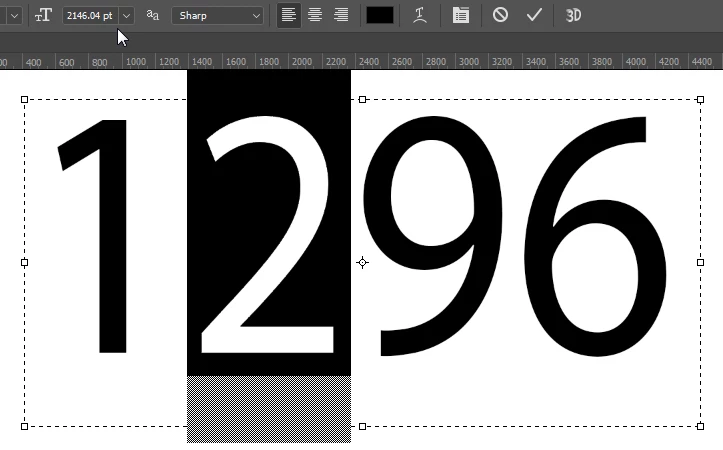
The maximum point size for text in Photoshop is 1296 points.

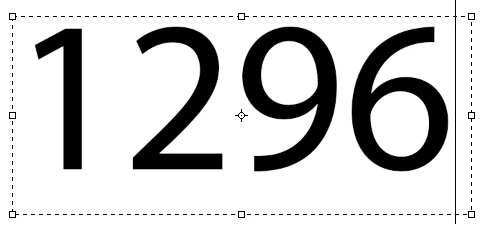
The '+' sign at the bottom right corner means that your text box is not large enough to contain all the text.

Start by making the text box small enough so that all of the text is visible (no + sign).

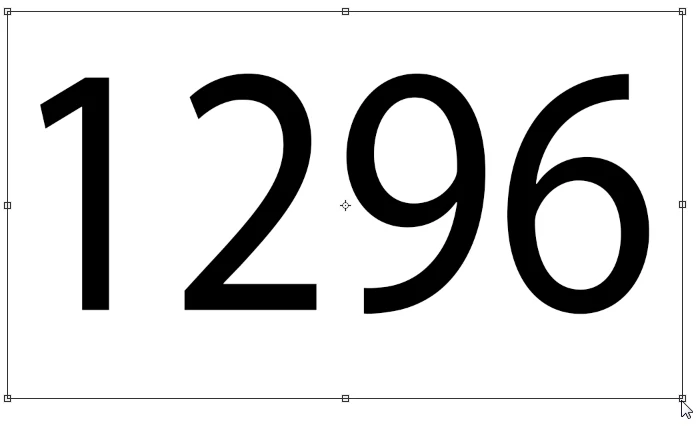
Switch to the Move tool.

Edit > Transform > Scale.

Hold down Shift to prevent distorting the text, and drag a corner handle until the text is the size you want. Release the mouse before releasing Shift.

When the text is highlighted with the Type tool, the point size will display in the Options bar.

2 replies

barbara_a7746676
Community Expert
barbara_a7746676Community ExpertCorrect answer
Community Expert
July 7, 2017

The maximum point size for text in Photoshop is 1296 points.

The '+' sign at the bottom right corner means that your text box is not large enough to contain all the text.

Start by making the text box small enough so that all of the text is visible (no + sign).

Switch to the Move tool.

Edit > Transform > Scale.

Hold down Shift to prevent distorting the text, and drag a corner handle until the text is the size you want. Release the mouse before releasing Shift.

When the text is highlighted with the Type tool, the point size will display in the Options bar.

MehrotraAAuthor
Participant
July 7, 2017

Thank you very much. Greatly appreciate your help.

barbara_a7746676
Community Expert
Community Expert
July 7, 2017

You're welcome!

Mohammad.Harb
Community Expert
Community Expert
July 7, 2017

i would suggest typing the text, then convert it to a shape layer by right click on the layer in the layers panel so you can scale it to any size as a vector layer