Participating Frequently
May 8, 2020
Answered

Photoshop - Curves works the other way around on Mac

  • May 8, 2020
  • 4 replies
  • 1821 views

Hi,

I teach Photoshop. One of my students has the following problem:

when he opens the adjustment layer Curves, the curves works the other way around.

When he drags the curve down, the photo gets lighter, when he pulls the curve up, the photo gets darker.

Also the histogram shows the highlights on the left and the shadows on the right. Input en output have changed places.

When he opens another adjustment layer like Levels, the problem does not occur, nor on other adjustment layers. The problem only occurs with the adjustment layer Curves.

i'm unable to help him, I tryed and searched online but I can't find a solution.

kind regards,

He works on a MAC.

Ann


{Thread title edited by moderator}
 

This topic has been closed for replies.
Correct answer nikunj.m

Hi Ann,

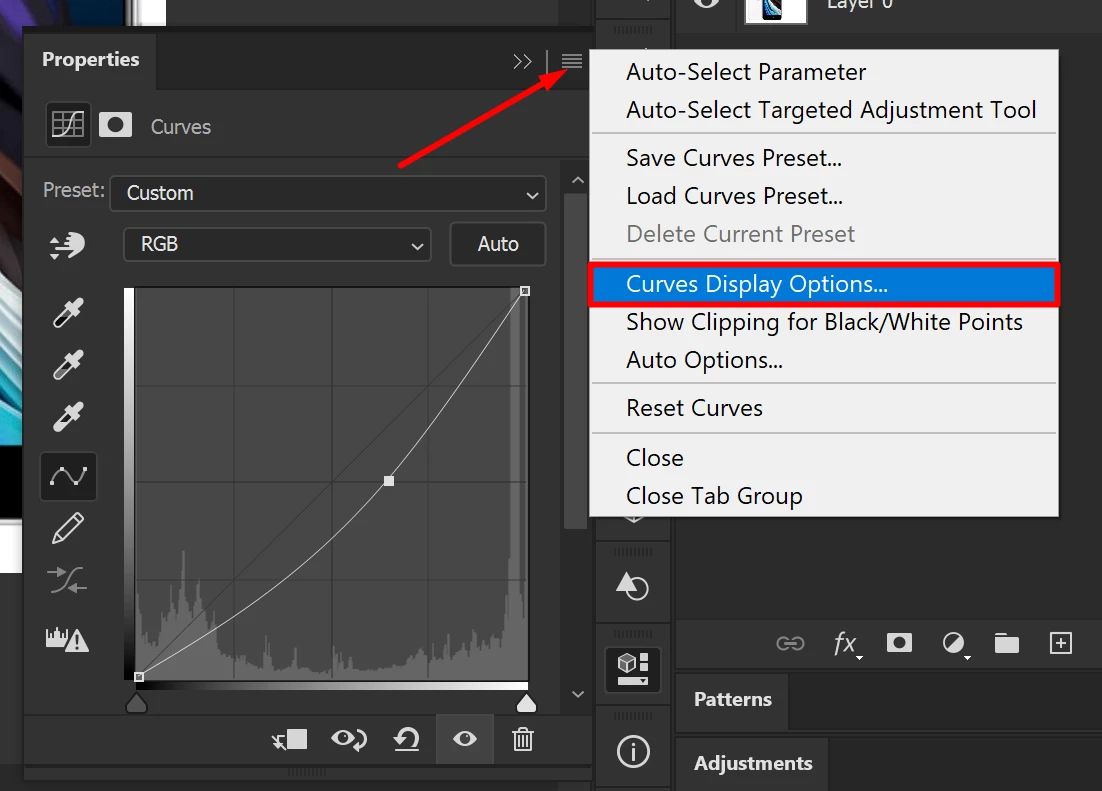
We’re sorry about the issue your student is facing. As suggested by c_pfaffenbichler, please ask your student to check the Curve Display Options. He can do that by going to the menu in the Curve properties window and selecting the option.


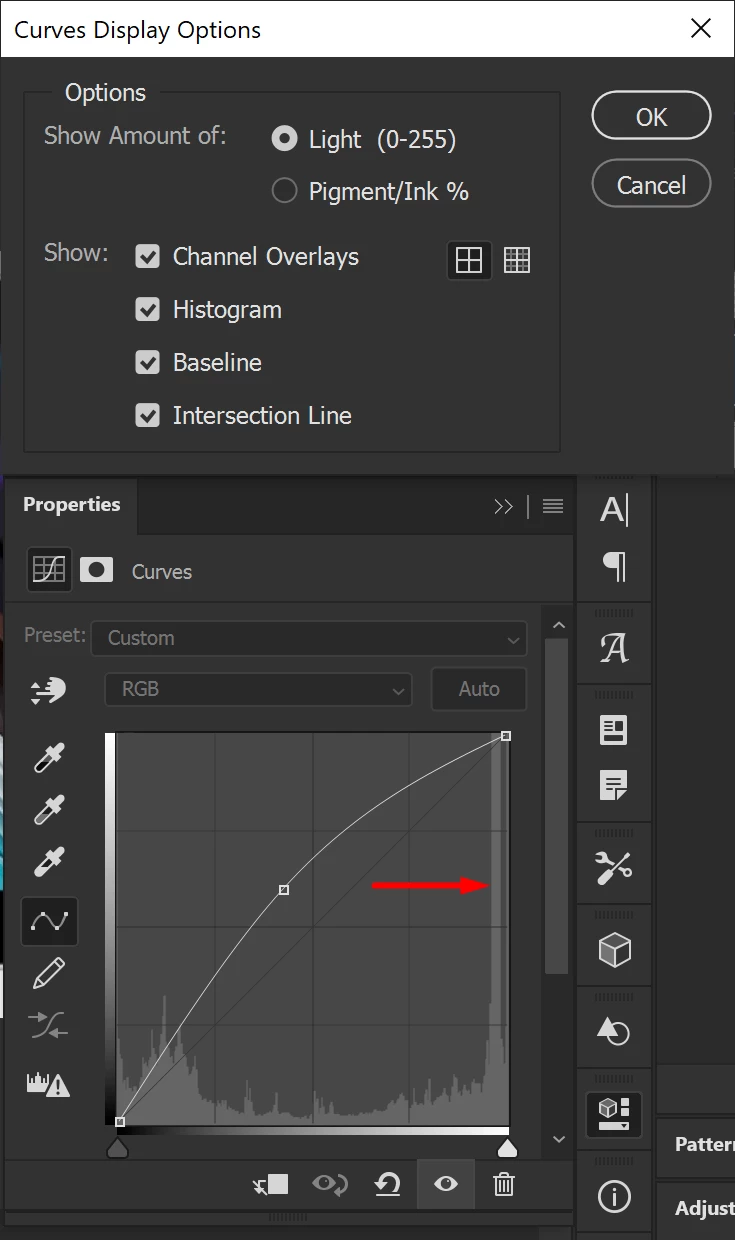
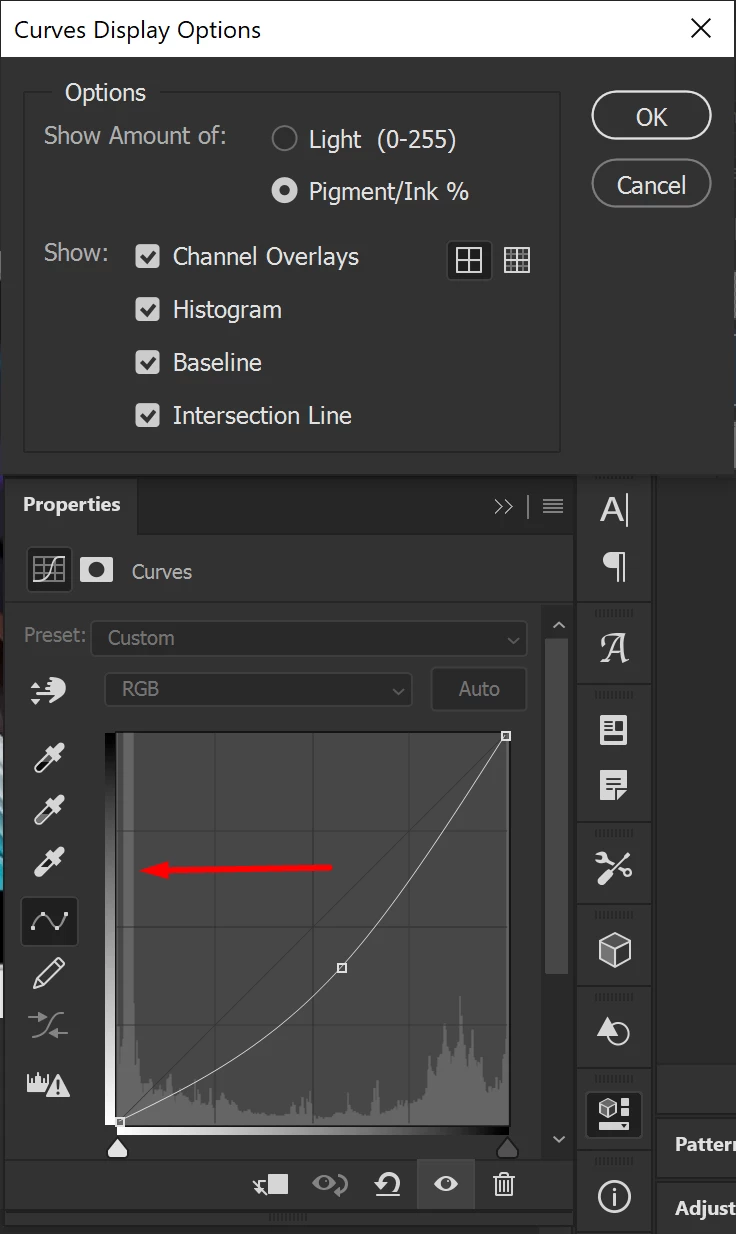
When the option for Pigment/Ink % is selected, the Curve works in the exact opposite to Light (0-255). As you can see in the screenshots below, the underlying histrogram is also inverted.


Regards,

Nikunj

4 replies

davescm
Community Expert
Community Expert
May 8, 2020

Check his colour mode. RGB and CMYK work the opposite way, with RGB defaulting to "Light"  and CMYK to "Pigment/ink".


Dave


nikunj.m
nikunj.mCorrect answer
Legend
May 8, 2020

Hi Ann,

We’re sorry about the issue your student is facing. As suggested by c_pfaffenbichler, please ask your student to check the Curve Display Options. He can do that by going to the menu in the Curve properties window and selecting the option.


When the option for Pigment/Ink % is selected, the Curve works in the exact opposite to Light (0-255). As you can see in the screenshots below, the underlying histrogram is also inverted.


Regards,

Nikunj

Participating Frequently
May 8, 2020

Hi,

Thank you very much mr or ms or mrs c_pfaffenbilcher and Nikunj, it works.

forever in your debt.


Kind regards,

Ann

c.pfaffenbichler
Community Expert
Community Expert
May 8, 2020

Could you please post a screenshot with the pertinent Panels (Toolbar, Layers, Properties, Options Bar, …) visible? 

c.pfaffenbichler
Community Expert
Community Expert
May 8, 2020

Is it set to show amount of »Light« or »Pigment«?