
Participating Frequently
September 21, 2011
Question

Photoshop diplays all images with desaturated colors (Images look fine when opened in other apps)

  • September 21, 2011
  • 4 replies
  • 103005 views

All of a sudden, when I open any image in Photoshop, the colors appear to be desaturated...In Photoshop only. When I open that same image in Window Picture Viewer, or Quicktimer, or even if I drag the image into a brower window, the colors appear fine. But in Photoshop, something is clearly wrong. Now, I can make color adjustments to the image, but when I save and reopen reopen it in another application, I can see that color changes have been made, but they still don't match what Photoshop is displaying.

The images are RGB image...I've checked the color space setings in Photoshop, and they are the default (Edit > Color Settings: North American General Purpose 2 / RGB: sRGB IEC61966-2.1 / CMYK: US Web Coated (SWOP) V2, etc, etc). I also made sure View > Proof Setup was set to: Working CMYK. I even reset Photoshop to it's default settings (by holding down CTRL-ALT-SHIFT on launching Photoshop)...But the images still appear desaturated when I open them in Photoshop...So, I don't understand how this is still a Photoshop problem...But then again, they look fine when I use any other application on my computer to open them, so it's clearly not an issue with my monitor.

The frustrating thing is, I haven't made any changes to Photoshop OR my monitor (that I know about)...Photoshop has worked perfectly for me for years, and now there's this SNAFU that I just can not figure out.

Any suggestions?

I've included a screenshot below to show the disparity between an image opened in Photoshop (on left) and Windows Picture Viewer (on right):
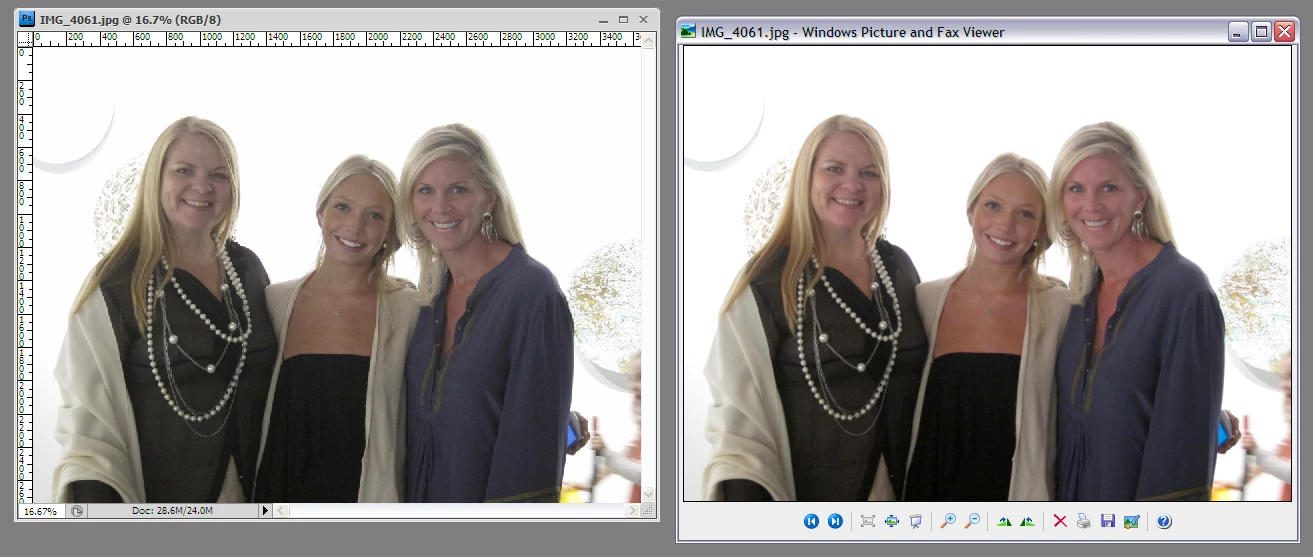
Photoshop image on left, with desaturated colors...Same image in Windows Picture Viewer on right, where colors appear normal.

Any and all help is much appreciated : )

Best,

-Austin

4 replies

Participant
January 3, 2012

Out of nowhere, never saw this before- years working in PS v.4.0 to CS5, I am having this exact problem as clearly stated by Austin in the original post.

No changes to my system or Photoshop CS5.

Images that I edited before this happened still look great on my compuer outside of Photoshop, but now, when opened in Photoshop they have very flat, open shadows.

Also images that I now edit to look correct in PS, look dark and contrasty when viewed in Windows Picture and Fax Viewer or other viewer - so this is a Photoshop issue.

Please, there must be someone that can offer a solution other than "try altering system setting to mask the issue".

Happy New Year!

Mike

Chris Cox
Legend
January 3, 2012

All the existing answers also apply to your case.

Noel Carboni
Legend
September 21, 2011

It's difficult to provide help without knowing your level of color-management expertise, but I think you've helped us some with that in post number 2.

Color management is basically this:  Images and devices have certain color characteristics, and these are described by color profiles, sometimes also called color spaces.

1.  You should not need to use the Proof Setup at all to view your images on your monitor.  When things are set up properly Photoshop shows you accurate color without your choosing View - Proof Colors.

2.  A color-managed application like Photoshop will try to show you accurate color on your display by interpreting both the image profile and your monitor profile and transforming the colors accordingly.  BY DEFINITION this will look different than other applications which don't do color-management as these just pump the image RGB values directly out to the display. 

Thus:

  • If your monitor profile indicates your monitor has a wide gamut, images with embedded profiles may appear less saturated inside Photoshop than from non-color-managed apps.

  • If you view images that have an embedded wide gamut profile (such as Adobe RGB 1998 or ProPhoto RGB), Photoshop and other color-managed applications will interpret that profile and the colors will likely appear more saturated in Photoshop than in a non-color-managed application.

It sounds as though the first case applies in your case here.

You can check to see what monitor profile is associated with your monitor through OS settings.  I'm thinking, based on the caption buttons in your screen grab, that you've got Windows XP, but rather than go further with that assumption, I'll ask you to verify it first.

-Noel

Participating Frequently
September 21, 2011

Yes Noel, I am using Windows XP.

I don't know a ton about color managment...I know the difference between working in CMYK and RGB, and I also know enough to know not to mess with/change any of those color default settings! And I really don't think I had changed anything (unless I hit a strange combinaton of buttons that changed something).

Also, in response to your comment :"BY DEFINITION this will look different than other applications which don't do color-management"...That actually has not been the case, for the years that I've been working in Photoshop, on many differernt computers. My experience has been that what I have open in Photoshop looked the same as (or at least very, very similar to) how the image was displayed in Windows Photo Viewer...Up until this recent change.

So, to get back to your first point...I don't want to have to use Proof Setup, especially since it seem as though I hae to engage that every time I open up a photo. I just want my Photoshop to work properly! I've already reset the default settings...Do you think I need to uninstall/reinstall Photoshop?

The colors on my monitor in pretty much every other program looks fine (although Adobe Bridge matched the desaturated color shift that I'm seeing in Photoshop)...This is a color problem that only appears to be happening within Photoshop, and it is something that has previously never happened before, on this computer, or any other. So, what do you think my next step is in trying to troubleshoot this? You mentioned something with the OS settings, but if something was wrong there, wouldn't that have an effect on colors universally throughout my computer, and not just in Photoshop?

Chris Cox
Legend
September 22, 2011

Hi Noel,

If that happened (Windows Update), wouldn't it have affected many people's computers? At any rate,I did what you suggested...The color profile that I was defaulted to was 2408WFP (whatever that is.)...I reselected sRGB COlor Space Profle (clesoest choice to what you mentioned), but didn't see any change : (

FYI, these are the color profiles that I had to choose from...Is there something else I should have selected?:

I've     


Try the AdobeRGB profile and see if that helps (it should be similar to your display gamut).

You may also want to check the display and see if you set to to "sRGB emulation" or anything else that would change it away from it's default state.

Inspiring
September 21, 2011

AustinHand wrote:

... I also made sure View > Proof Setup was set to: Working CMYK. ...

May be that's your problem, have you been working like that all the time before? The rgb color space of your monitor is much wider than a CMYK space, so you should expect to see a difference when displaying the same image in the two color spaces if the colors are outside the CMYK color space.

If you want to make Photoshop display the image like non-color managed programs on your monitor you have to choose View > Proof Setup > Monitor RGB. However that doesn't affect the image (file) itself but only how it is displayed and may not be the true colors that will be reproduced at a final destination other than your monitor.

the system color settings are in the Color Management Control panel assessable from Windows Start menu > Control panel

Participating Frequently
September 21, 2011

"AustinHand wrote:

... I also made sure View > Proof Setup was set to: Working CMYK. ...

May be that's your problem, have you been working like that all the time before?"

I haven't knowingly changed any settings, which is why this is all so confusing.

"choose View > Proof Setup > Monitor RGB"

OK, I did that, and the photos look much better...It still doesn't exactly match the original photo when it is opened in Windows Picture Viewer, but it's very close. But do I have to select that every time, for every photo I open? It seems like that is what's happening.

Which begs the question: Is changing the Proff Setup a work-around that is not going to address the problem? I want to figure out what happened, and how to get my Photoshop working the way it normally was!

Chris Cox
Legend
September 21, 2011

Your display profile does not match your display (or settings on the display). Fix the display profiile in the system color settings -- pick one that matches the display, or let the OS read the calibration from the display itself.

Participating Frequently
September 21, 2011

Thanks Chris...But how do I do that? Where are the sytem color setings? Thanks again : )

-Austin