
Participating Frequently
January 13, 2013
Answered

photoshop eraser not working

  • January 13, 2013
  • 3 replies
  • 50747 views

Hi there

Perhaps I am missing something really simple here, however the eraser tool and other methods of getting to transaperency are not working. Perhaps it is a problem with locked background colours or something, however my eraser tool is defaulted to erase to white not transparent - see picture. Please can you help me out??

have tried ctrl+shift+alt at start up to restore to factory settings, and even uninstalled and reinstalled the program, but no luck. also when i go to refine edge after a quick selection, there's no transparent option

please help!!! have been on this for some time not being able to figure it out

also im working with .png file not jpeg

thanks for your time

huey
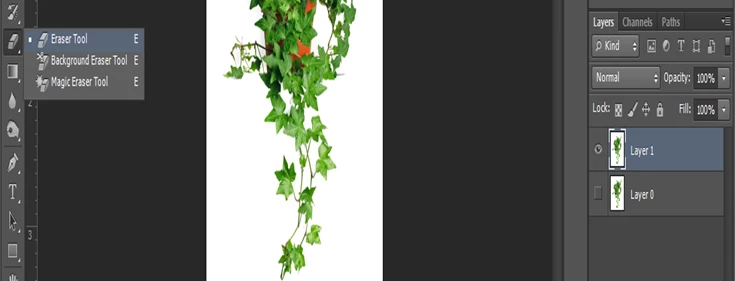
This topic has been closed for replies.
Correct answer ryanm87271701

I had the same problem, and after an hour of troubleshooting (resetting tools, resetting all tools, selecting different brushes, tips, etc.), I realized my mistake.

I had enlarged my project to a very high scale, and in so doing, I did not realize that I had previously Selected a small portion of my project with the Magic Wand Tool.  For some reason, I have had a difficult time Deselecting this tool...opening other tools, clicking outside the border of my project, etc. I can eventually get there, but when I switched over to my Eraser Tool, the Magic Wand Selection was still active. When this Magic Wand Selection is still active, the ERASER WILL NOT WORK!!!

The solution is as simple as CTRL-D to Deselect the active Magic Wand Selection, and then the eraser will start to work.

I felt so silly once I realized what I had done, but the relief of being able to get back to work far outweighed the shame.

3 replies

Participant
January 20, 2021

This was my exact mistake, thank you for saving me a LOT of time and headache!

ryanm87271701
ryanm87271701Correct answer
Participant
July 15, 2019

I had the same problem, and after an hour of troubleshooting (resetting tools, resetting all tools, selecting different brushes, tips, etc.), I realized my mistake.

I had enlarged my project to a very high scale, and in so doing, I did not realize that I had previously Selected a small portion of my project with the Magic Wand Tool.  For some reason, I have had a difficult time Deselecting this tool...opening other tools, clicking outside the border of my project, etc. I can eventually get there, but when I switched over to my Eraser Tool, the Magic Wand Selection was still active. When this Magic Wand Selection is still active, the ERASER WILL NOT WORK!!!

The solution is as simple as CTRL-D to Deselect the active Magic Wand Selection, and then the eraser will start to work.

I felt so silly once I realized what I had done, but the relief of being able to get back to work far outweighed the shame.

Leslie Moak Murray
Community Expert
Community Expert
January 20, 2021

I came here to say this! I've done this too haha

c.pfaffenbichler
Community Expert
Community Expert
January 13, 2013

Could you please post a screenshot with the pertinent Panels and the Options Bar visible?

Also of the Photoshop > Preferences > Transparency & Gamut dialog?

Huey86Author
Participating Frequently
January 14, 2013

Hi there

Thanks for your prompt response

here is a thread that may be of relevance - http://forums.adobe.com/thread/735397

am i deleting to white, how do i change this?

Here is the image (full screen). in the image in my earlier post, you can see the white little box next to the eraser tool

thanks for your time

huey

Huey86Author
Participating Frequently
January 14, 2013

Sorry to respond to soon after the initial post, however there's an extra detail. Perhaps there is something funny with the default start up file, because when I launch photoshop, it starts with the eraser tool if I close with the eraser tool selected. Is this odd or usual? Thanks again