

$1949Leslie
Known Participant
June 26, 2021
Answered

Photoshop eraser suddenly painting the background color

  • June 26, 2021
  • 3 replies
  • 4952 views

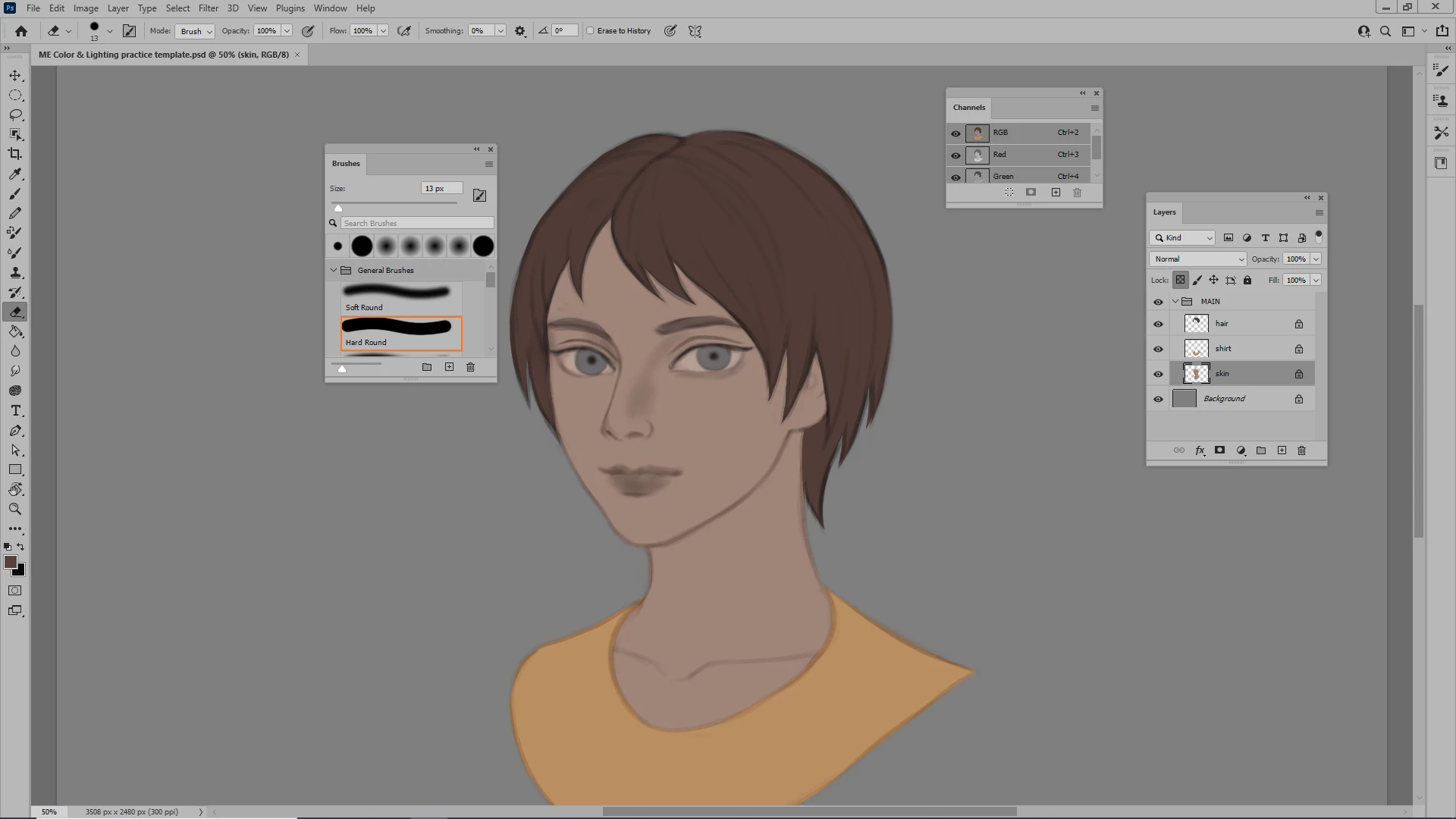
Why is the Photoshop Eraser Tool suddenly painting the background color?  I  reset the tool, reset the workspace, unlocked the pixel locking, etc. and I still have the same problem. It was working fine yesterday
    This topic has been closed for replies.
    Correct answer Bojan Živković11378569

    I am not sure what are you reffering in the first place. Perhaps you are a bit confused? If you are erasing pixels on layer it is normal to see what is below, in your case that is grey  background color.


    From what I see your background color is black? If you still have problem click on the first icon next to Lock ti uncheck it then try again.

    3 replies

    Norman Sanders
    Legend
    June 26, 2021

    Perhaps it is a gentle reminder that you shosuld be using masks instead of the Eraser tool. 

    $1949Leslie
    Known Participant
    June 27, 2021

    Good reminder about masks, thanks!

    ...........I don't know what I was thinking, I feel like an idiot!!!  Of course the eraser is going to reveal what is below.....  lol 😕😕

    Bojan Živković11378569
    Community Expert
    Community Expert
    June 26, 2021

    I am not sure what are you reffering in the first place. Perhaps you are a bit confused? If you are erasing pixels on layer it is normal to see what is below, in your case that is grey  background color.


    From what I see your background color is black? If you still have problem click on the first icon next to Lock ti uncheck it then try again.

    jane-e
    Community Expert
    Community Expert
    June 26, 2021

    Type "D" to reset the colors so the Background color is white again. The eraser tool always "erases" to the Background color. You can also click the button (marked) to restore the default swatches.


    ~ Jane