
Photoshop guides
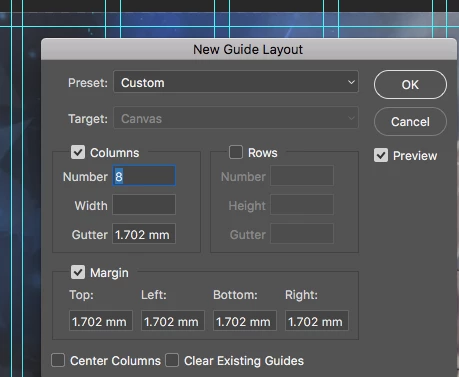
I have question that will no doubt sound stupid to those of you familiar with Photoshop, whereas I'm coming from an Indesign perspective so I'm a little bit confused and would appreciate some help. Basically I've decided to create an artwork in Photoshop that I would probably normally build in Indesign, but I'm trying to do it a different way. When setting up a document I noticed that you cannot set bleed to your artboard/document size in the same way as Indesign. So my initial thought was to create the document 4mm bigger in height and width and then drop in some guides to allow me to visualise the bleed. My thought was I would snap a guide to the edge of the document and just type in -4mm into the x or y axis for the guide to be put in place. However here is my problem, there is no editable window or box that displays where the x/y axis of the guide is. If I grab the guide and move it manually a little box will appear telling me the location, but obviously disappears as soon as I release the guide and doesn't allow to manually enter the desired position. I've tried going through the menus and trying to find something that sounds like something I'm looking for but cannot seem to find it. I'm assuming what I'm trying to do is easy, it's just a matter of knowing which window or option I need to click to display what I'm after.
Any help would be appreciated.
Cheers.
 AdChoices