Inspiring
November 12, 2021
Answered

Photoshop image gets blurry after I commit transform

  • November 12, 2021
  • 2 replies
  • 8556 views

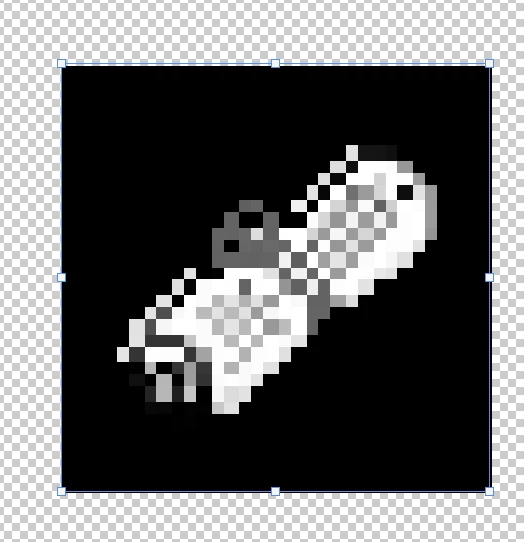
The image was clear at that time. When I resized it, it was clear and I clicked commit transform it turn blurry

Resized (Havent click commit transform)
 

After commit transform
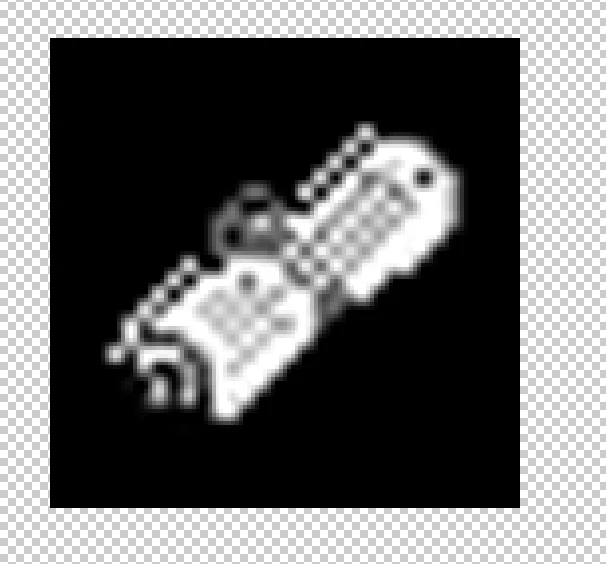
How can I fix this? Did i set the settings wrongly? I set this to 1920x1080 with landscape mode

This topic has been closed for replies.
Correct answer PECourtejoie

Hi, did you select neirest neighbor as the resizing algorithm (for pixel based images, go to edit>Preferences>General Image Interpolation ,and select Neirest Neighbor? Did you scale an even number of pixels?


If using image size, see: https://www.photoshopessentials.com/basics/how-to-resize-pixel-art-in-photoshop/

2 replies

PECourtejoie
Community Expert
Community Expert
November 16, 2021

@Sciencio5EC6 any news, were you able to try other algorithms for resizing?

PECourtejoie
Community Expert
PECourtejoieCommunity ExpertCorrect answer
Community Expert
November 12, 2021

Hi, did you select neirest neighbor as the resizing algorithm (for pixel based images, go to edit>Preferences>General Image Interpolation ,and select Neirest Neighbor? Did you scale an even number of pixels?


If using image size, see: https://www.photoshopessentials.com/basics/how-to-resize-pixel-art-in-photoshop/

Earth Oliver
Legend
November 16, 2021

That reminds me that i need to follow up on a FR... why do we still not have an interpolation dropdown for smart objects? We've got one for regular layers, but SOs have to be changed in the Prefs? So silly.

Earth Oliver
Legend
November 17, 2021

https://community.adobe.com/t5/photoshop-ecosystem-ideas/p-ability-to-choose-a-smart-object-s-interpolation-method/idi-p/12249327


Thanks Jeff! I believe I filed the official request some years ago too, but it may have been so long ago that it got lost in the migration.