
Known Participant
July 9, 2025
Question

Photoshop image size

  • July 9, 2025
  • 5 replies
  • 461 views

Hi all,


I wanted to place this photo in a project in Indesign, but i'm struggling with the image size. I have searched the internet for standard sizes and I now want to make this photo 800 pixels and 300dpi. But when do you have the right size without it becoming pixelated? Is there a way to estimate the correct size for placing images in InDesign? Or a standard to work from?
5 replies

Conrad_C
Community Expert
Community Expert
July 10, 2025
quote

I wanted to place this photo in a project in Indesign, but i'm struggling with the image size. I have searched the internet for standard sizes and I now want to make this photo 800 pixels and 300dpi. But when do you have the right size without it becoming pixelated? Is there a way to estimate the correct size for placing images in InDesign? Or a standard to work from?

By @Stefanie Langwerden


The principle is relatively simple: Start from your printing requirements including ppi resolution, and once you have those, you know how many pixels you need. There are only three sets of numbers involved:

  • PPI resolution recommended or required by the printing company 
  • Image width/height, in pixels 
  • Image width/height that you need the image to be on the page layout in InDesign, in inches/centimeters 


Using your image as an example:


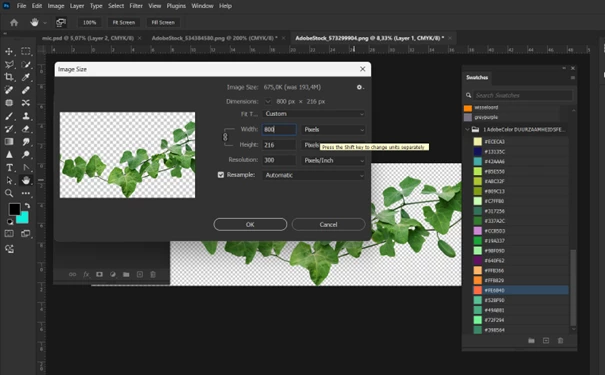
Your screen shot shows the Image Size command in Photoshop, with the dimensions 800 x 216 pixels. In a later reply you said it must be suitable for printing at 300 ppi. Those are two of the numbers we need; the third is how many inches (or cm) long the image must be printed on the page. But we can figure that out from the other two numbers.


800 pixels / 300 ppi = 2.66 inches. So…


The 800 x 216 px image will achieve 300 ppi if printed at 2.66 inches wide or less.

If printed more than 2.66 inches wide, the ppi resolution will drop below 300 ppi.


If you are saying InDesign reports the effective resolution as 1282 ppi, we can figure out how wide it is in InDesign… 1282 ppi / 800 px = about 1.6 inches wide. Is that how wide it is currently in InDesign?


In other words, when you watch the Effective Resolution in InDesign, it’s doing all of those calculations for you, and that’s why the Effective Resolution changes are you resize the image in InDesign. Because when you change the image size on the layout, you are redistributing the 800 pixels wide across fewer or more inches on the printed page, changing its ppi resolution (changing its pixel density).


Another way to look at this: What if you needed the image to be printed 10 inches wide at 300 ppi? Well, 10 inches * 300 ppi = 3000, so the original image would have to be at least 3000 px wide, not 800 px wide. If you were to lay out the 800 px wide image in InDesign at 10 inches wide, its Effective resolution could only be 80 ppi (800 px / 10 inches).

Trevor.Dennis
Community Expert
Community Expert
July 10, 2025

Conrad, at my camera club, and even with PSNZ members, nothing caused more confusion than image sizes.  That sometimes included the people setting international Exhibitions, who would state the pixel size for digital entries, and add a DPI requirement.  Those entries would never be printed at full size, and when the winning entries were printed in catalogs, the DPI would still be irrelevant.  Even without that confusion people would forever misunderstand the width x height limitation.  The current size for digtal entries has been 1620 x 1080 for a good few years but you would always receive entries that were 1080 x 1620.  I got it wrong myself when I first joined the camera club. I kept wondering why my digital entries looked so dull when projected, which turned out to be because they were still in Adobe RGB. 😞

Trevor.Dennis
Community Expert
Community Expert
July 9, 2025

Hi Stefanie.  Jane was asking what the original size of the leaf image was in pixels.  That's what counts here.

If you are only increasing it to 800 pixels wide, then it sounds like the original must have been tiny.  

So the question becomes do you absolutely have to use that image, or could you find another?


Where did the image come from?
If from someone else, ask them to send it again at full resolution.

If you found it with Google, then click on Tools > Size and choose Large


If you absolutely have to use that image, then if you paste it to this thread at its full resolution, I have an Ai upscaler plugin that will double its size.  Using it on your downsized screen shot gave it some problems, and I suspect it has lost a lot of the edge detail.  I'm guessing either Sycamore or London Plane, but it is a huge guess with so little detail to judge from.


jane-e
Community Expert
Community Expert
July 9, 2025


quote

I now want to make this photo 800 pixels and 300dpi. 

By @Stefanie Langwerden


What is the original PPI and size in pixels? 

When you make changes in Photoshop, they are permanent, so be sure to do it on a copy of the image. When you scale in InDesign, it is non-destructive. Be sure to watch both the PPI and the Effective PPI.


Jane

Known Participant
July 9, 2025

in Indesign my Effective ppi is 1282. the actual ppi is 300.

stefaniedesigns
Stephen Marsh
Community Expert
Community Expert
July 9, 2025
quote

in Indesign my Effective ppi is 1282. the actual ppi is 300.


By @Stefanie Langwerden


Effective PPI (no resampling) is related to physical print size.


If your effective resolution is 1200+ PPI and your original resolution is 300 PPI, the the image has been placed smaller than 25%.


You have ample pixels, in fact too many.


When exporting a PDF from InDesign you can elect to resample the content to a target PPI if it's above a specified threshold.


Otherwise, resize a copy in Photoshop to the final required print size and resolution. This allows you to interactively select the best resulting interpolation/resampling algorithm for the image content and apply sharpening to account for softnesses introduced by resampling or applying stronger sharpening for print output.

Glenn 8675309
Legend
July 9, 2025

What are you going to do with the final design?   Commerically printed, like on a menu, or is it for online use, like in a website?    

Known Participant
July 9, 2025

The final file must be suitable for printing at 300 dpi.

stefaniedesigns
Kevin Stohlmeyer
Community Expert
Community Expert
July 9, 2025

@Stefanie Langwerden unfortunately you can't just magically upres or increase the size of an image without sacrificing quality. You can try other options like super resolution in LR https://www.adobe.com/products/photoshop-lightroom/super-resolution.html or using an AI model to increase the size.


Sizing and placing images in InDesign depends on the output (print, web, pdf, etc) and the size of the document/image frame. I don't always practice what I preach but when it comes to InDesign - scale of the placed image makes a difference. Ex. anything over 140% will start to look soft/degraded, while anything under 50% can also look poor quality and wastes file size. When you increase or decrease images in InDesign - it resamples the effective resolution, meaning when you increase it drops resolution (similar to resample in Photoshop Image Size) and then you reduce it increases effective resolution. 


If you are creating the images, I would overshoot sizes so if needed you can reduce slightly without risking quality.