
Participating Frequently
November 8, 2012
Frage

Photoshop not presenting alpha channel as expected (like I'm seeing GIMP does)

  • November 8, 2012
  • 5 Antworten
  • 37876 Ansichten

Greetings,

I have a need to edit the channels independently (the values in my image mean things numerically rather than just what it looks like visually - so I need to edit the grayscale values in each of the R - G - B - and A channels seperately).

I've searched through google and other forum posts and others bring up the concept of not understanding alpha versus transparency - but I have yet to see an explanation that fully explains what I'm experiencing.

The closest was http://forums.adobe.com/message/2563436#2563436 But while I saw the exact same symptoms being described, the specific question was never really answered.

Hopefully, a concrete example with pictures will be able to communicate the issue and solicit a useful explanation and/or solution.

While, I'm specifically working with an RGBA image, below is a screenshot of a PNG that demonstrates the exact same behavior or symptom.  The screenshot below represents the PNG inside GIMP and PS CS4.  BTW, if you'd like to see or play with the image yourself, you can grab the same image at http://www.libpng.org/pub/png/img_png/imgcomp-440x330.png
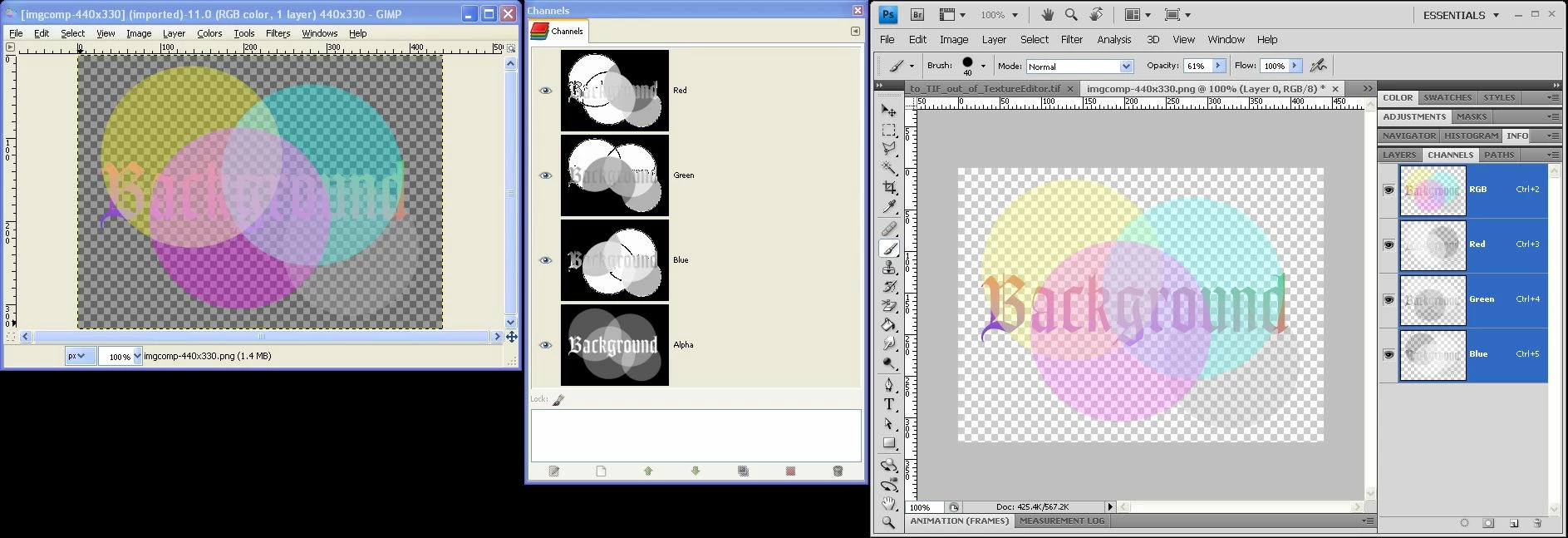
GIMP, interestingly enough loads the PNG as expected - I see the transparency of the image treated as a true alpha channel.

In PS CS4 however, the transparency seems to be somehow embedded in the Red - Green - and Blue channels; but NO seperate alpha channel.

I can create the alpha channel through Select - Load Selection - Layer 0 Transparency - and pasting that into a newly created alpha channel - but the color channels still have the transparency mixture symptom - rather than showing the JUST the color component of that channel.  (Note the channel differences of the GIMP's Red Channel versus PS's Red Channel  - Said in another way, the yellow ball in the upper left of the image should have a red value of 255, so the Red Channels grayscale upper left ball should be white like it is in GIMP, rather than Gray as it is in PS).

I never thought I'd experience GIMP being superior to Photoshop - so hopefully somebody can shed light on what is going on - what configuration I may have myself in - or a process to get the channels seperated out in the manner I wish to work with them.   Furthermore, maybe somebody can educate the Photoshop community what the difference between transparency and alpha[transparency] is.  I haven't found quite the right explanation that makes the light go off in my head yet.  As best as I have gleened "Alpha", which can be applied to any kind of channel, typically is in reference to transparency - and is applied as a document-whole transparency (as opposed to transparencies applied at a layer level - such as a layer mask).

    Dieses Thema wurde für Antworten geschlossen.

    5 Antworten

    JJMack
    Community Expert
    Community Expert
    November 8, 2012
    Jeff Arola
    Community Expert
    Community Expert
    November 8, 2012

    If you just want to recover the transparency so you can edit it, it's easy to do on a file like that in cs4.

    There are several ways including a pixel bender plugin, but the easiest is to Ctrl click on the layer and save

    the resulting selection to an alpha channel.

    Then Select>Deselect and do Ctrl+J (layer via copy) and Ctrl+E (merge layers).

    Repeat the above 8 more times, load the selection from the saved alpha channel and add a layer mask.

    After the above steps:

    Shift click on the layer mask to see the image without the mask

    Semaphoric
    Community Expert
    Community Expert
    November 8, 2012

    Transparency is in fact the Alpha, but is not directly editable as the other channels are. The way I've worked around this is to use the ancient Filter Factory plugin (32-bit only). Load and save the transparency selection, as you've done. Edit that and the color channels. Load the saved selection as an active one, and run the Filter Factory with 255 in the A field. This will replace the current transparency with your edited version. Now, save the file (you may want to delete the saved and edited alpha, since it has been copied into the transparency).

    Noel Carboni
    Legend
    November 8, 2012

    Long story short:  It's working properly, as designed.  Photoshop embraces the concept of transparency - it has for years.  As pointed out above, there are multiple ways to manage it (e.g., layer transparency or masks), though I think the Layer Mask from Transparency feature may have gone in in Photoshop CS5.

    Not to put too fine a point on it, but when Gimp and Photoshop differ, it's Gimp that's not performing up to "standard". 

    -Noel

    gener7
    Community Expert
    Community Expert
    November 8, 2012

    Noel Carboni wrote:

    Not to put too fine a point on it, but when Gimp and Photoshop differ, it's Gimp that's not performing up to "standard". 

    -Noel

    Noel,

         I would be interested in a reference to the differences between Photoshop and Gimp. Is there document/link out there that would explain those differences and where Gimp does not perform up to standard?

    Gene

    Noel Carboni
    Legend
    November 8, 2012

    Hi Gene,

    I am not a Gimp expert nor do I know of much in the way of documentation, BUT, what I was getting at is that one does not normally expect to see the leading professional graphics software measured to the standard of freeware.  The "thing" that most would expect to compare to in common language would be that which is considered the leader.

    Ask yourself:  When people mean to ask "Has that image been manipulated digitally?", do they say (in slang), "Has that been Photoshopped?" or do they say "Has that been Gimped?"

    Whether Gimp actually might work better is an entirely different conversation, and one I'm just not qualified to have.

    -Noel

    conroy
    Participating Frequently
    November 8, 2012

    Open the PNG then do "Layer > Layer Mask > From Transparency" to make the image opaque with a layer mask causing transparency. Shift-click the mask thumbnail to disable it and make the image and its channels opaque.

    You might find the SuperPNG plug-in useful: http://www.fnordware.com/superpng/

    .

    Participating Frequently
    November 8, 2012

    That is what I'd like to see, but unfortunately I don't seem to have the option of "Layer > Layer Mask > From Transparency" in Windows Photoshop CS4 .

    Participating Frequently
    November 9, 2012

    I guess I just don't see a problem manipulating R, G, B, and a layer mask.

    The Layer Mask is available in the Channels panel if you want to manipulate it directly, and you can view the RGB with or without the transparency just by shift-clicking on the layer mask to disable/enable it.

    Seems like everything that's needed to me.  Did I miss something?

    -Noel


    Noel Carboni wrote:

    Seems like everything that's needed to me.  Did I miss something?

    The issue is, if I'm trying to read an .rgba (which Photoshop is seeming to have an issue with) I don't have the benefit of a feature that can load "Alpha appear as a seperate channel" with just ANY format - only PNGs using the SuperPNG plugin.

    Futhermore, if I manually construct a image in Photoshop using the layer mask approach, I STILL have an additional step of moving the layer mask back out to [alpha] channel so that I can write out into .rgba properly (no format that supports transparency like.rgba or tiff,  will give you the  Save Option of "Alpha Channels"  unless the transparency is correctly placed in a true "Alpha" channel - as opposed to a Layer Mask).

    BTW, I have a different issue now where Photoshop CS4 won't even read my .rgba's - It seemingly writes them correctly -  once you move the transparency layer mask out to an Alpha Channel and save with PhotoShop -  I can read an .rgba with GIMP just fine.  but if I try to read this very same file into PhotoShop - Photoshop CS4 gives me a "Could not complete your request because of a program error."  Does anybody know if there is potentially a newer version of the SGI .rgba plugin than what I'm using (or some configuration I need to be aware of)?

    So in summary - I didn't think the format would matter for the capability I was trying to ask (unfortunately, since there was a path with SuperPNG that led us down a road that was not available to the true format that I was ultimately going to deal with - apologies - my intent was to find an example the simply demonstrated the way CS4 dealt with alpha - which I still argue isn't as flexible as it should be). I think it was still useful to have the SuperPNG to help figure out what was going on.

    Looks like I just need to upgrade to CS6; but unfortunately, there are still some manual steps to move around the layer mask to a true channel alpha mask just before writing.  (and potentially a bigger issue with the .rgba reader plugin).

    I was just surprised I have to do this much wrangling with Photoshop.